
Operating systems for companies: what to run in 2026
A guide to operating systems for Indian companies in 2026: ageing PCs after Windows 10, whether to buy AI PCs, the security baseline, and how to choose.
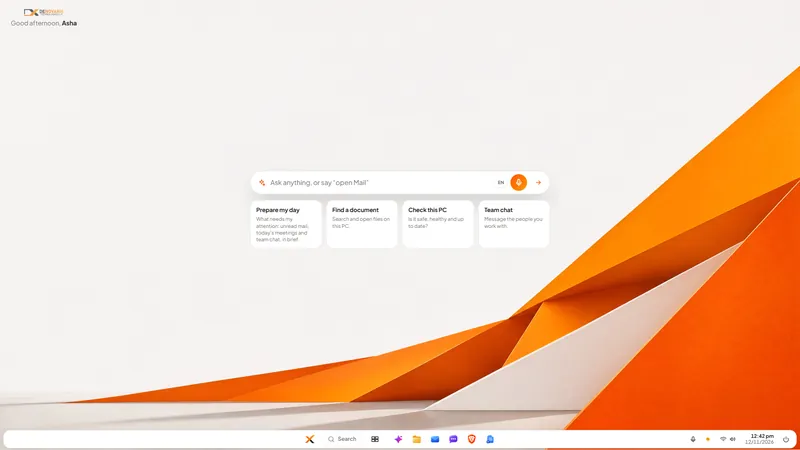
The short answer: decide the operating system desk by desk, not for the whole company at once. For each PC ask three questions: does this desk depend on software that exists for only one system, is the machine still receiving security fixes, and can it be encrypted and managed? A desk tied to Windows-only software stays on a supported Windows. A desk that does general office work, such as documents, mail, chat and the browser, has more choices than it had two years ago, including keeping an older PC in service safely. Do not buy new hardware only to get AI.
This page gathers what we have written about choosing and running the system on company PCs, in the order the decisions usually arrive.
Why is this a question in 2026 at all?
Because three things changed at once.
Windows 10 reached the end of support. Microsoft ended support on 14 October 2025. The PCs still work, but they no longer receive security fixes unless the organisation pays for Extended Security Updates, which cost US$61 per device for the first year, double each year, and stop after three years. Many office PCs cannot move to Windows 11 because of its hardware requirements.
"AI PC" became a product category. New machines are sold on the promise of AI features that need a special processor. Whether a small company needs them is a fair question.
The security baseline moved. Sign-in is moving from passwords to passkeys, disk encryption switches itself on for more PCs, and device management is now included in ordinary business subscriptions. What was optional for a small company is becoming expected by its customers.
So a decision that used to be made by default, by whatever came on the laptop, now needs making deliberately.
What does an operating system need to do for a company?
Set aside brand names for a moment. From a business owner's side, the system on each PC has six jobs:
| Job | What to check |
|---|---|
| Run the software the desk depends on | List the applications per role, and note any that exist for one system only |
| Stay patched | Is it still supported, and do updates install without someone remembering? |
| Protect a lost device | Is full-disk encryption on, and is the recovery key stored? |
| Be manageable | Can one person see every device's state and act on a missing one? |
| Need no retraining | Can staff find Start, files, settings and their apps without a course? |
| Not surprise you on cost | What do you pay per device or per user, and for how long? |
The first row decides most cases. An accounting package or a machine controller that exists only for Windows fixes that desk's system, whatever else you prefer.
What are the options for an ageing PC?
For each old PC that cannot simply be upgraded, there are five real options:
- Upgrade it, if the hardware qualifies.
- Pay for extended updates to buy time. This is a bridge with a known end, not a destination.
- Replace it. Sensible for machines that are slow as well as unsupported.
- Give it a different operating system that still receives updates and runs on that hardware. This suits desks that do general office work.
- Retire it properly. Wipe the disk and dispose of it in line with India's e-waste rules, as the article below explains.
The worst option is the common one: doing nothing, and running unpatched machines on the office network. If you remember one line from this page, make it that one.
Should a company buy AI PCs?
When you are replacing machines anyway, yes, it costs little extra to be ready. Only to get AI, no.
An AI PC in Microsoft's sense, a Copilot+ PC, needs a processor with an NPU, 16 GB of RAM and 256 GB of storage. But on-device AI in 2026 is moving the other way, towards small models that run on ordinary processors with a few gigabytes of memory. So an existing fleet is not shut out of on-device AI by its age alone. The guide to private and on-device AI covers what such models can and cannot do.
What security should every company PC have?
A baseline that needs no security team, only an hour per machine and one named person:
- Multi-factor sign-in on email and anything involving money or customer data.
- One account per person; no shared passwords.
- Every laptop encrypted. Checked, not assumed.
- Recovery keys stored where the owner and one other person can reach them.
- Automatic updates on, and someone who confirms they are happening.
- The firewall on, and an automatic screen lock.
- A device list: who has what, and its state.
- A written step for a lost device.
Two cautions from the articles below. Automatic encryption often does not switch on for PCs set up with a local account, which is how many small offices set theirs up, so look at each one. And CERT-In's directions require specified cyber incidents to be reported within six hours of noticing them, so know who would make that report.
How do you choose, desk by desk?
- List the roles, not the people: accounts, sales, design, front desk, field.
- For each role, list the applications. Mark any that exist for one system only.
- List the PCs with age, memory and whether they are still supported.
- Match. Desks with tied software keep a supported version of that system. General office desks are where you have a choice.
- Pilot with five people for two weeks before changing anything for everyone. Open your ten ugliest real files.
- Decide the security baseline once, and apply it to every machine whatever it runs.
A mixed office is normal. It is better to run two systems deliberately than one by accident.
Where does DNX OS fit?
We build one of the options, so this is a vendor's description. DNX OS is a standalone operating system for businesses. It runs on ordinary 64-bit Intel and AMD PCs and laptops, with 4 GB of RAM as the minimum and 8 GB recommended, and needs no graphics card. The desktop has a Start button, a taskbar and one search for apps, files and settings, so staff used to an office PC can sit down and work. It includes an office suite that opens and saves Word, Excel and PowerPoint files, mail, team chat, HR and a private AI assistant. Full-disk encryption is offered at install, and updates are signed and install automatically.
The limits, plainly. It is not available to buy today: the beta programme opens in December 2026 and the launch is in January 2027. We have not published a price. A desk that depends on Windows-only software should stay on a supported Windows. DNX Guard reports on DNX OS computers and does not manage Windows or Mac machines. If you want to try it on the very PCs that could not be upgraded, apply for the beta.
Which articles go deeper?
The decisions
- Windows 10 support has ended: what to do with old PCs: what ended, what extended updates cost, the five options, and how to dispose of old machines in India.
- Do you need an AI PC? On-device AI on ordinary PCs: what an AI PC is, what small models do on ordinary hardware, and when to buy.
The security baseline
- Passkeys, encryption, device management: the 2026 baseline: what changed, what Indian guidance says, and a checklist for a small company.
- Disk encryption and device management, for owners: what a lost laptop exposes, and how to set both up.
DNX OS on the desk, in real screenshots
- DNX OS desktop: Start, search and "open Mail": the desktop in seven screens, and what to check before replacing Windows on a desk.
- DNX Settings: light, dark and two-tone themes: every setting in one searchable window, and the privacy page.
- DNX Files: find and tidy company documents fast: the file manager, the Trash, and summaries on the PC.
- DNX Guard: PC security and health checks for admins: firewall, encryption, updates and sign-in attempts in plain words.
Related, from other guides
- Onboarding a new employee's PC and accounts in a day: a standard PC and a checklist.
- DNX Terminal: run commands in plain language: for the person who looks after the office computers.
- Replacing the vendor stack: what runs on top of the system, and what it costs.
The glossary explains Secure Boot, passkeys, device management and the other terms used here.
More guides
- Private and on-device AI
- A guide to private and on-device AI for Indian businesses: what it means, when it beats cloud AI, what hardware it needs, the risks, and where to read more.
- India's technology ecosystem
- For Indian businesses: the DPDP Act, data residency, AI rules and sovereign, Made-in-India technology. What is law, what is choice, and what to ask vendors.
- Replacing the vendor stack
- A guide to replacing a stack of rented software: how to count what you pay, compare office, HR and chat tools, avoid lock-in, and switch without stopping work.
- Business challenges, solved
- Eight everyday business challenges in Indian companies, from stuck invoices to scattered documents, each with a step-by-step technology fix and its real cost.