
DNX Settings: light, dark and two-tone themes
DNX Settings puts every PC setting in one searchable window, with light, dark and two-tone orange, green and blue themes and a plain privacy page. 8 screens.
Part of the guide: Operating systems for companies: what to run in 2026
The short answer: DNX Settings is one window for every setting on a DNX OS computer. The pages are named in everyday words, there is a search box that understands "wifi" and "password", and the look of the whole system can be changed in one click: light, dark, automatic, or a two-tone theme in orange, green or blue. A privacy page says in plain sentences what is protecting the PC.
The slideshow shows eight real screens. Slide 8, the privacy page, is shown with sample readings for one laptop, because the machine used for the pictures could not report its own encryption and firewall state.
Why do settings deserve an article?
Because settings are where non-technical staff get stuck and call for help. Connecting a projector, pairing a headset, making the text bigger, changing a password: each is a two-minute job that becomes a twenty-minute interruption when the setting cannot be found.
There is a second reason. People work at a screen for eight hours. Whether it is easy on the eyes, and whether it feels like their own, affects how they feel about the change to a new system more than any feature list does.
How are the settings organised?
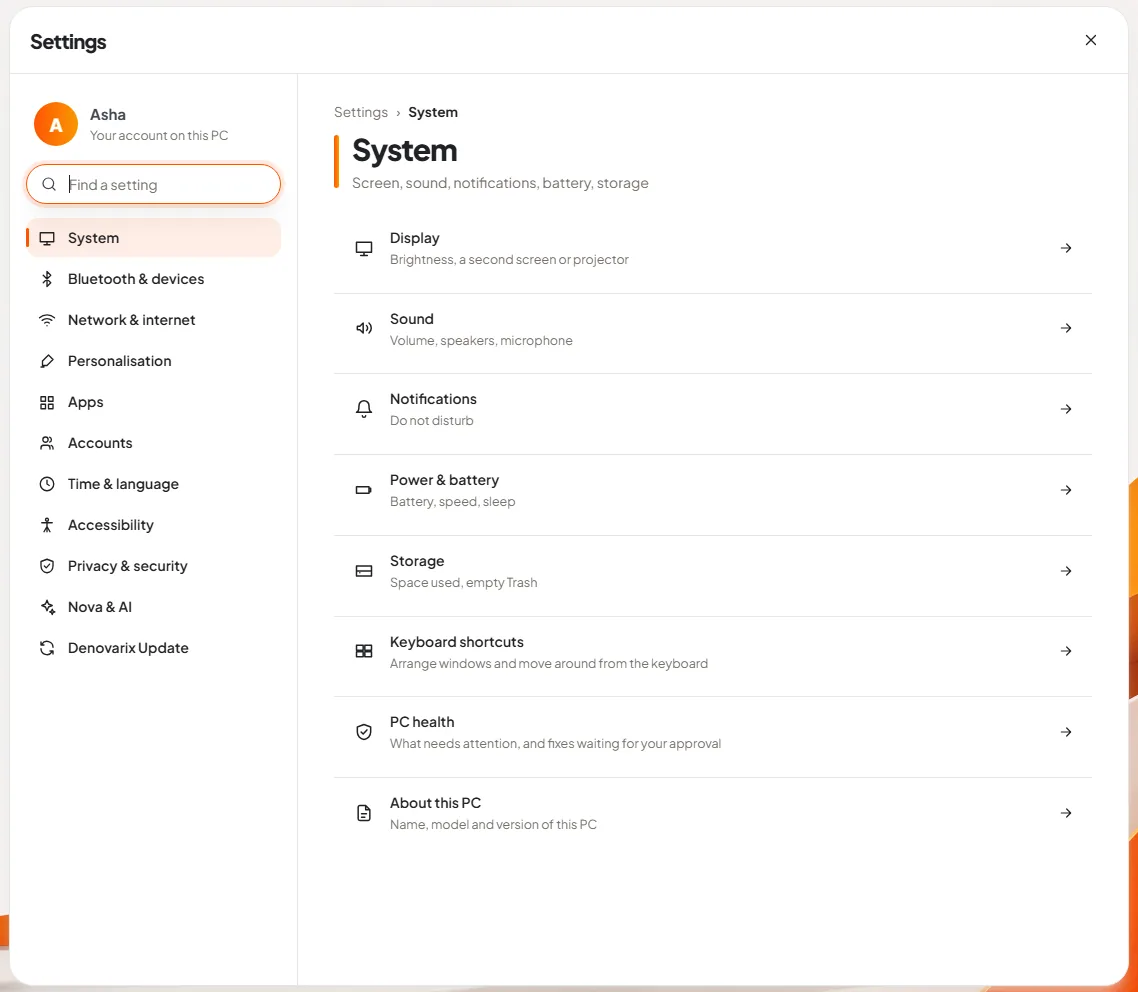
Slide 1: open Settings. The left side lists eleven areas: System, Bluetooth and devices, Network and internet, Personalisation, Apps, Accounts, Time and language, Accessibility, Privacy and security, Nova and AI, and Denovarix Update. Your name is at the top.
The System page, shown here, is a list of rows, each with a one-line explanation of what is inside: Display (brightness, a second screen or projector), Sound (volume, speakers, microphone), Notifications (do not disturb), Power and battery, Storage (space used, empty Trash), Keyboard shortcuts, PC health and About this PC.
Nothing is hidden behind an "Advanced" maze. Options that most people never need are folded away at the bottom of the page they belong to.
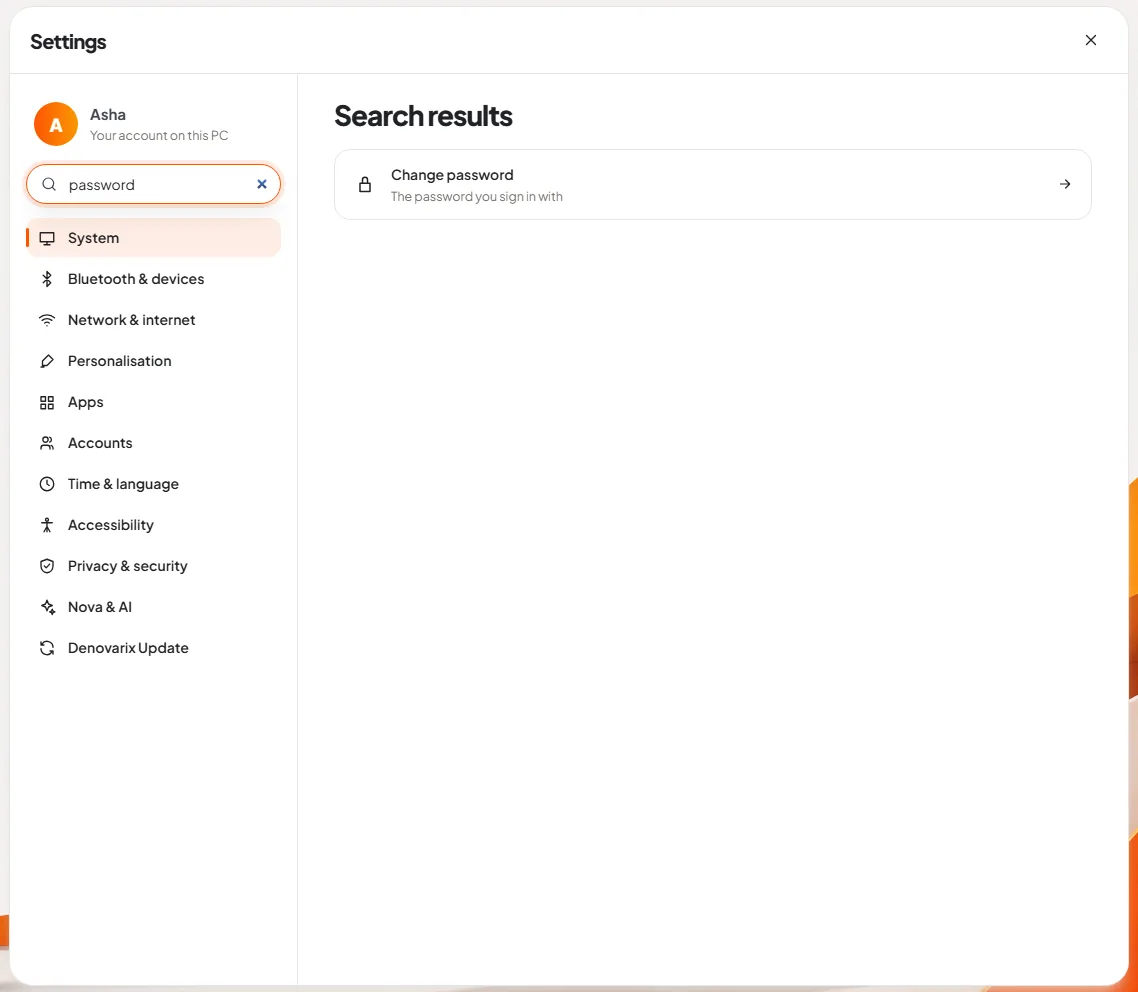
Slide 2: find a setting by typing. The box at the top left is "Find a setting". Type the word you would use in conversation. In the picture, "password" brings one result: "Change password: the password you sign in with". The same search answers from the Start menu, so a person who presses the Windows key and types "wifi" lands on the right page without opening Settings first. Our article on the DNX OS desktop shows that.
If no setting matches, the result offers to ask Nova, who can say where the setting is.
What are the theme choices?
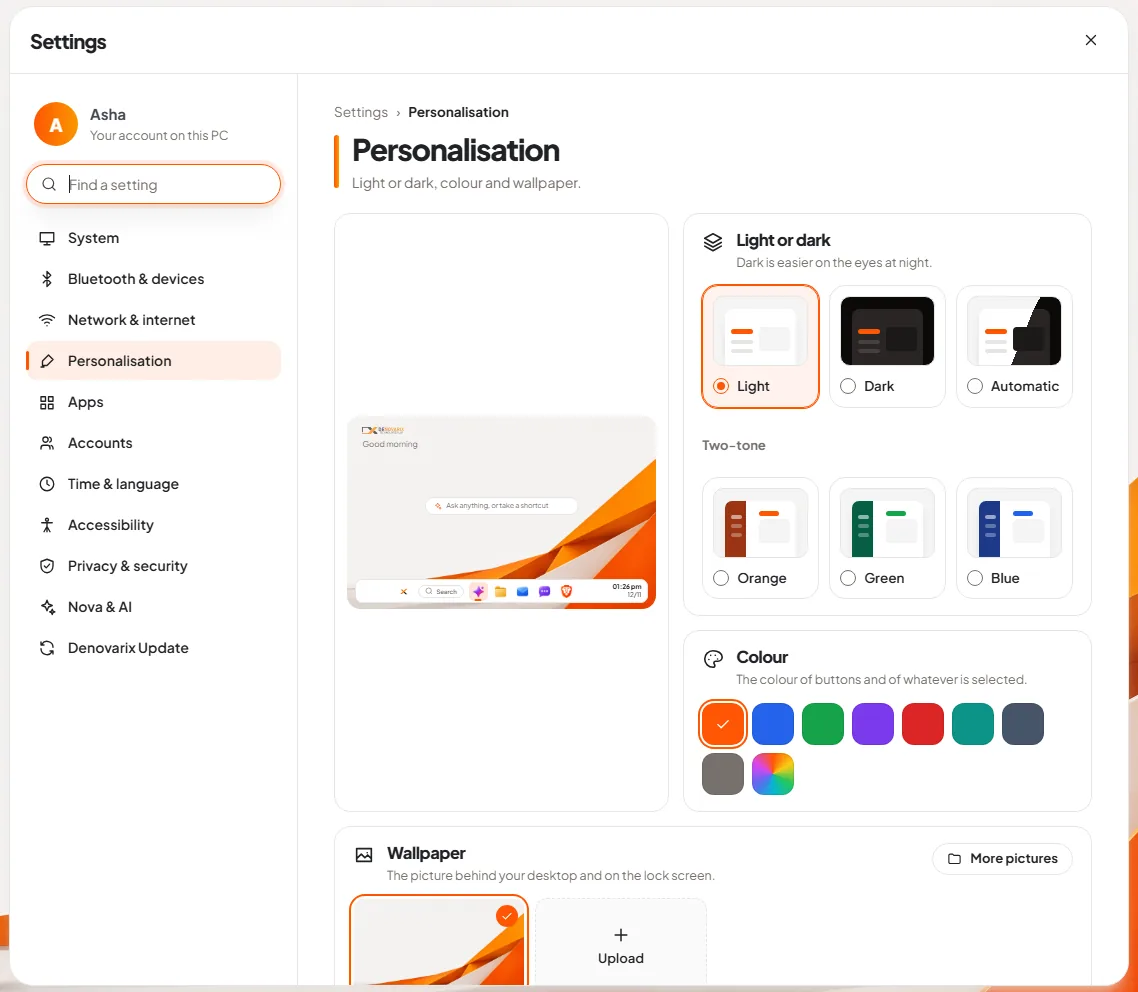
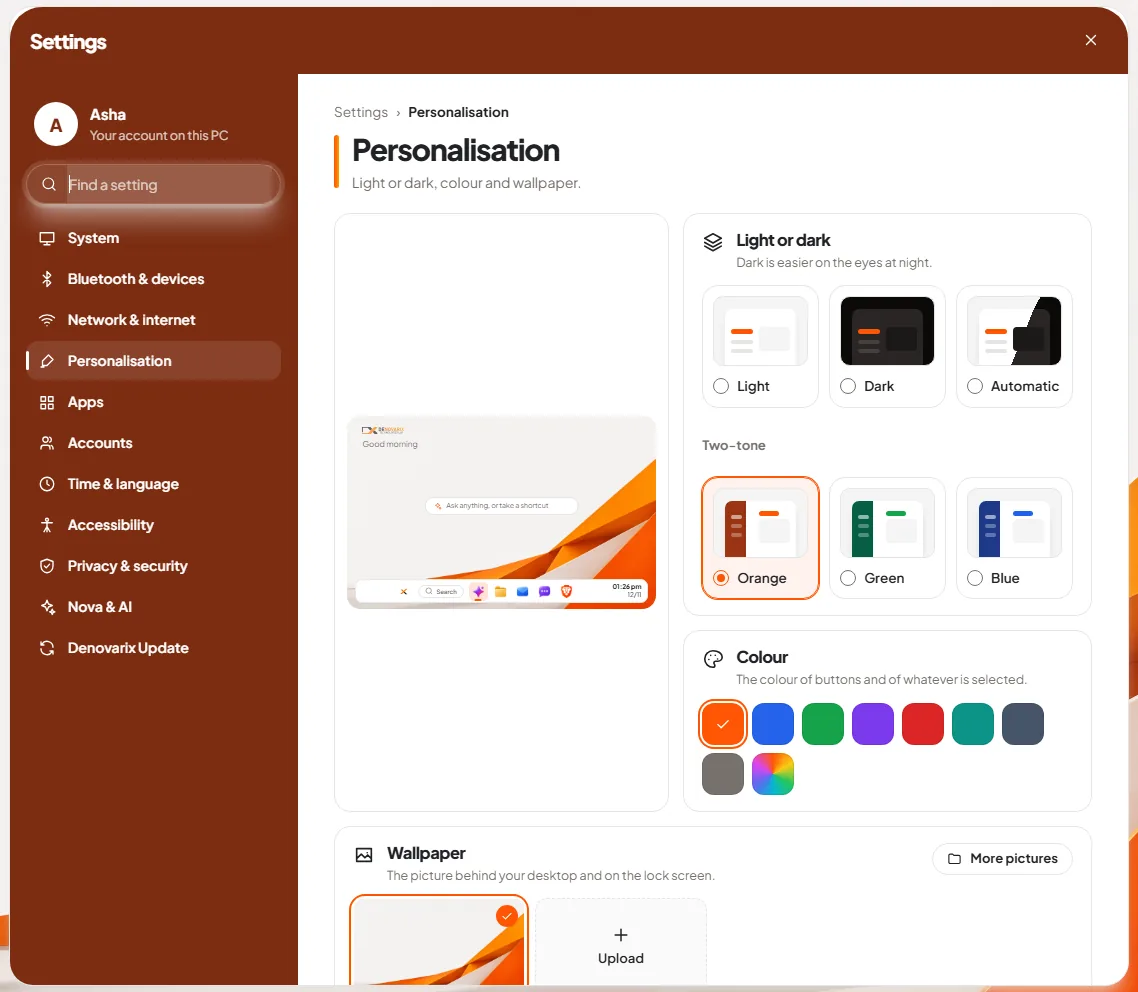
Slide 3: choose light or dark. The Personalisation page has a live preview of the desktop on the left and the choices on the right.
- Light, Dark or Automatic. The note says it simply: "Dark is easier on the eyes at night."
- Two-tone: Orange, Green or Blue.
- Colour: the colour of buttons and of whatever is selected, from a row of presets or a colour of your own.
- Wallpaper: the picture behind the desktop and on the lock screen, with an Upload button for your own.
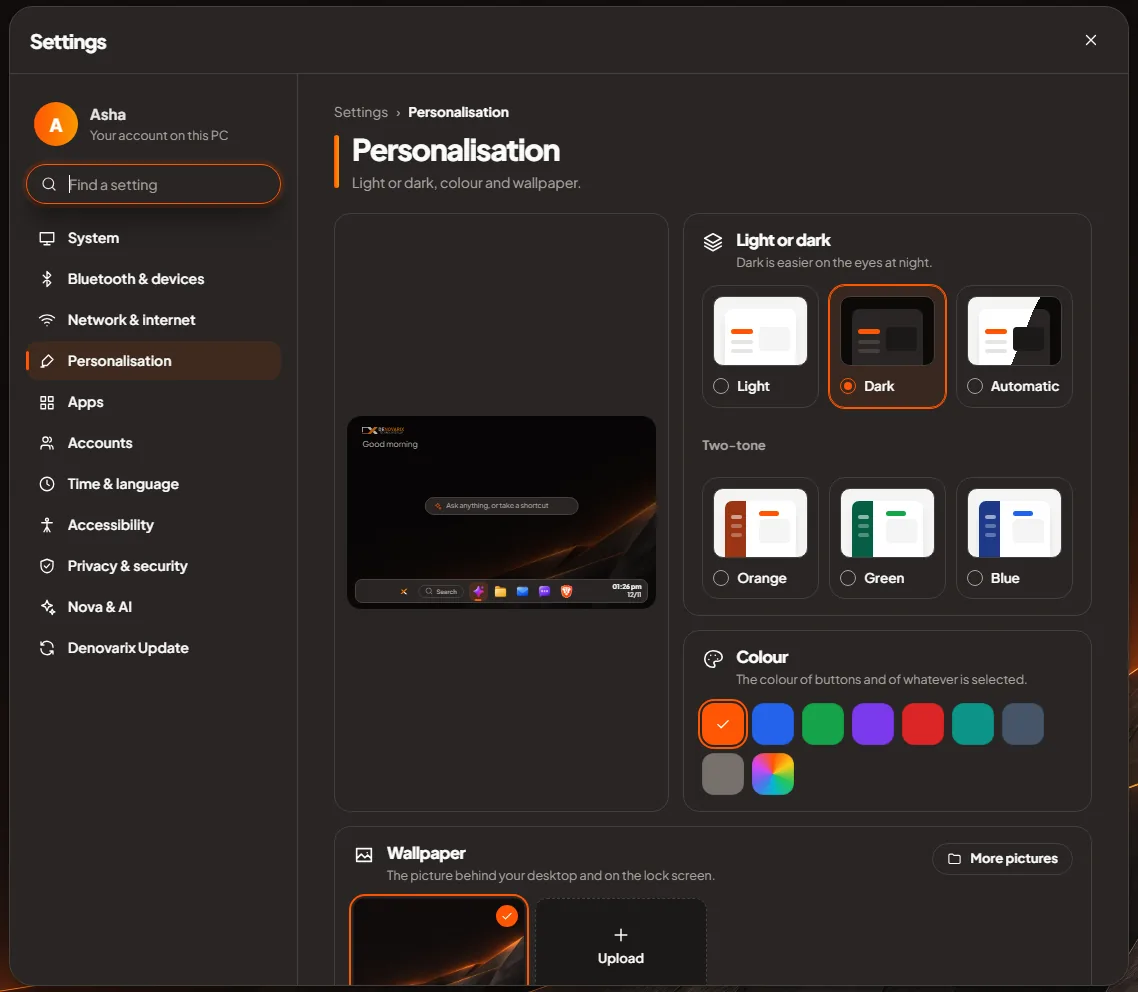
Slide 4: switch to dark. One click and every window changes: dark surfaces, light text, the same orange for the things you can press. The preview on the left shows the desktop in the dark wallpaper. Dark mode is also a tile in the quick settings panel on the taskbar, for switching without opening Settings.
Slide 5: try a two-tone theme. Two-tone is the choice for people who find all-white too plain and all-dark too heavy. The title bar and the side panel of each window take a deep colour, and the area where you read and write stays light. In orange it matches the Denovarix colours.
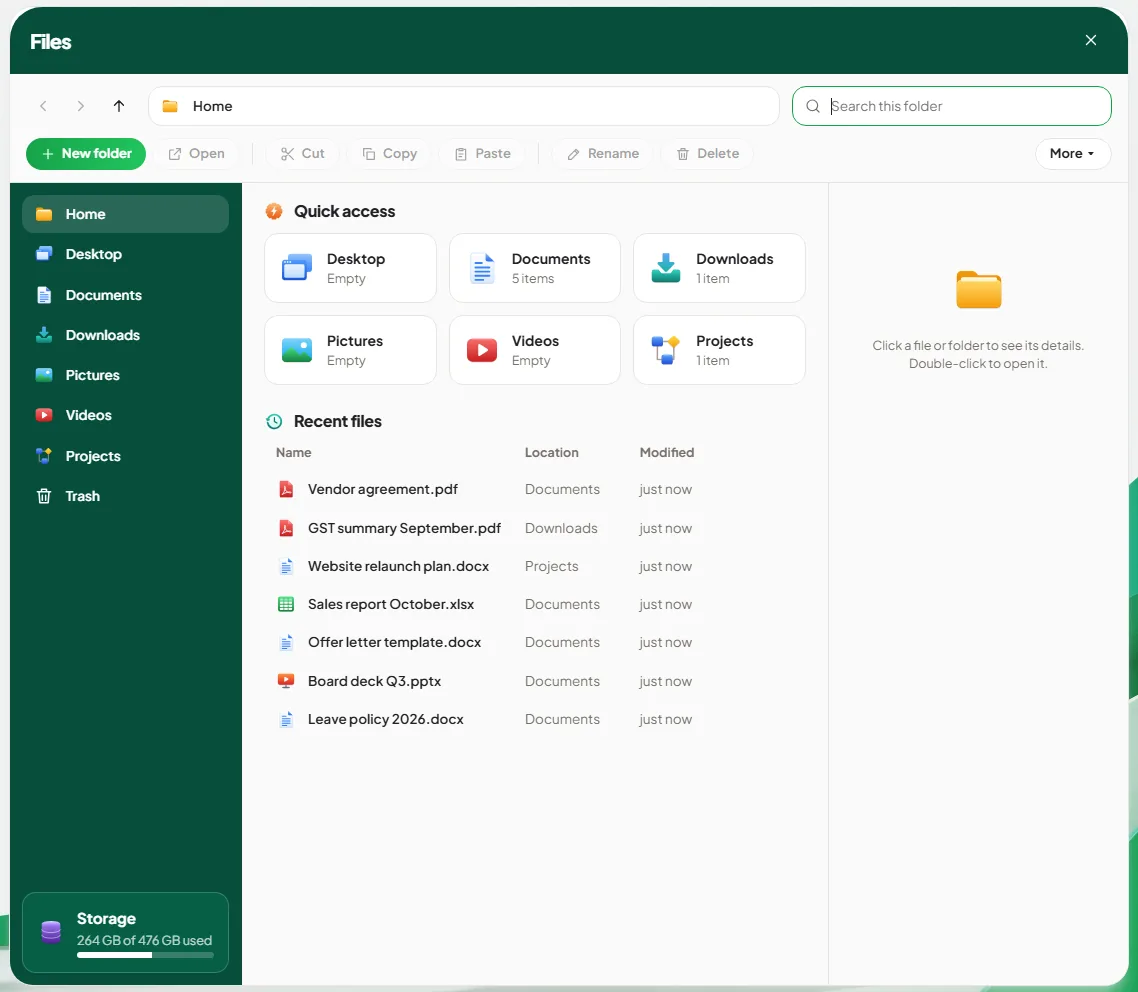
Slide 6: see green across an app. Themes are not just for the Settings window. Here is DNX Files in the green two-tone theme. The folder pane and title bar are green, and the buttons follow.
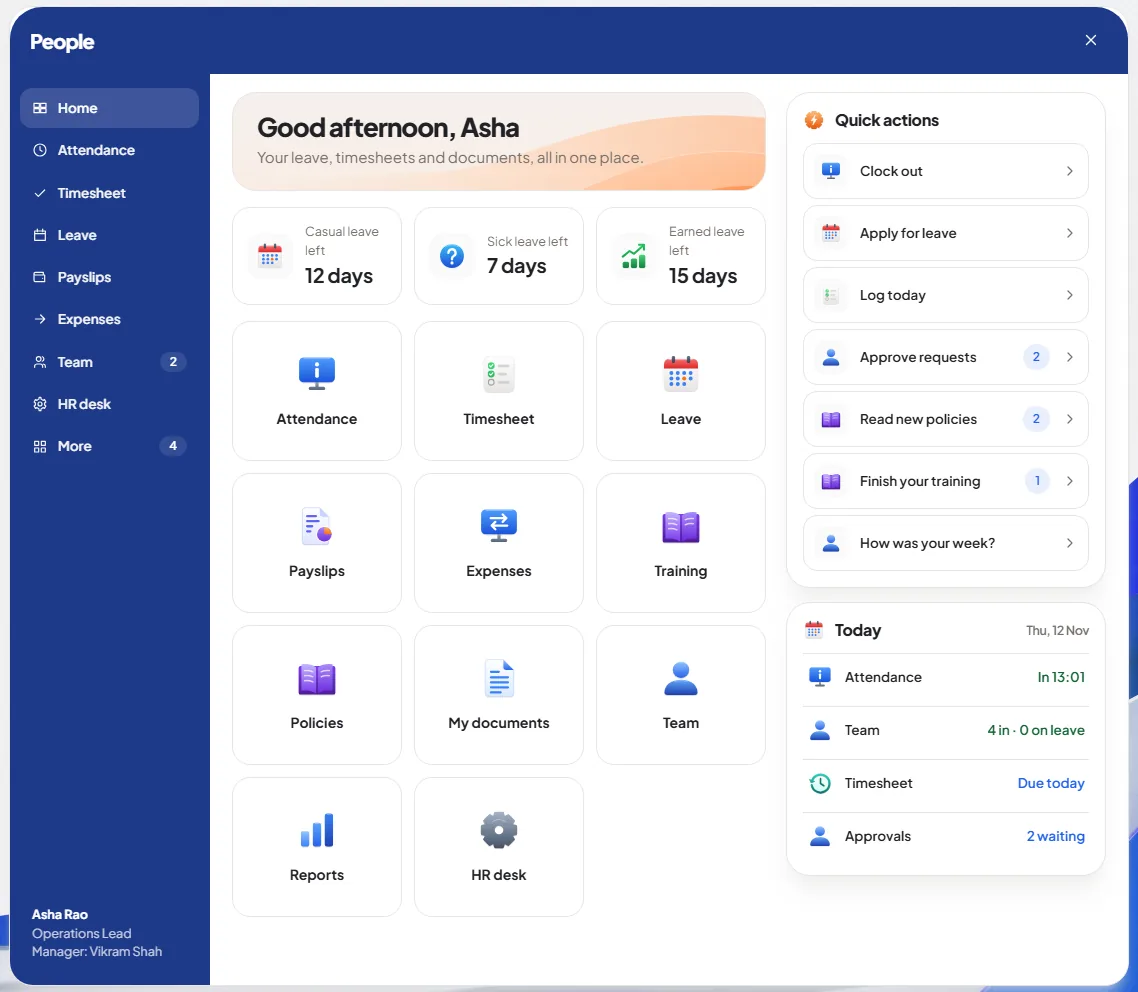
Slide 7: see blue across an app. And DNX People, the HR app, in blue. A company can pick the tone closest to its own brand for every desk, or leave the choice to each person.
What helps people who find screens hard to read?
The Accessibility page has three switches that cover most needs: Text size (Normal, Bigger, Large or Largest), High contrast for darker text and stronger lines, and Reduce motion, which makes things appear at once instead of sliding and fading. The same page states a rule of the whole system: every screen works without a mouse. Tab moves to the next thing, Enter opens it, Esc closes it.
For an office with older staff, turning text to "Bigger" on day one prevents a lot of quiet frustration.
What does the privacy page say?
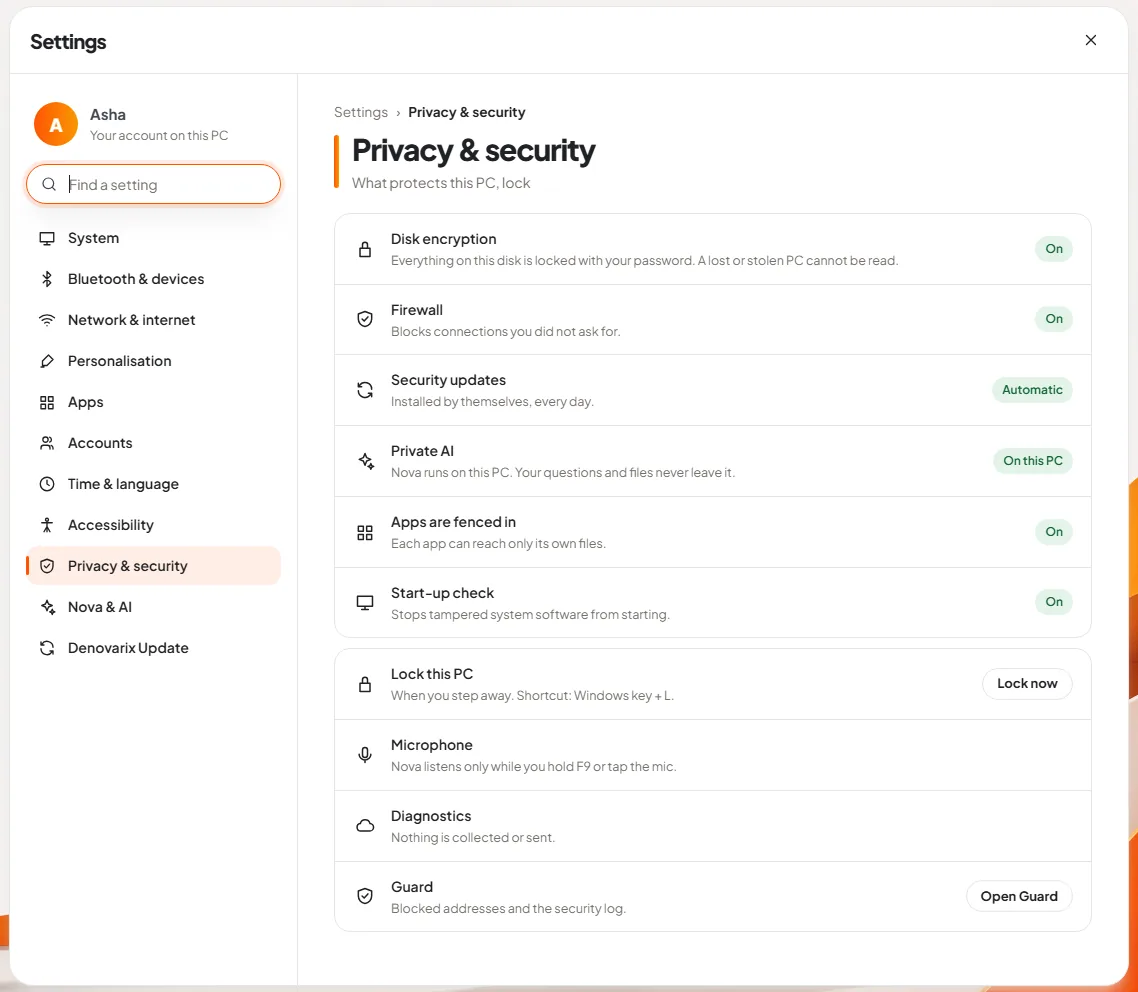
Slide 8: read the privacy page. Privacy and security is a list of what protects the PC, each line with its state at the right:
- Disk encryption: everything on the disk is locked with your password. A lost or stolen PC cannot be read.
- Firewall: blocks connections you did not ask for.
- Security updates: installed by themselves, every day.
- Private AI: Nova runs on this PC. Your questions and files never leave it.
- Apps are fenced in: each app can reach only its own files.
- Start-up check: stops tampered system software from starting.
- Lock this PC, with a Lock now button and the shortcut, Windows key and L.
- Microphone: Nova listens only while you hold F9 or tap the mic.
- Diagnostics: nothing is collected or sent.
The last row opens DNX Guard, the app for administrators who want the detail. For why encryption is the first line on the list, read full-disk encryption for company laptops.
What does DNX Settings not do?
- Two-tone comes in three colours. Orange, green and blue. The accent colour is free; the two-tone tones are fixed.
- A theme is per PC. These screens do not show one company-wide theme being pushed to every desk.
- Some pages need the hardware. Bluetooth, displays and sound list what is actually attached to the computer, so they are not pictured here.
- Settings is for one PC. Rules for every computer in a company, such as requiring encryption, belong to device management in DNX Hub, not to each person's Settings.
How do you try it?
DNX Settings is part of DNX OS, a standalone operating system for businesses with private AI built in. The beta programme opens in December 2026 and the launch is in January 2027. Registered Indian businesses with 5 to 50 people can apply for the beta. On the first day, ask each person to pick their own theme. It is a small thing, and it makes a new system feel like theirs.
Keep reading
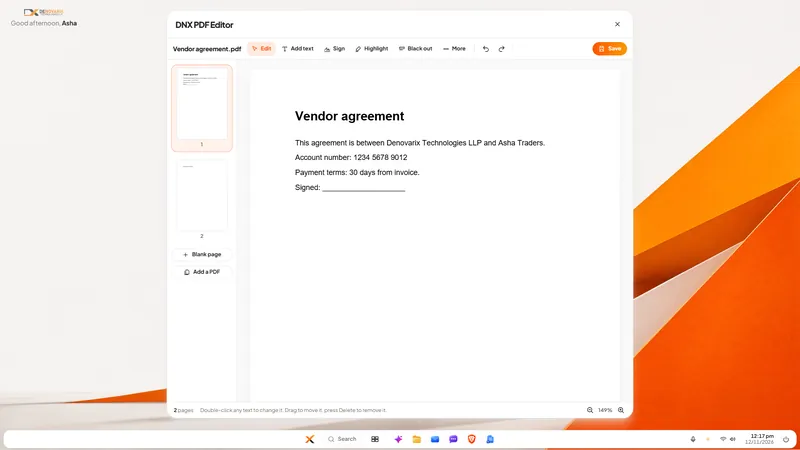
DNX PDF Editor: edit PDFs without a subscription
DNX PDF Editor changes the text inside a PDF, signs, blacks out details for good and reorders pages, with no subscription and no upload. Seven real screens.
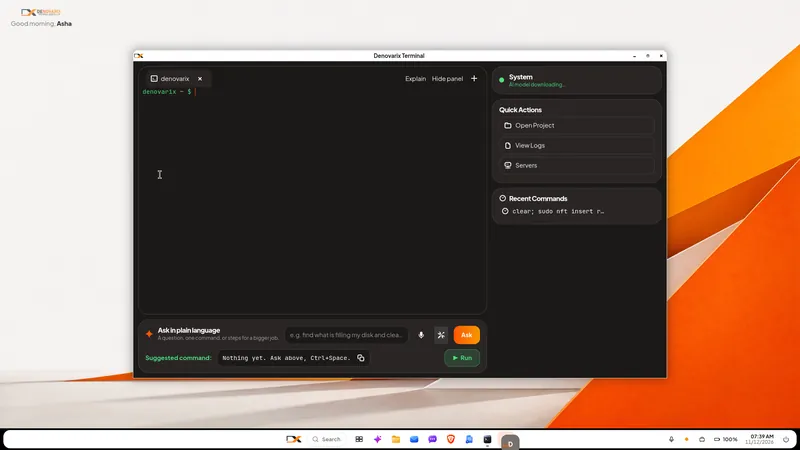
DNX Terminal: run commands in plain language
DNX Terminal turns a request in plain words into the exact command, labels it by risk and waits for you before anything that changes the PC. Two real screens.
DNX Office: open and save Word, Excel, PowerPoint
DNX Office is the office suite in DNX OS: DNX Word, Sheets and Presentation open and save Word, Excel and PowerPoint files, plus a PDF editor in six screens.