
DNX OS desktop: Start, search and "open Mail"
The DNX OS desktop is built so office staff need no training: a Start button, one search, and a bar where you type or say "open Mail". Seven screens show it.
Part of the guide: Operating systems for companies: what to run in 2026
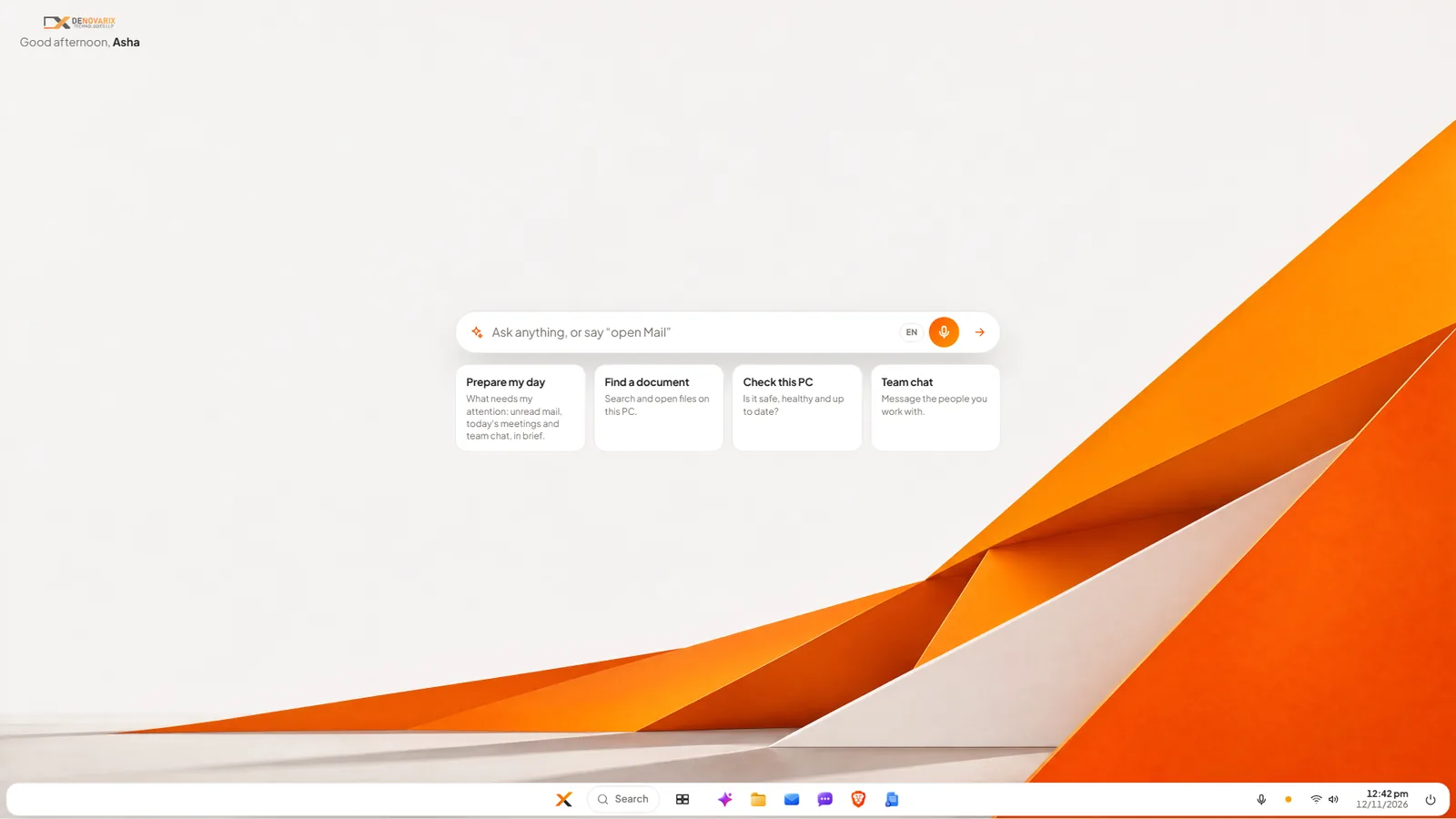
The short answer: the DNX OS desktop is designed so that a person who has used any office PC can sit down and work without being taught. There is a Start button at the bottom, a taskbar with the apps that are open, and one search that finds apps, files and settings together. In the middle of the screen is a bar where you type, or say, what you want: "open Mail" opens Mail.
The seven pictures above are real screens of DNX OS, taken at full size with sample files.
Why does the desktop matter when choosing an operating system?
Because the cost of changing systems is mostly retraining. A company can accept a new logo on the screen. It cannot accept twenty people losing a week because they cannot find their files or the Wi-Fi setting.
So the test for any new desktop is simple. Give it to the least technical person in the office and watch for five minutes. If they open their email, find yesterday's document and connect to the Wi-Fi without asking anyone, the desktop passes. Everything below was built for that test.
What is on the DNX OS desktop?
Slide 1: meet the desktop. Three things, and nothing else.
- A greeting at the top left, with your name.
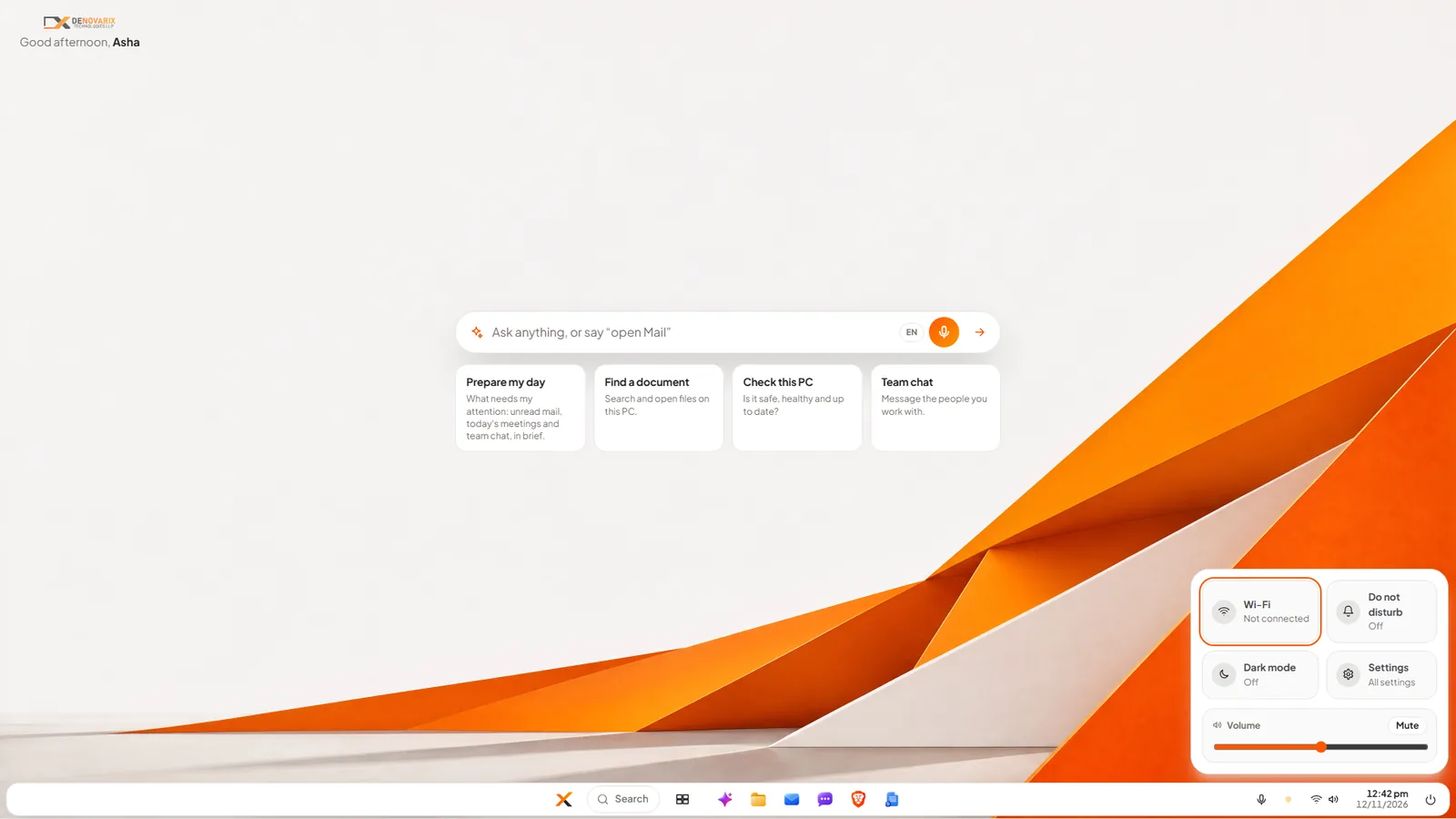
- One ask bar in the middle: "Ask anything, or say open Mail". Under it are four shortcuts for the things people do first: Prepare my day, Find a document, Check this PC and Team chat.
- A taskbar along the bottom: the Start button, Search, the view of all open windows, your pinned apps, and on the right the microphone, network, volume, clock and power.
There are no icons scattered over the wallpaper and no panels to learn. The welcome screen that greets a new user says it in one line: three things to know, and that is all there is to learn.
How do you open an app without hunting for it?
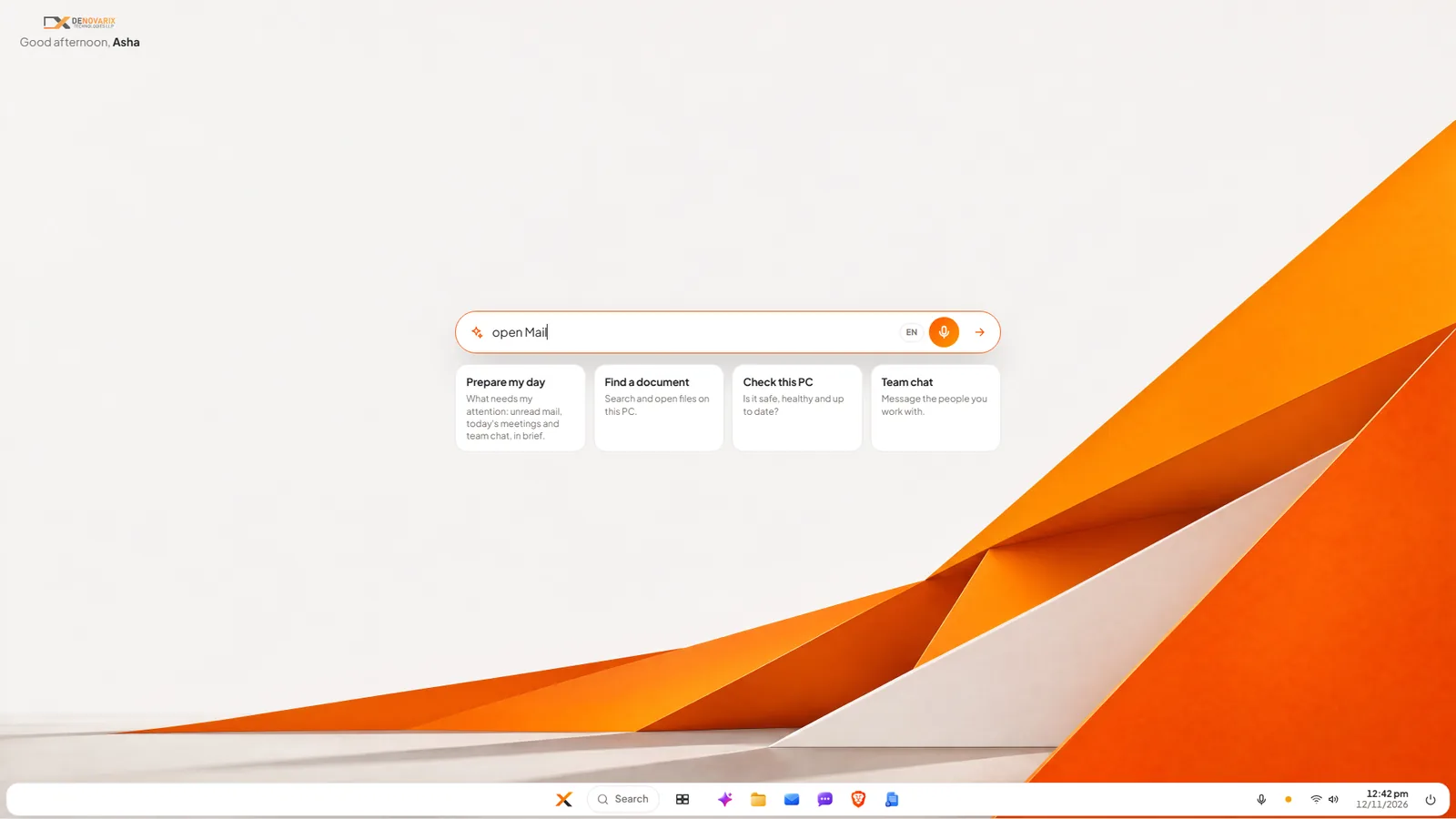
Slide 2: type what you want. Click the ask bar and type "open Mail". You do not need the exact name of the app or to know where it is kept.
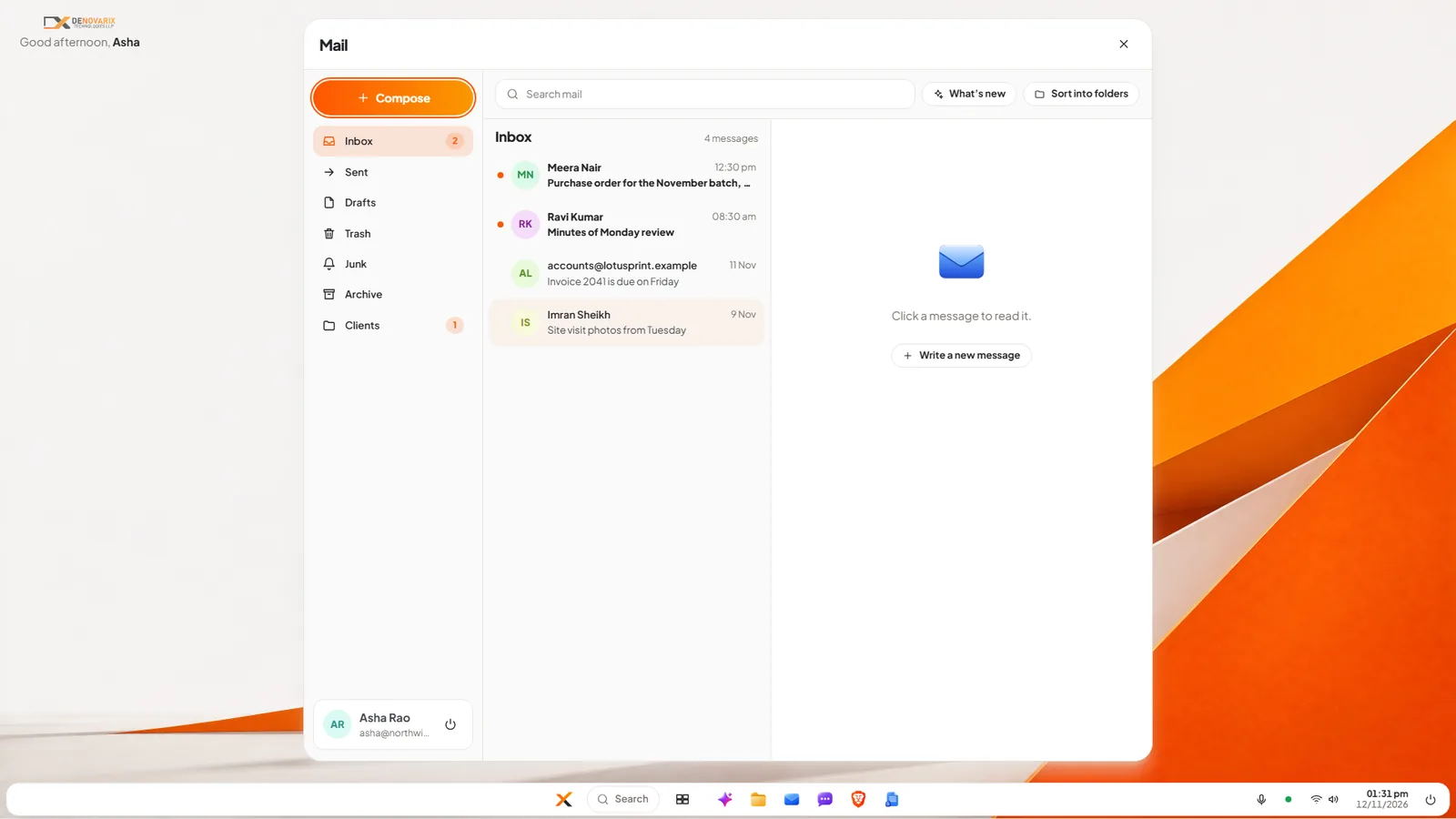
Slide 3: the app opens. Press Enter and Mail is on the screen. The same works for "open Files" or "open Settings".
The orange microphone beside the bar does the same by voice: press it, say "open Mail", and the words are typed for you. The small button next to it switches dictation between English, Hinglish and Banglish, for people who mix languages when they speak.
If what you typed is not the name of an app, the bar treats it as a question and hands it to Nova, the assistant that runs on the PC. So the same bar opens apps and answers questions, and nobody has to decide which box to use.
How does Start work?
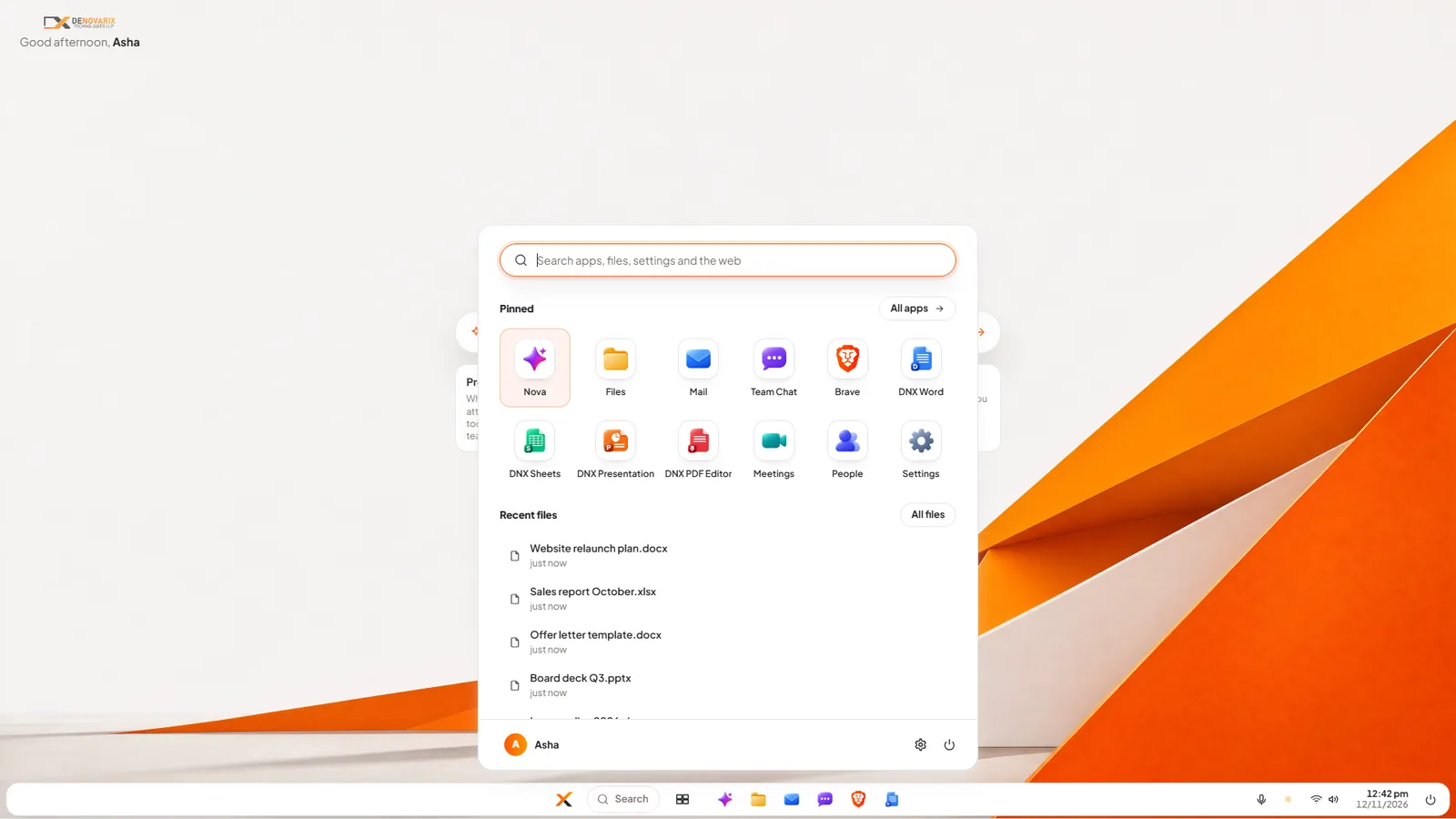
Slide 4: open Start. Click the logo at the bottom, or press the Windows key on the keyboard. Start shows a search box, your pinned apps and your recent files. In the picture the pinned apps are Nova, Files, Mail, Team Chat, the browser, DNX Word, DNX Sheets, DNX Presentation, DNX PDF Editor, Meetings, People and Settings. "All apps" lists everything installed. Your name, the settings wheel and the power button are along the bottom edge.
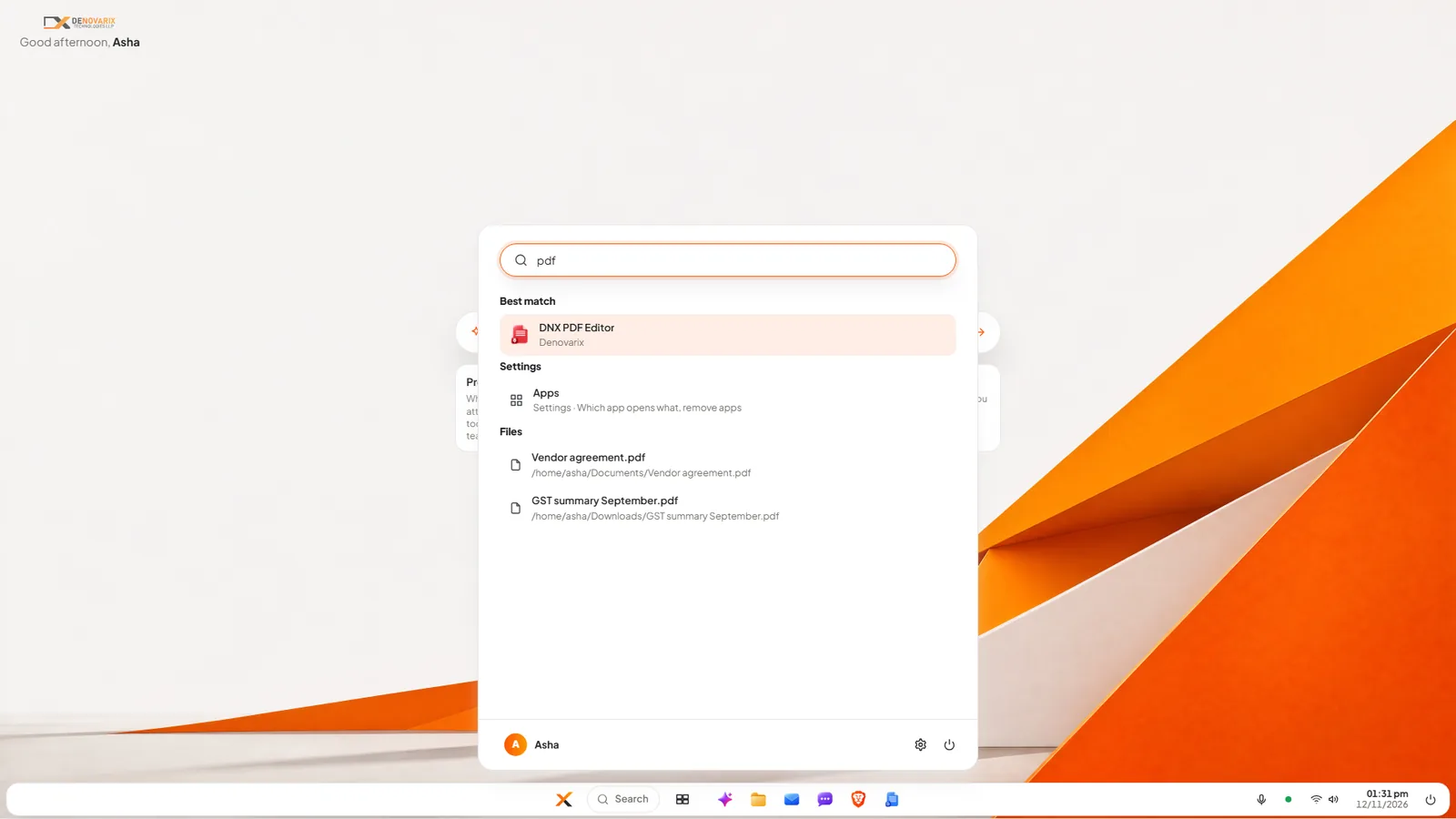
Slide 5: search apps and files together. Start typing and Start becomes a search. Typing "pdf" brings the DNX PDF Editor app as the best match, a matching setting, and the PDF files on the computer with the folder each one is in. One box, three kinds of result. Press Enter to open the first one.
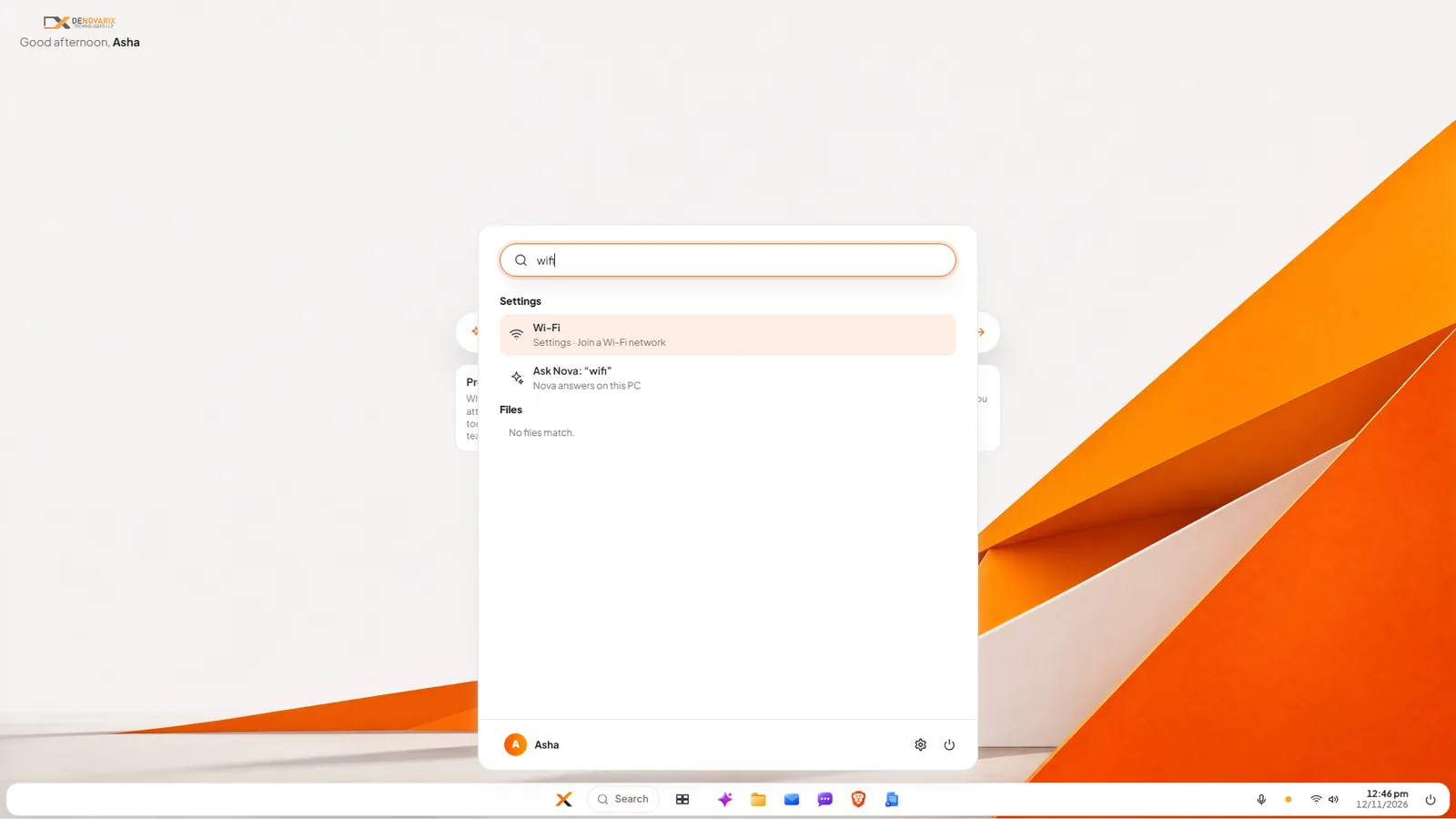
Slide 6: find a setting by its everyday name. People do not know what a setting is officially called. They type "wifi", "password" or "wallpaper". Start understands those words and leads with the setting itself: here, "Wi-Fi: Join a Wi-Fi network". Below it is a second choice, "Ask Nova", for when you would rather have the assistant explain or do it.
When nothing on the computer matches, Start also lists news headlines from the web for the words you typed.
How do you change volume, Wi-Fi or dark mode quickly?
Slide 7: change quick settings. Click the network and volume icons at the right of the taskbar. A small panel opens with the four things people change most: Wi-Fi, Do not disturb, Dark mode and a volume slider, plus a button for all Settings. The clock opens a month calendar, and the power button holds lock, sleep, restart and shut down.
For the full Settings app and the themes, see DNX Settings: light, dark and two-tone themes.
Does it work with the keyboard alone?
Yes, and this is a rule of the design, not an extra. The Windows key opens Start. Typing searches. The arrow keys move through results, Enter opens, and Esc closes whatever is open. Every screen in DNX OS is built to work without a mouse, which matters for accessibility and for anyone who types faster than they point.
Windows can be snapped to halves, thirds or corners of the screen and spread across four desktops. Those are not pictured here, because these pictures were taken in a test view that shows one window at a time. The DNX OS page has screenshots of them from a real installation.
What does the desktop not do?
- Voice opens apps and types for you. It is not a full voice-control system. You cannot yet drive every button on the screen by speaking.
- Dictation works in English, Hinglish and Banglish. Other Indian languages are not in the list yet.
- Search finds files by name. It does not read inside documents.
- The desktop is deliberately plain. There are no widgets and no desktop icons. If your staff love a cluttered desktop, they will find this one quiet.
Is this a replacement for Windows in an office?
For office work, it is meant to be. DNX OS is a standalone operating system for businesses, with private AI, an office suite that opens and saves Word, Excel and PowerPoint files, mail, chat, HR and device management built in. It runs on ordinary 64-bit Intel and AMD PCs, with 4 GB of RAM as the minimum and 8 GB recommended. If you are weighing the whole stack, our comparison of Microsoft 365, Google Workspace and Zoho One sets out the questions.
Specialist Windows software, such as an accounting package or a machine controller that exists only for Windows, is the thing to check before you move. Bring that list to the beta and we will tell you honestly which machines can switch.
How do you try it?
The beta programme opens in December 2026 and DNX OS launches in January 2027. Registered Indian businesses with 5 to 50 people can apply for the beta. Then run the five-minute test described at the top, with your own staff.
Keep reading
DNX Mail: a business email app with private AI
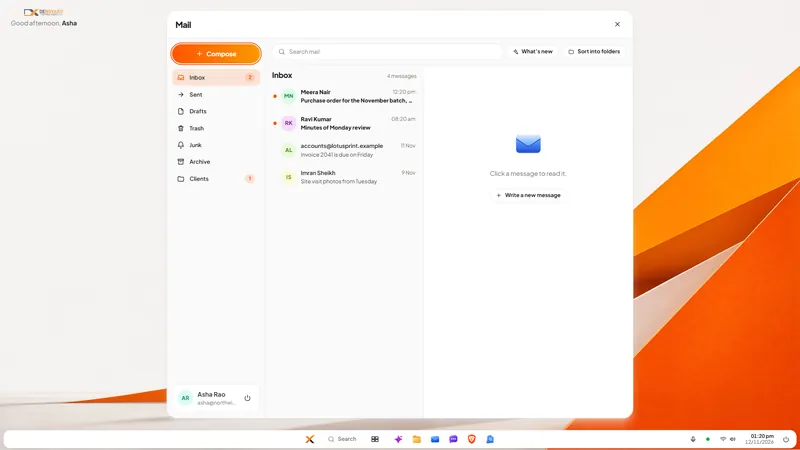
DNX Mail is the email app in DNX OS. It works with your existing work mailbox and adds AI that summarises, drafts and sorts on the PC itself. See seven screens.
DNX Team Chat: team chat that keeps data in India
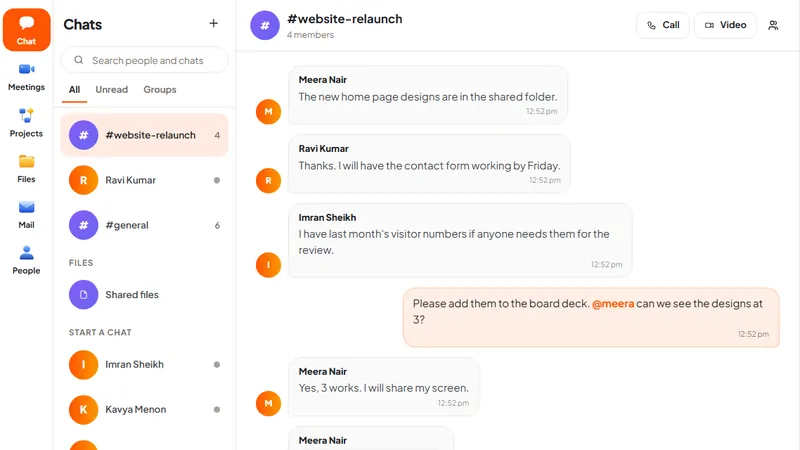
DNX Team Chat is a team chat app that runs on a server your company hosts, in your office or an Indian data centre: groups, direct messages, files and calls.
DNX Meetings: automatic minutes for any meeting
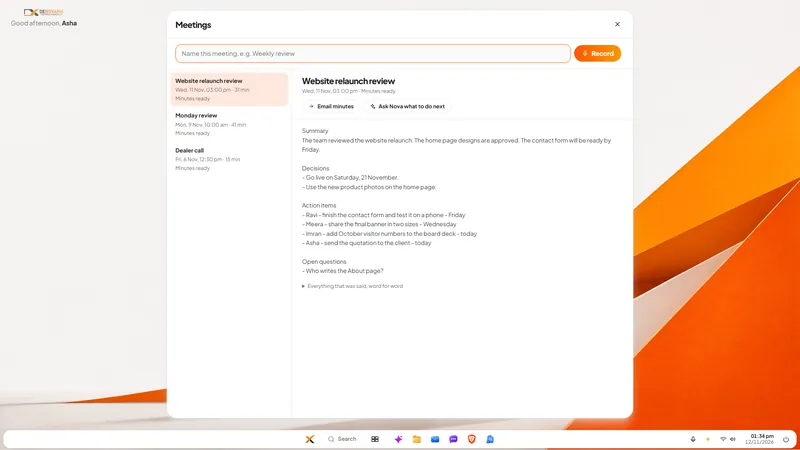
DNX Meetings records a call in any app, then writes the minutes on your own PC: summary, decisions, action items and a transcript. Six real screens show how.