
DNX Guard: PC security and health checks for admins
DNX Guard checks a company PC's firewall, disk encryption, updates, sign-in attempts and disk space, and says in plain words what to fix. Six real screens.
Part of the guide: Operating systems for companies: what to run in 2026
The short answer: DNX Guard is the security and health app in DNX OS. It checks the things that decide whether a company PC is safe: the firewall, disk encryption, pending updates, wrong sign-in attempts, disk space and the screen lock. It gives one score and a short list of what needs attention, written so that a person who is not an engineer can act on it. For each finding there is a button: fix it, or ask Nova to.
The slideshow shows six real screens. Guard reads the computer through the operating system's own services, which did not exist on the machine used for these pictures, so the readings for one laptop (the score, the findings, the addresses) are sample values supplied for the screenshots. The Fleet page in slide 6 is from a real, newly set up hub with no computers reporting yet.
Who looks after security in a small company?
Usually nobody, until something happens. A company of twenty has no security team. It has an owner, an office manager and perhaps someone who "knows computers".
Security tools were not written for those people. They show ports, events and severity codes. So the firewall that was switched off for a printer two years ago stays off, and the laptop that has not updated in months goes on carrying client files.
DNX Guard starts from a different question: what would a careful administrator check on this machine today, and can it be said in one sentence each?
What does Guard tell you first?
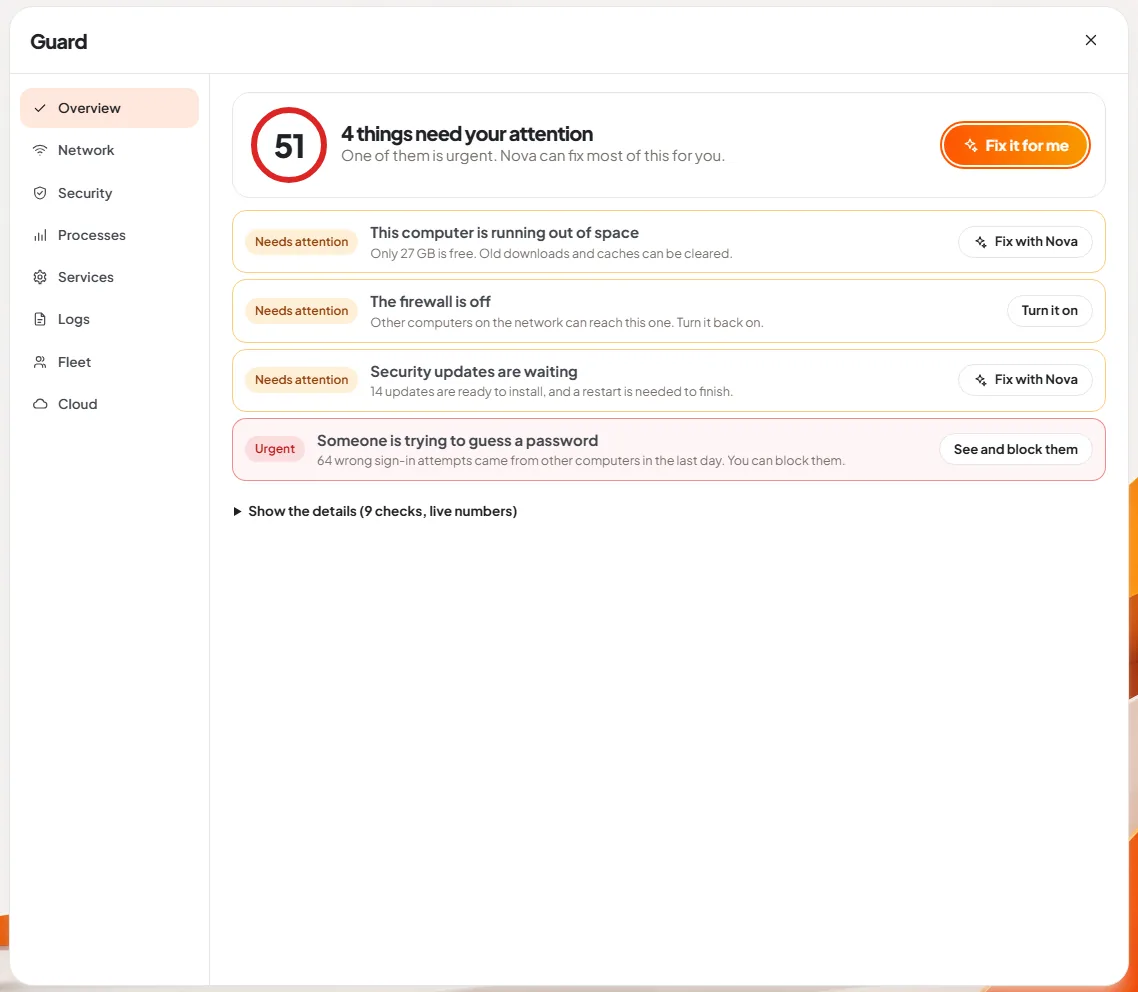
Slide 1: see what needs attention. The overview has a score out of 100 in a ring, and a headline: "4 things need your attention". Under it, a line of reassurance or warning, here: "One of them is urgent. Nova can fix most of this for you."
Then the findings, each a sentence with a second line that explains it:
- This computer is running out of space. Only 27 GB is free. Old downloads and caches can be cleared.
- The firewall is off. Other computers on the network can reach this one. Turn it back on.
- Security updates are waiting. 14 updates are ready to install, and a restart is needed to finish.
- Someone is trying to guess a password. 64 wrong sign-in attempts came from other computers in the last day. You can block them.
Each has a button beside it: "Turn it on" for the firewall, "See and block them" for the sign-in attempts, "Fix with Nova" for the rest. At the top is one button, Fix it for me, which hands the whole list to Nova. Nova explains each item and proposes the fix, and as everywhere in DNX OS, it asks before it changes anything.
Where are the details for someone who wants them?
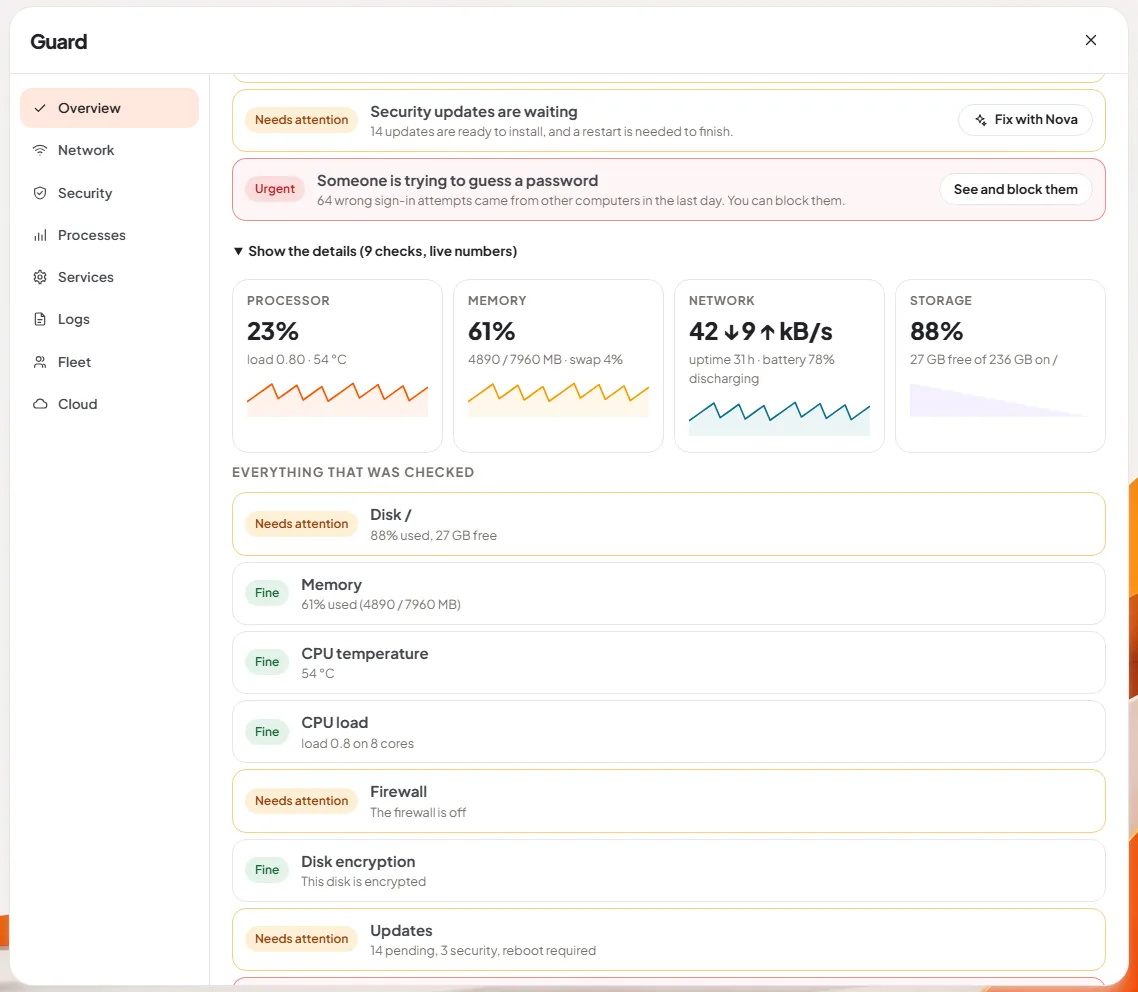
Slide 2: open the details. "Show the details" opens the numbers behind the sentences. Four live tiles show processor use with temperature, memory, network speed with uptime and battery, and storage. Below them is "Everything that was checked": every check with its state, Fine or Needs attention, and the measured value. In the picture nine checks were made: disk, memory, temperature, processor load, firewall, disk encryption, updates, sign-in attempts and the automatic screen lock.
The plain sentences are for deciding. The details are for the day you need to explain a decision to an auditor or to an IT contractor.
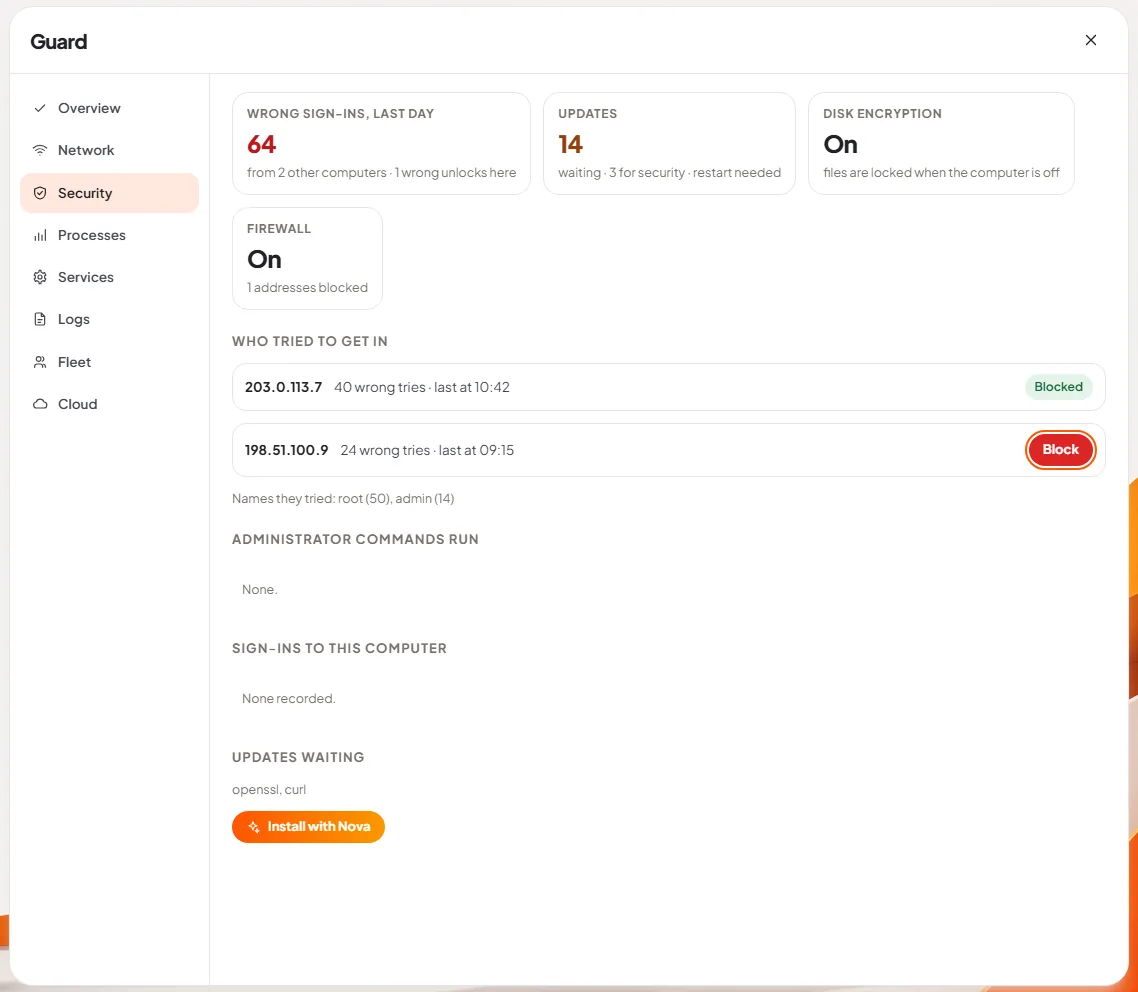
Slide 3: see who tried to get in. The Security page has four figures at the top: wrong sign-ins in the last day, updates waiting and how many are security updates, whether disk encryption is on, and whether the firewall is on. Under "Who tried to get in" each address is listed with the number of wrong tries and the time of the last one. One is already marked Blocked. The other has a red Block button. The page also shows which account names were tried, the administrator commands that were run on the machine, and the updates waiting, with an "Install with Nova" button.
What can an administrator do from Guard?
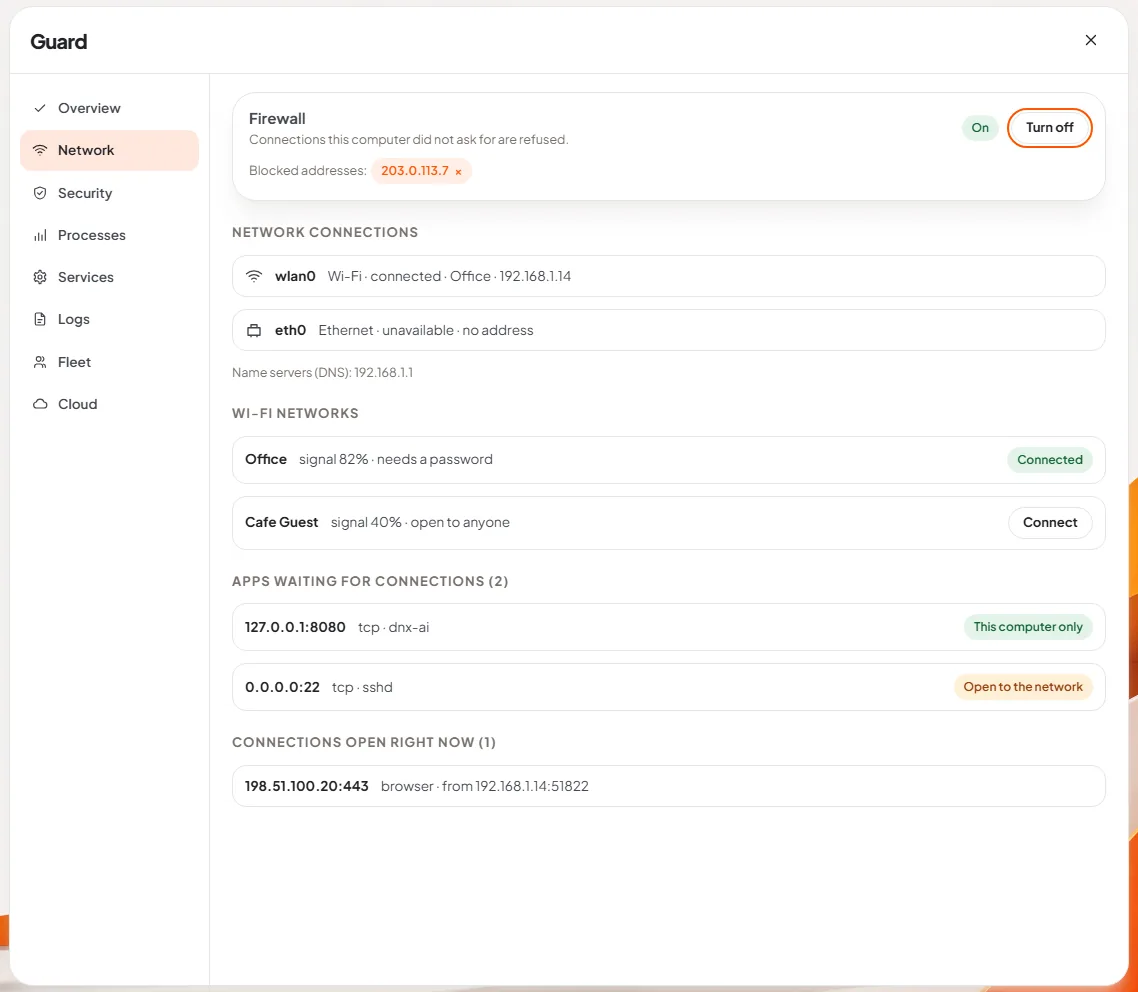
Slide 4: check the network. The Network page shows the firewall with a switch and the list of blocked addresses, each removable. Below are the network connections, the Wi-Fi networks in range with signal strength and whether they need a password, and two lists that matter for security: apps waiting for connections, each marked "This computer only" or "Open to the network", and connections open right now.
"Open to the network" is the label to look at. It is the plain-language version of an open port: something on this PC that other machines can reach.
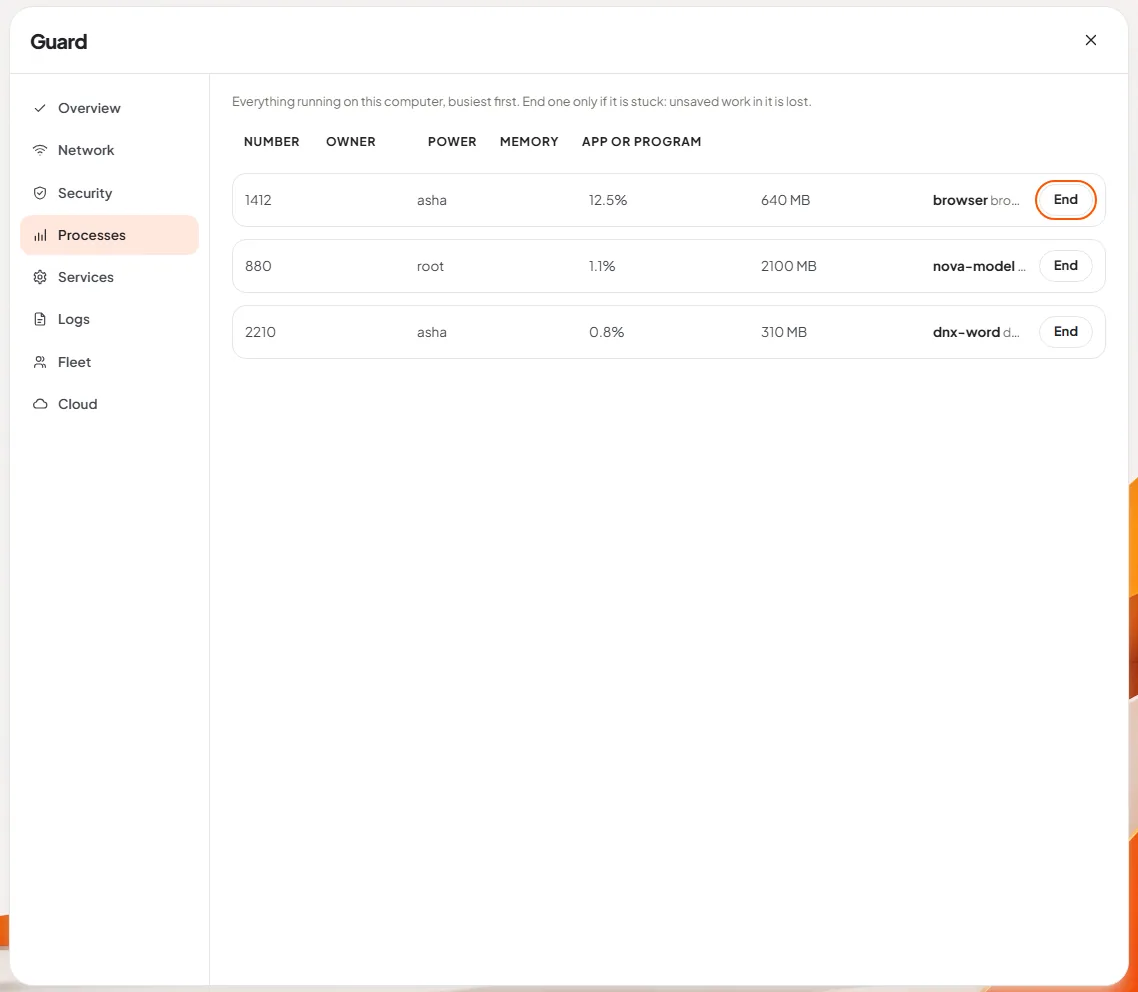
Slide 5: find what is using the PC. The Processes page lists what is running, busiest first, with the owner, the share of the processor and the memory it holds. The note at the top is the right warning: "End one only if it is stuck: unsaved work in it is lost." When a staff member says "my computer is slow", this page usually shows why.
Can one person watch all the company's computers?
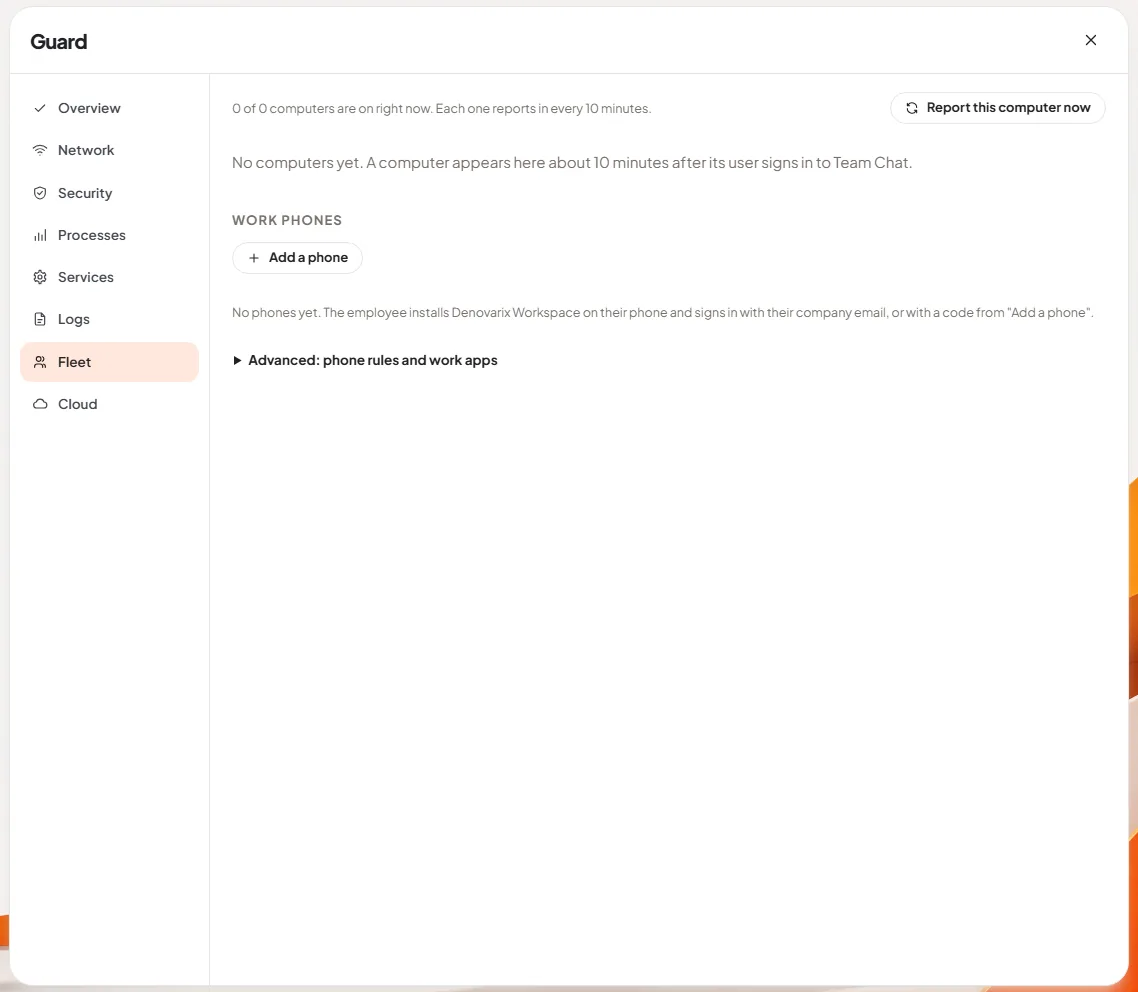
Slide 6: watch the company's computers. The Fleet page is where an administrator sees every DNX OS computer in the company: which are online, their health and what is pending. Each computer reports to the company's own DNX Hub every 10 minutes, and it appears in the list after its user signs in. Work phones can be added from the same page, through the Denovarix Workspace app, which keeps company data in a managed work profile.
The picture shows this page on a brand-new hub, so the list is empty: "No computers yet." We have left it that way. It is the true state of a hub on its first day, and it shows the page's instructions clearly. Our guide to full-disk encryption and device management explains why a fleet view matters once laptops leave the office.
What does DNX Guard not do?
- It is not an antivirus scanner. Guard checks the state of the machine and its defences. It does not scan files for malware.
- It reports on DNX OS computers. It does not manage Windows or Mac machines.
- Blocking an address stops that address. A determined attacker can come from another one. If a PC is being attacked from the internet, the real fix is not exposing it, and Guard's "Open to the network" label shows you what is exposed.
- A score is a summary, not a certificate. A score of 100 means the checks passed. It is not a security audit and does not replace one.
- Fixes by Nova need your approval, one by one. That is deliberate.
How do you try it?
DNX Guard is part of DNX OS, which offers full-disk encryption at installation and installs signed updates automatically. The beta programme opens in December 2026 and the launch is in January 2027. Registered Indian businesses with 5 to 50 people can apply for the beta. Open Guard on the first day and see how many of your current PCs would pass the same nine checks.
Keep reading
DNX Settings: light, dark and two-tone themes
DNX Settings puts every PC setting in one searchable window, with light, dark and two-tone orange, green and blue themes and a plain privacy page. 8 screens.
DNX PDF Editor: edit PDFs without a subscription
DNX PDF Editor changes the text inside a PDF, signs, blacks out details for good and reorders pages, with no subscription and no upload. Seven real screens.
DNX Terminal: run commands in plain language
DNX Terminal turns a request in plain words into the exact command, labels it by risk and waits for you before anything that changes the PC. Two real screens.