
DNX Terminal: run commands in plain language
DNX Terminal turns a request in plain words into the exact command, labels it by risk and waits for you before anything that changes the PC. Two real screens.
Part of the guide: Private and on-device AI for business: a guide
The short answer: DNX Terminal is the command window in DNX OS, with one addition that changes who can use it. Below the commands there is a bar that says "Ask in plain language". You type what you want, such as "find what is filling my disk", and Nova, the assistant that runs on the PC, writes the exact command. The terminal shows the command before it runs, works out whether it only reads or changes something, and holds back anything destructive for you to review. It is made for the person who looks after the office computers, not for every employee.
This article has two real screenshots from a DNX OS installation, not the usual six or seven. The step that matters most, a suggested command appearing in the bar, needs the language model running, and the installation we could photograph did not have it loaded. We have not drawn that screen. Below, the behaviour is described from how the product is built, and marked where it is not pictured.
Who still needs a command line?
Most office staff never will, and DNX OS does not ask them to. Everything in the other articles in this series is done with buttons.
The command line is for the person behind the scenes: the IT contractor, the developer, or the colleague who "knows computers" and is asked to fix things. For them it is the fastest tool there is, and also the most unforgiving. One mistyped command can delete a folder. So the knowledge stays with a few people, and when they are away, problems wait.
A terminal that accepts plain language lowers that wall without removing the safety rail.
What do you see when you open DNX Terminal?
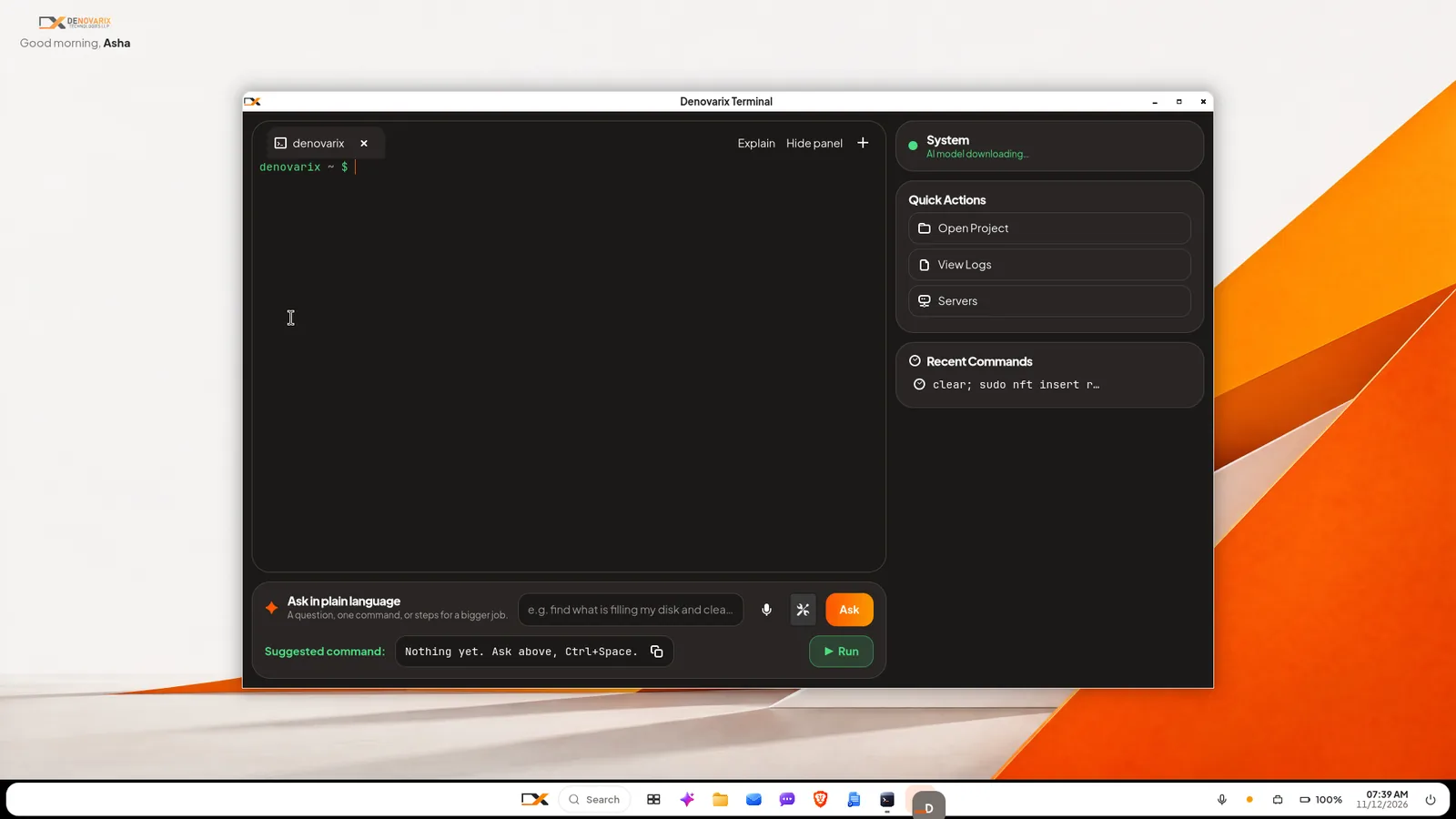
Slide 1: open the Terminal. The window has three parts.
- The command window, with tabs, where commands are typed and their output appears. Two buttons sit at its top right: Explain and Hide panel.
- The ask bar, under it: "Ask in plain language. A question, one command, or steps for a bigger job." It has a box to type in, a microphone, and an Ask button. On the line below is Suggested command, which reads "Nothing yet. Ask above, Ctrl+Space" until you ask, with a copy button and a green Run button.
- The side panel: a System card showing whether the PC and its AI are healthy, Quick Actions (Open Project, View Logs, Servers) and Recent Commands.
In the picture the System card says the AI model is still downloading, which is why no suggestion is shown.
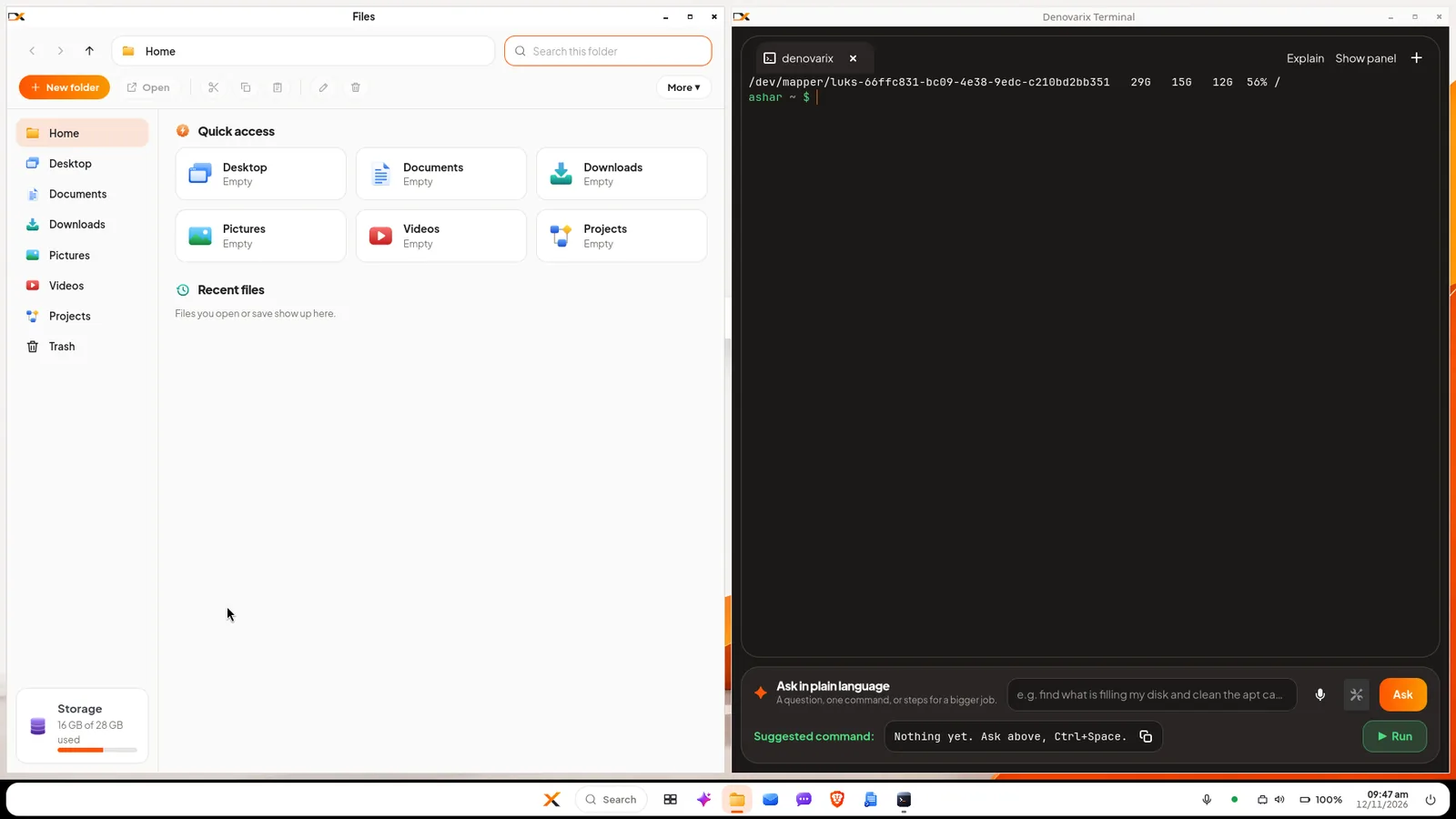
Slide 2: work beside your files. Windows in DNX OS snap to halves of the screen. Here Files is on the left and the Terminal on the right, showing the answer to a disk space check: the size of the disk, how much is used and how much is free. An administrator can look at a folder and act on it without switching windows.
How does a plain-language request become a command?
This part is not pictured, so here is exactly what the product does.
You type a request in the ask bar and press Ask or Ctrl+Space. The terminal sends Nova your words together with what is on the screen: recent output, the current folder and the last commands with whether each succeeded. Nova replies in one of three ways, depending on the request.
- An answer. For a question such as "why did that fail?", Nova reads the terminal and explains. The Explain button asks the same about the last output.
- One command. For a single job, the exact command appears on the Suggested command line with a one-line explanation. Nothing has run yet. Press Run, or Ctrl+Enter, and the terminal types the command and presses Enter for you.
- Steps for a bigger job. For something like "find what is filling the disk and clean it", Nova makes a short plan and works through it in the visible tab, reading each result before deciding the next step. You can skip a step or stop at any time with Esc.
What stops it from doing damage?
Three rules, which are part of the terminal itself and do not depend on the AI behaving well.
Every command is sorted by risk before it runs: read, write or destructive. The sorting is done by fixed rules in the terminal, not by the model's opinion. The model can make a command stricter, never looser.
What happens next depends on the risk.
| Risk | Example of the kind of job | What the terminal does |
|---|---|---|
| Read | Show disk space, list files, check a service | In a step-by-step plan it runs by itself |
| Write | Create or move files, change a setting | Asks first |
| Destructive | Delete folders, wipe or format a disk, change system files | Only typed into the terminal, marked in red. You review it and press Enter yourself |
A plan cannot run away. A step-by-step job stops when it is done, when you press Stop, after a fixed number of steps, or after repeated failures.
This is the same principle as everywhere in DNX OS, described in the article on Nova: the AI proposes, a person approves.
Is anything sent to a cloud AI?
No. The model that writes the commands runs on the PC. Server names, file paths, error messages and whatever else is on the terminal screen stay on the machine. For IT work that matters, because a terminal often shows exactly the things you would not paste into a public chatbot. Our comparison of on-device and cloud AI explains the trade-off.
What does DNX Terminal not do?
- It needs the AI model present. Until the model has finished downloading, the terminal works as an ordinary terminal and the ask bar has nothing to suggest, as in slide 1.
- A small model can be wrong. It runs on the processor and writes ordinary administration commands. Read every suggestion. That is what the pause before running is for.
- The risk rules are a safety net, not a guarantee. They recognise the well-known dangerous patterns. An unusual command that does harm in an unusual way could be labelled as a write, so "asks first" must be read as "read it first".
- Step-by-step plans work in a local tab with its prompt showing, not inside a remote session you opened by hand.
What about the people who never open a terminal?
They are covered by other parts of the system. DNX Guard lists what needs attention on a PC in plain sentences, with a button to fix each one, and Settings has a PC health page that keeps fixes waiting for approval. The Terminal is for the administrator who wants to see and control every command.
How do you try it?
DNX Terminal is part of DNX OS. The beta programme opens in December 2026 and the launch is in January 2027. Registered Indian businesses with 5 to 50 people can apply for the beta. If you have an IT contractor, give them the terminal for an afternoon and ask one question: did it ever try to run something without showing it first?
Keep reading
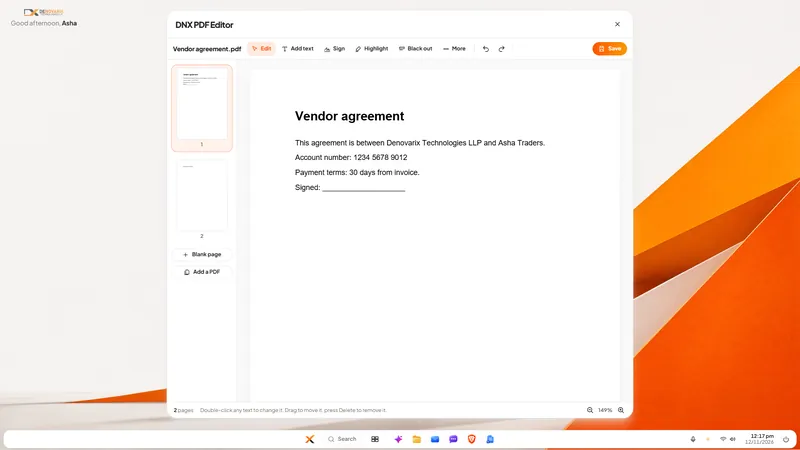
DNX Office: open and save Word, Excel, PowerPoint
DNX Office is the office suite in DNX OS: DNX Word, Sheets and Presentation open and save Word, Excel and PowerPoint files, plus a PDF editor in six screens.
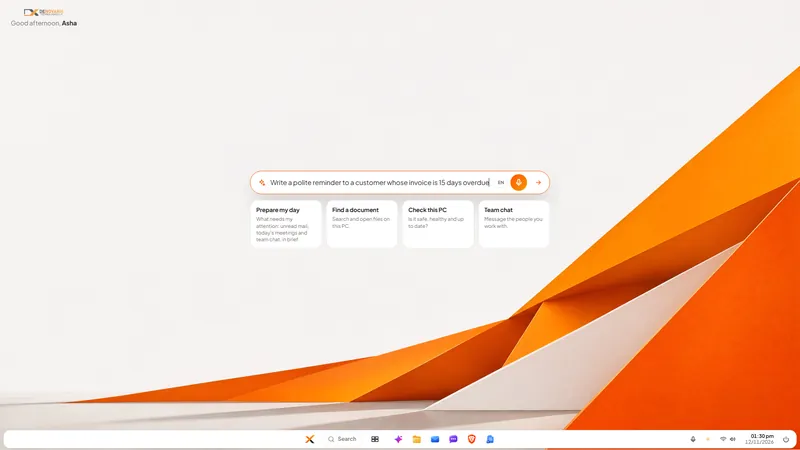
Nova AI: a private AI assistant for office work
Nova is the private AI assistant built into DNX OS. It runs on the office PC itself, so questions and files stay there. See it at work in six real screens.
DNX Files: find and tidy company documents fast
DNX Files is the file manager in DNX OS: folders, search, a Trash you can undo, and Nova to summarise a document or tidy a folder. Seven real screens show it.