
Disk encryption and device management, for owners
Full-disk encryption and device management for company laptops, explained for business owners: what each does, what a lost laptop exposes, and how to set up.
Part of the guide: Operating systems for companies: what to run in 2026

The short answer: full-disk encryption scrambles everything on a laptop so that it cannot be read without the owner's sign-in, which turns a lost laptop from a data breach into the cost of a new machine. Device management lets the company see every laptop and phone, enforce settings such as encryption and updates from one place, and lock or wipe a device that goes missing. Encryption protects the data on one device. Management proves that every device is protected. A company needs both, and neither is expensive.
What happens when a company laptop is lost without encryption?
More than most owners expect. The Windows or other login password does not protect the files. It only guards the front door.
Anyone who finds or steals the laptop can remove the disk, connect it to another computer and read it like a pen drive. Or start the laptop from a USB stick and browse the files without ever seeing the login screen. No special skill is needed.
What is typically on that disk:
- Every document, spreadsheet and PDF the employee worked on
- The email client's stored mailbox, often going back years
- Files synchronised from the company's cloud storage
- Saved passwords and signed-in sessions in the browser
- Customer lists, salary sheets, quotations and contracts in the downloads folder
That last point is the one people forget. Even staff who "keep everything in the cloud" have local copies of whatever they opened.
If the disk held personal data about customers or employees, the loss may also be a breach you have to report. Our DPDP Act checklist covers what the law expects.
What is full-disk encryption?
It is a feature of the operating system that stores everything on the disk in scrambled form. The key that unscrambles it is released only when the right person signs in on that machine.
For the employee, nothing changes. They start the laptop, sign in and work as before. The scrambling and unscrambling happen automatically, and on any reasonably recent machine the effect on speed is not noticeable in office work.
For a thief, everything changes. The disk removed from the laptop is noise. Starting from a USB stick shows nothing readable. Without the sign-in, the data is not there.
Three things to know before you switch it on.
The recovery key is the part that needs care. If an employee forgets their password, or the machine's hardware changes, a recovery key is the only way back in. If nobody has it, the data is gone for the company too. Recovery keys must be stored centrally by the company, not on a sticky note and not only in the employee's personal account.
It protects a machine that is off or locked. Encryption does nothing against someone who walks up to an unlocked, signed-in laptop. That is why automatic screen lock goes with it.
Most systems already include it. Current versions of Windows, macOS and other operating systems have disk encryption built in. On Windows it depends on the edition, so check what your machines have. Usually the problem is not buying it. It is that nobody turned it on, or nobody checked.
What is device management?
Encryption is a setting on one laptop. Device management, often called MDM, answers the next question: how do you know the setting is on, across thirty laptops, including the one issued last week?
A device management tool installs a small agent on each company laptop and phone. The device then checks in with a central console, where the company can:
| What it does | Why an owner cares |
|---|---|
| Lists every device and who has it | You cannot protect a laptop you have forgotten exists |
| Reports which devices are encrypted and up to date | Proof, not assumption, for you and for clients' security questionnaires |
| Enforces settings: encryption, screen lock, password length | The rule is applied by the system, not by reminding people |
| Installs and updates approved software | Unpatched software is the common way in for attackers |
| Locks or wipes a lost or stolen device remotely | The data is gone from the device before anyone tries to read it |
| Removes company access when someone leaves | Offboarding in one step, not ten |
| Keeps a log of who changed what | Evidence if something goes wrong |
On phones the idea is the same, with one refinement. Staff use personal phones for work mail and chat, and they do not want the company controlling their photos. A work profile solves this: company apps and data live in a separate, managed area of the phone that the company can wipe without touching anything personal.
Does a company of fifteen people need this?
Yes, in proportion. The risk does not scale with headcount. One lost laptop from a five-person CA firm can expose every client's financials.
What scales is the method. With five laptops you can turn on encryption by hand, record the recovery keys in a safe place and check each machine once a quarter. Somewhere past ten or fifteen devices, checking by hand stops happening, and a management tool pays for itself in the first incident it prevents.
Larger clients increasingly ask their vendors to confirm these controls before signing. Being able to say "every device is encrypted and centrally managed, and here is the report" is a commercial advantage as well as a safeguard.
How do you set it up?
- Make a list of every device that holds company data, including personal phones used for work mail.
- Turn on full-disk encryption on every laptop. Start with the ones that travel: sales, directors, field staff.
- Store every recovery key centrally, where at least two trusted people can reach it.
- Set screens to lock automatically after a few minutes, and require sign-in on wake.
- Give each person their own account. No shared logins, and no everyday use of administrator accounts.
- Turn on automatic updates for the operating system and applications.
- Enrol devices in a management tool once you pass about ten, and use a work profile on personal phones.
- Write the lost-device drill on one page: whom to call, within what time, and who triggers the remote lock or wipe. Run it once as a test.
- Add device return and account removal to your exit checklist.
Decide also which AI tools may run on those devices, because a well-encrypted laptop that pastes its contents into a public chatbot is not protected. See shadow AI and a policy that works.
How does DNX OS handle this?
In DNX OS, full-disk encryption is offered at install, so a machine starts its working life encrypted instead of waiting for someone to remember. The Fleet part of DNX Hub is the management console: laptops and phones check in, you see compliance, push apps and policies, and keep a full audit trail. DNX Workspace, in beta, is a managed work profile for Android that keeps company apps and data separate and can be wiped remotely if a phone is lost. Updates to the OS, apps and drivers install automatically from signed sources.
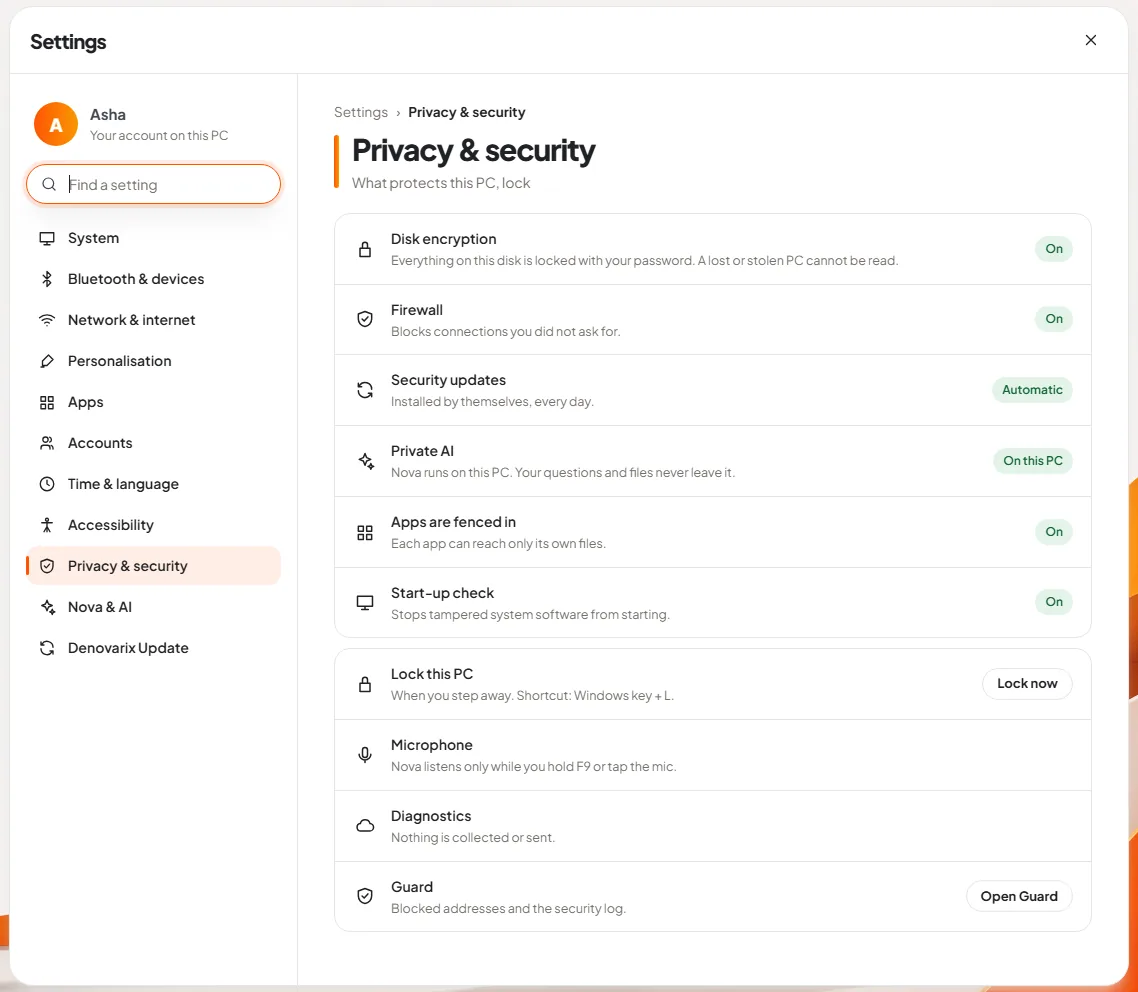
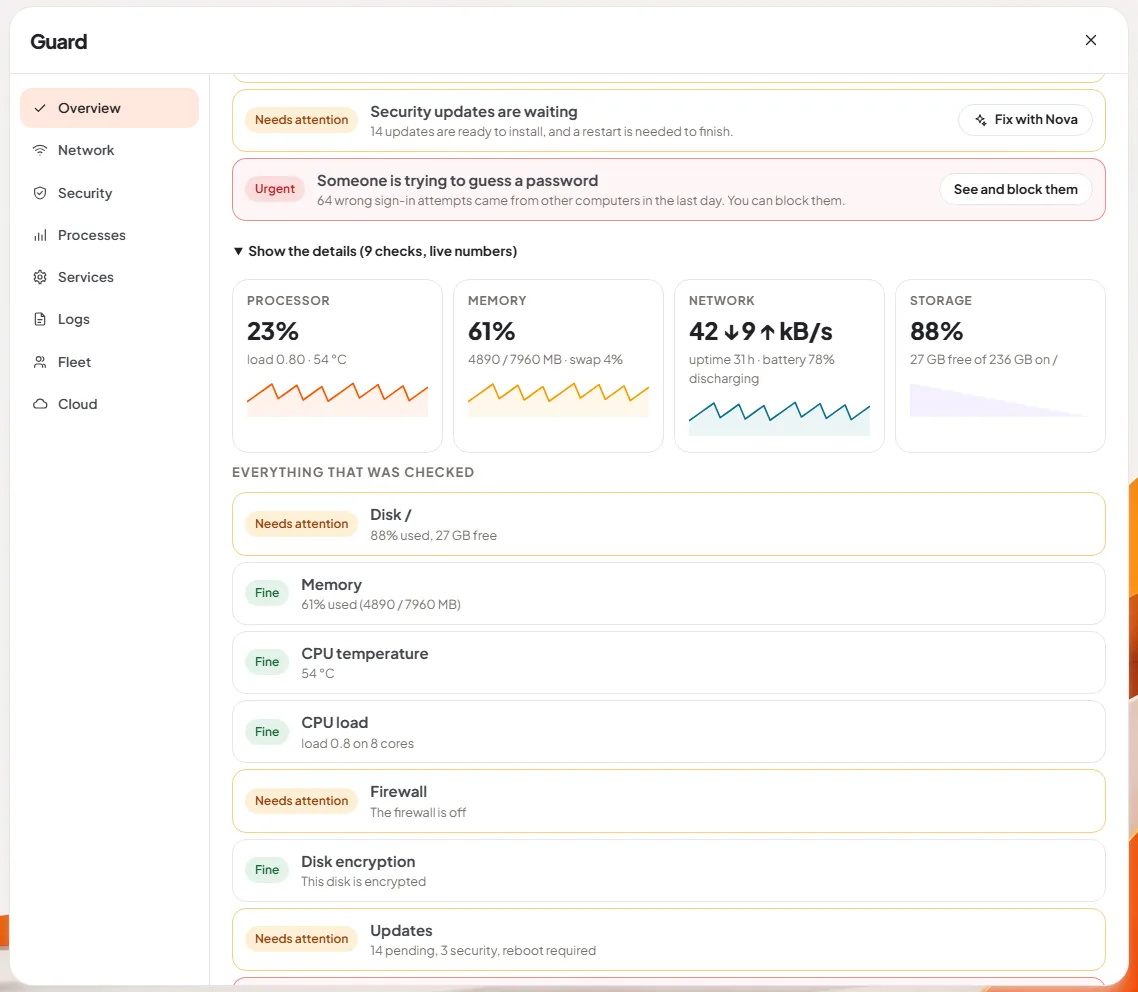
You can do all of this with other tools, and you should not wait for ours to do the first four boxes above. They cost nothing but an afternoon, and they are the difference between losing a laptop and losing your clients' data.
Keep reading

Vendor lock-in: how to choose software you can leave
Vendor lock-in explained for business owners: five ways software traps a company, a test to run before you buy, and how to keep an exit open with any tool.
Nova AI: a private AI assistant for office work
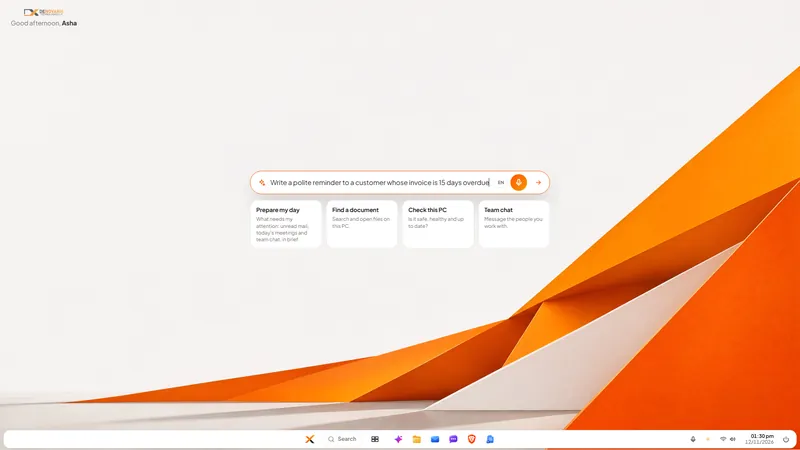
Nova is the private AI assistant built into DNX OS. It runs on the office PC itself, so questions and files stay there. See it at work in six real screens.
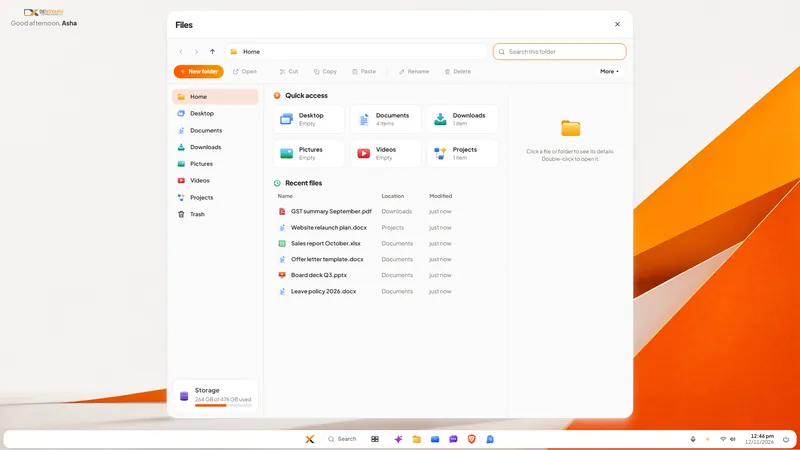
DNX Files: find and tidy company documents fast
DNX Files is the file manager in DNX OS: folders, search, a Trash you can undo, and Nova to summarise a document or tidy a folder. Seven real screens show it.