
DNX Meetings: automatic minutes for any meeting
DNX Meetings records a call in any app, then writes the minutes on your own PC: summary, decisions, action items and a transcript. Six real screens show how.
Part of the guide: Private and on-device AI for business: a guide
The short answer: DNX Meetings is a recorder that writes the minutes for you. Press Record when a meeting starts, in any calling app, and press Stop when it ends. A few minutes later you have a summary, the decisions, the action items and a word-for-word transcript. The recording, the transcription and the writing all happen on your own PC. No meeting audio is uploaded to a note-taking service.
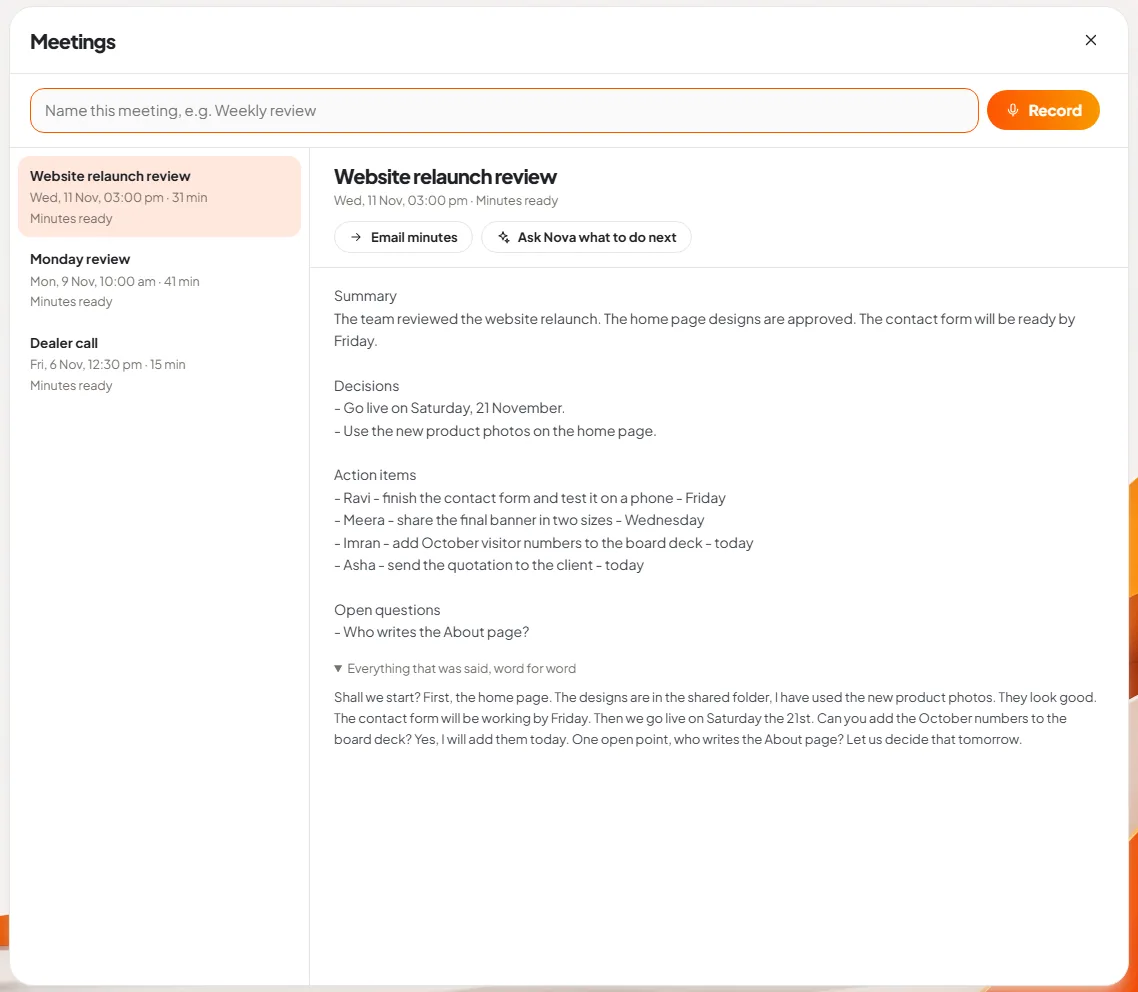
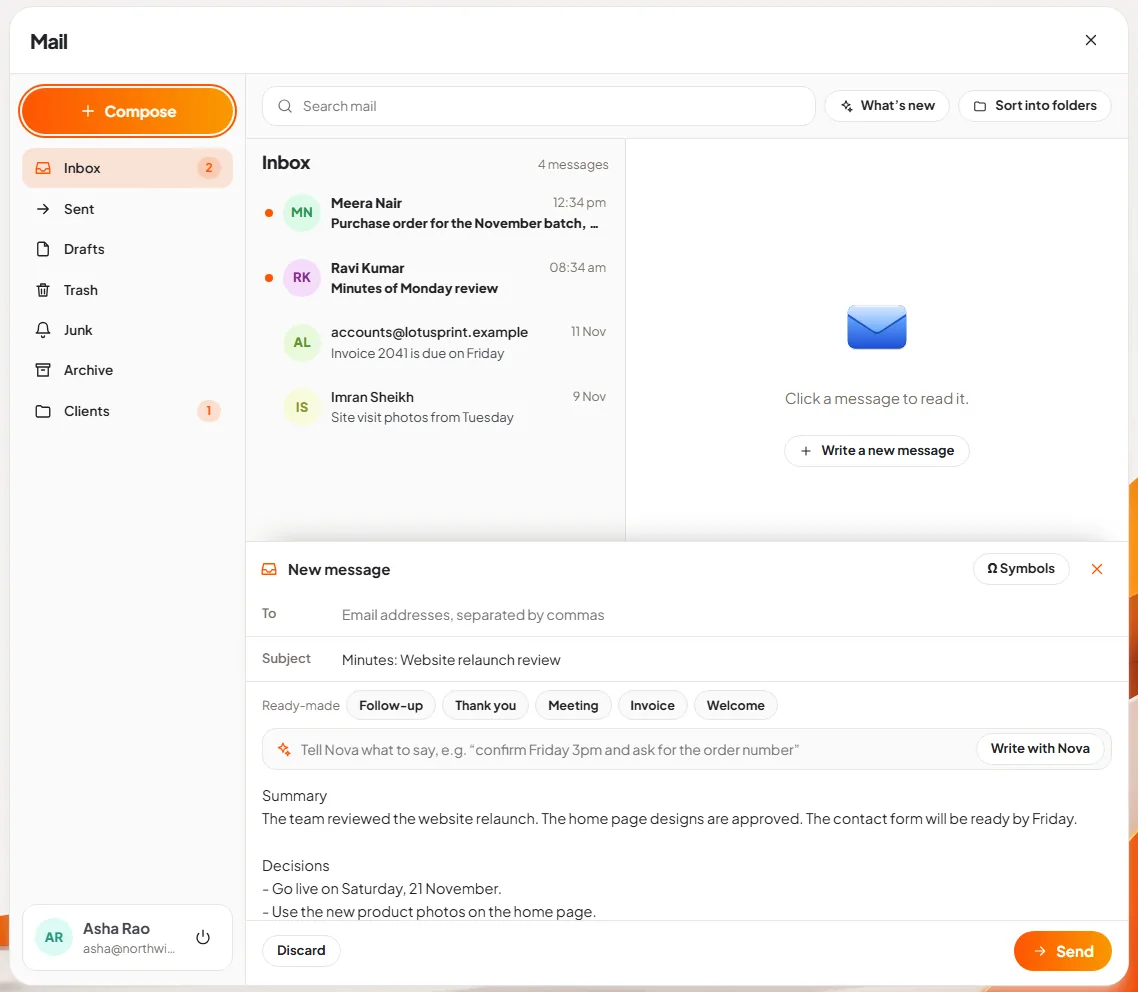
The slideshow shows six real screens of the app. The recorder needs a microphone and the on-device speech model, which the machine used for these pictures did not have, so the list of meetings and the text of the minutes and transcript are sample content supplied for the screenshots. The layout, buttons and wording around them are the product itself.
Why do meeting minutes go unwritten?
Because writing them is nobody's job. In a small company the person who should take notes is also the person leading the meeting. Decisions are remembered differently by different people, and the task everyone agreed on is done by no one.
Automatic note-takers solve this, and they have become popular. Most of them work by joining your call as a robot participant, or by sending the audio to their servers. That puts a recording of your pricing discussion, your hiring decision or your client's problem on a third party's system. Our article on shadow AI describes the same pattern with documents.
DNX Meetings takes the other route: the computer you are sitting at does the work.
How do you record a meeting?
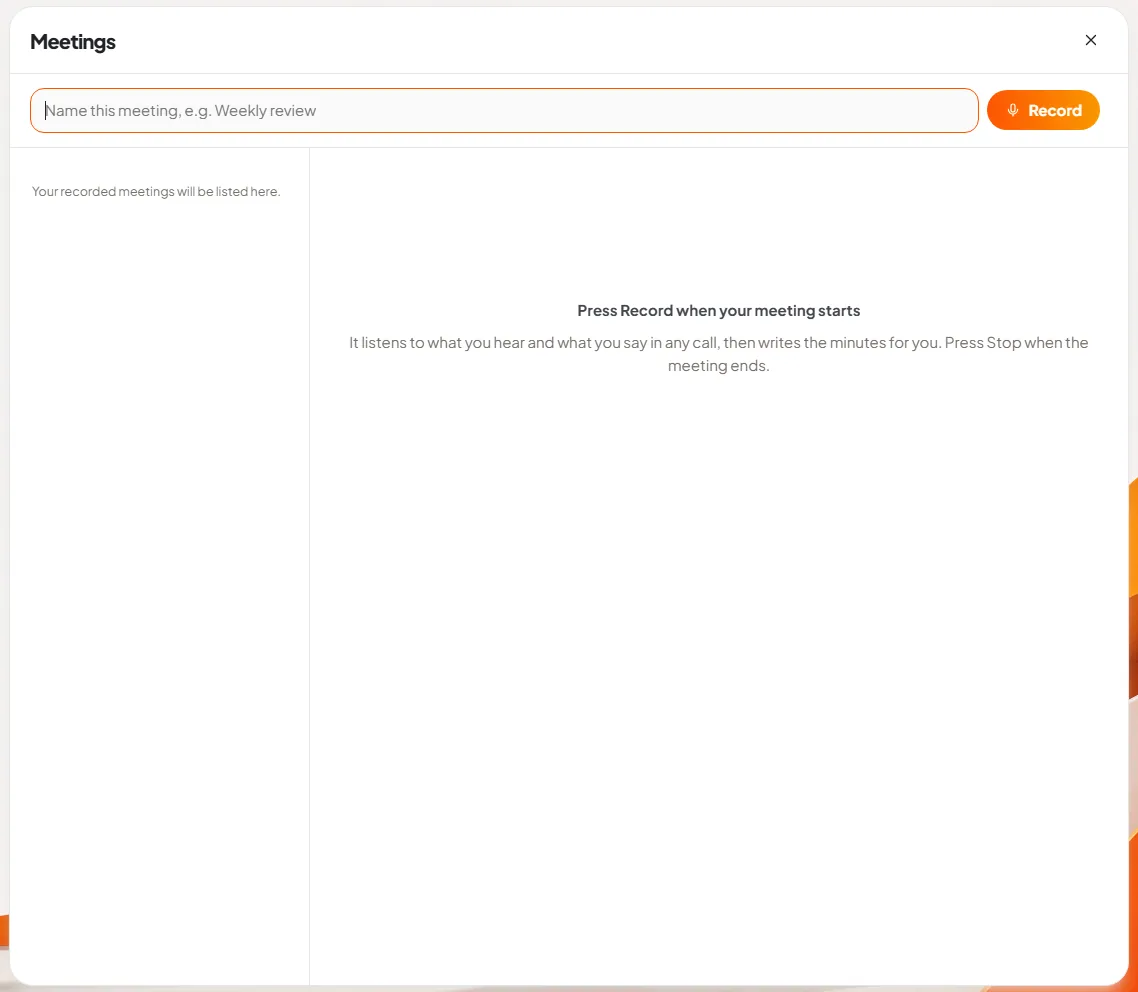
Slide 1: open Meetings. The window has one line at the top, a box for the meeting's name and a Record button, and one instruction in the middle: "Press Record when your meeting starts. It listens to what you hear and what you say in any call, then writes the minutes for you. Press Stop when the meeting ends."
The phrase "in any call" is the point. Meetings does not need to be the app you are calling with. It records what comes out of the computer's speakers and what goes into its microphone, so it works with a call in DNX Team Chat, a meeting in a browser tab, or any other calling program. It works for a meeting in a room as well, with the laptop on the table.
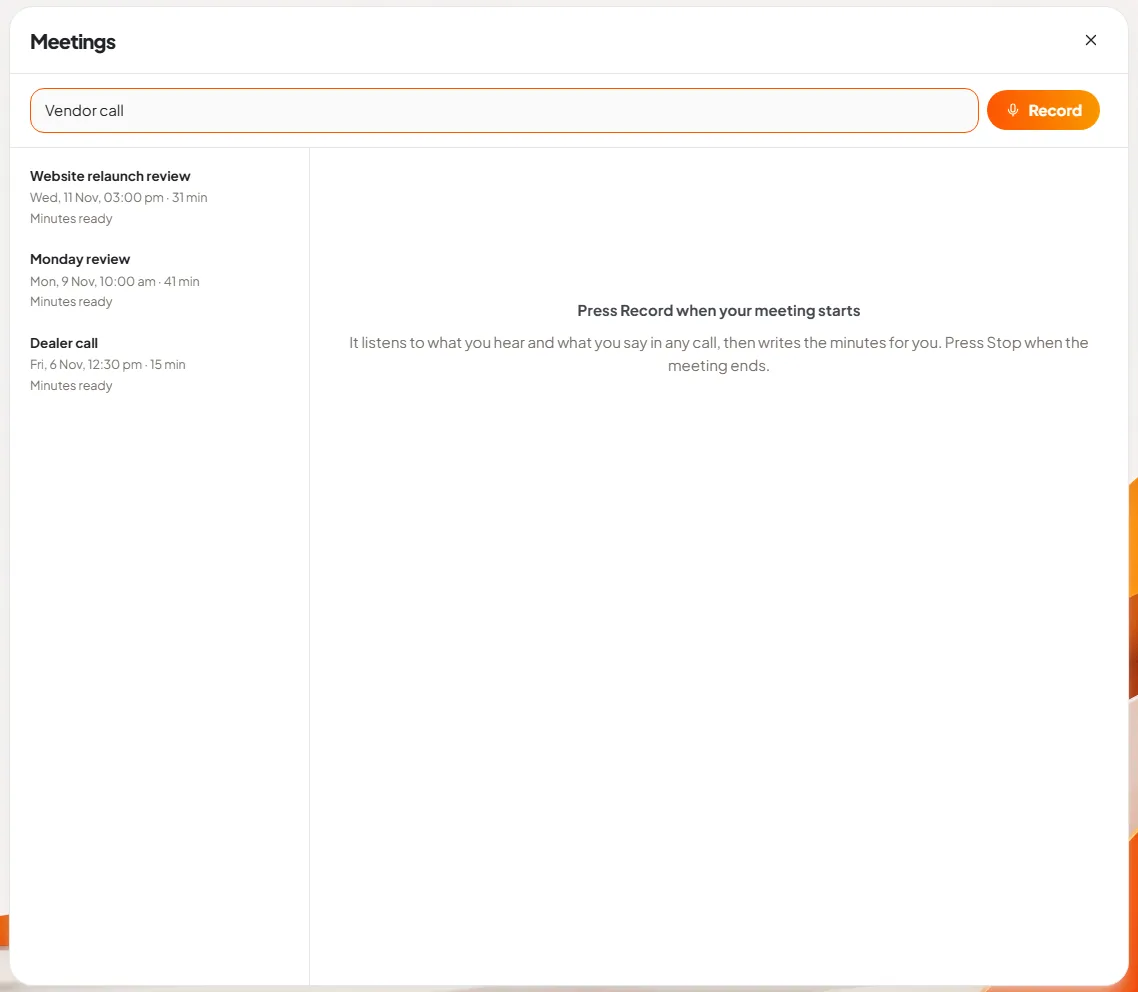
Slide 2: name the meeting. Type a name such as "Vendor call" so you can find it later. Earlier meetings are listed on the left with the day, the length and their state.
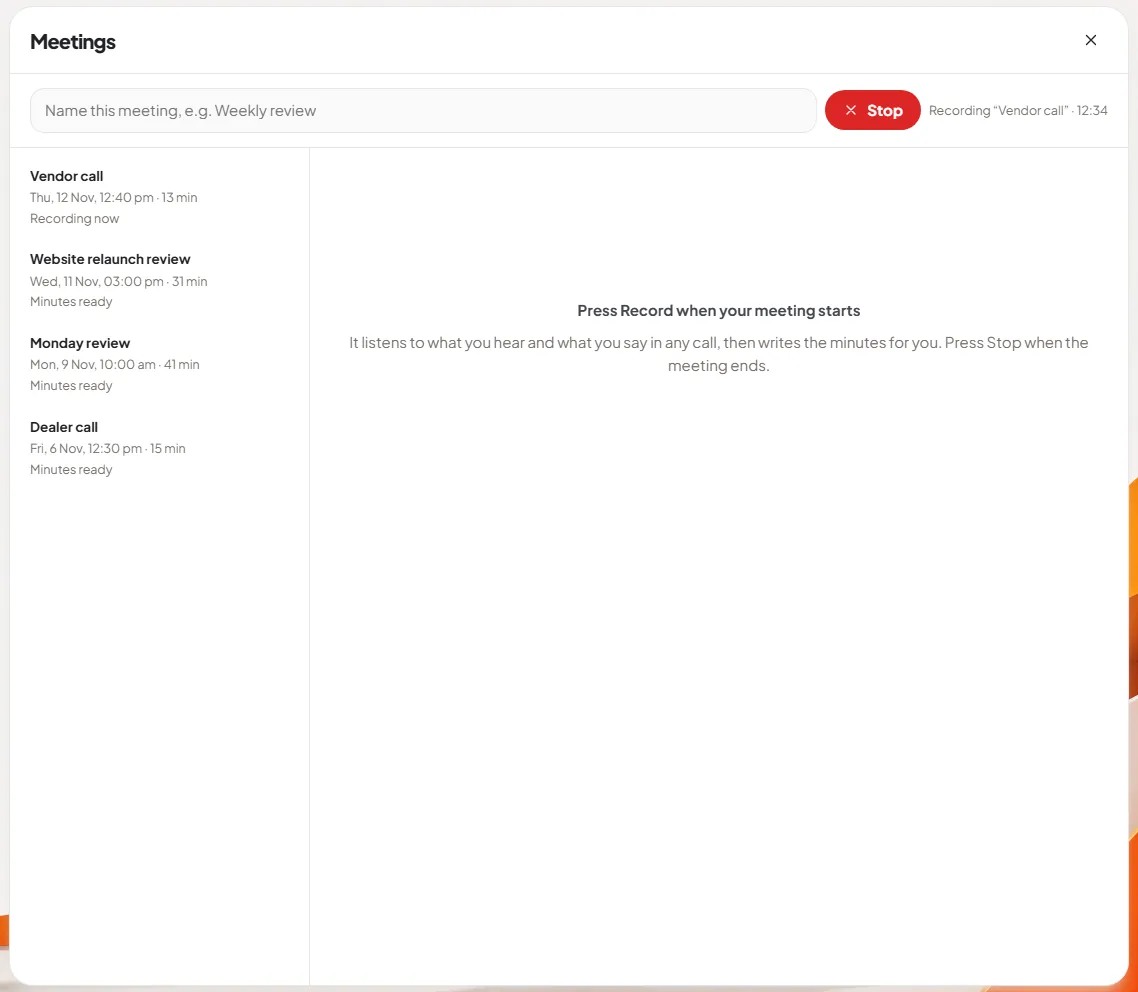
Slide 3: record. Press Record. The button turns red and says Stop, and a timer beside it shows the meeting's name and how long it has been running. The new meeting appears at the top of the list as "Recording now". Nothing else on the screen changes, and you can switch to other windows. One meeting is recorded at a time.
Tell the people in the meeting that you are recording. It is courteous, and for calls with customers or staff it is the safe practice.
What do the minutes contain?
When you press Stop, a message says the minutes will be ready in a few minutes. The meeting shows "Writing the minutes" in the list, and you can close the window and come back.
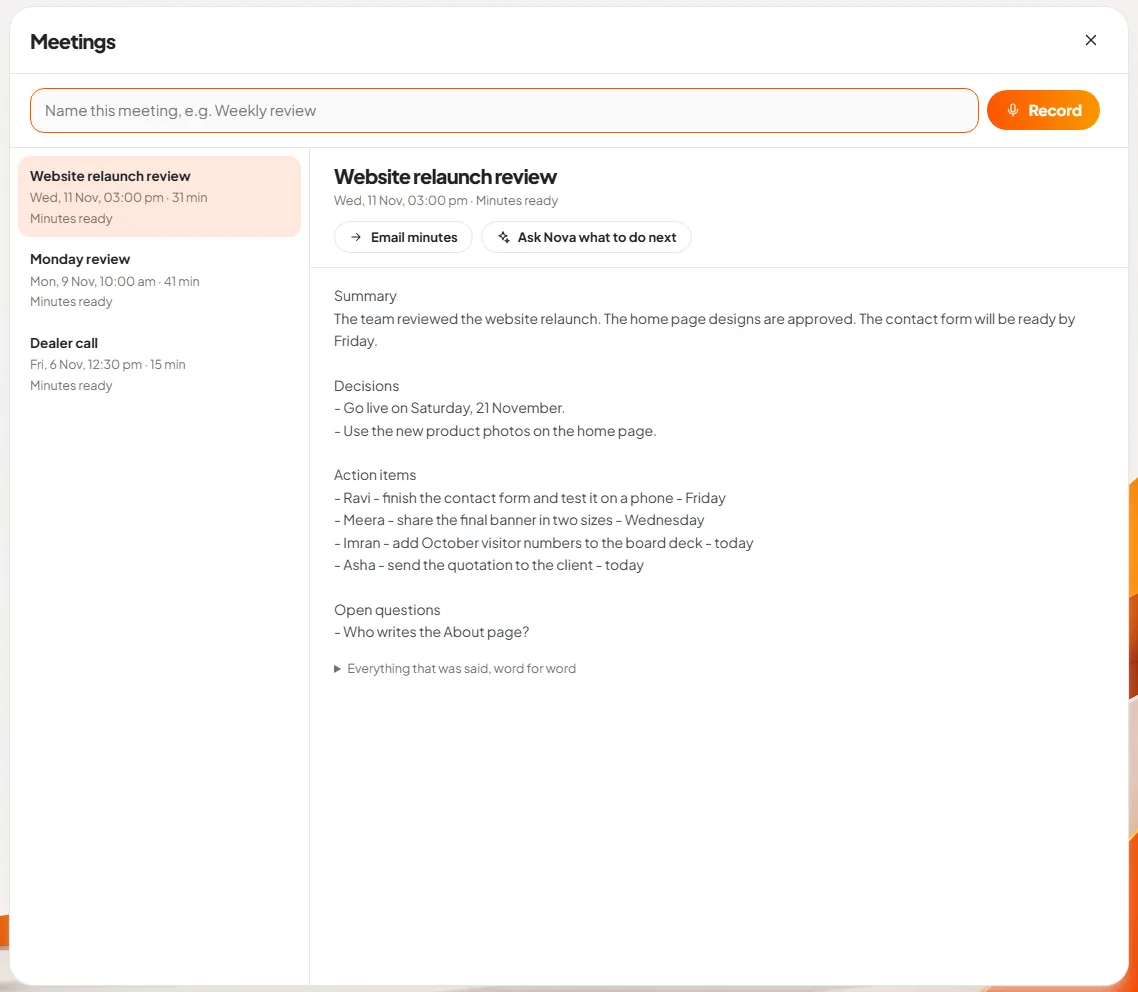
Slide 4: read the minutes. Open the meeting and the minutes are on the right, in four parts:
- Summary: what the meeting was about, in about three lines.
- Decisions: what was agreed.
- Action items: who will do what, and by when.
- Open questions: what was raised and not settled.
Above the minutes is a player to listen to the recording again.
Slide 5: check the transcript. Under the minutes is a line: "Everything that was said, word for word". Open it and the full transcript is there. Minutes are a summary, and a summary can be wrong, so the transcript is one click away for anything that matters: a number, a date, a promise.
What can you do with the minutes?
Slide 6: email the minutes. Email minutes opens DNX Mail with a new message already written: the subject is "Minutes:" and the meeting's name, and the body is the minutes. Add the recipients, read it through and press Send.
The second button, Ask Nova what to do next, hands the meeting to Nova and asks it to list your own action items and draft a follow-up message to the team.
The recording and its text are kept in a Meetings folder in your own files on the PC, one folder per meeting, so they can be backed up, moved or deleted like any other document.
Is the recording really kept on the PC?
Yes. The audio is captured on the computer, transcribed by a speech model on the computer and summarised by a language model on the computer. In DNX OS each AI service is sandboxed with no network access, so the audio cannot be passed to an outside service through it.
That is also why a note-taker of this kind can be allowed in companies that have banned the cloud ones. If you are writing the rules, on-device AI versus cloud AI sets out which work belongs where.
What does DNX Meetings not do?
- It does not know who is speaking. The transcript is running text without speaker names. The minutes name people only when names were said aloud in the meeting.
- It is not instant. The minutes are written after the meeting, and a one-hour meeting takes some minutes to process on an ordinary laptop.
- It can mishear. Names, product codes and amounts are where speech recognition makes mistakes, more so on a poor line. Check them against the recording before the minutes go out.
- It does not put action items into a task list for you. Copy them into DNX Projects if you track work there.
- One meeting at a time, and only while the app is recording. It does not join calls by itself or record in the background.
Who is it for?
It is for the owner who leaves four meetings a day with nothing written down, the manager who must send a client a summary of what was agreed, and any firm that cannot send recordings of its discussions outside the company. Lawyers, chartered accountants, consultants and anyone under a confidentiality clause are the obvious cases.
How do you try it?
DNX Meetings is part of DNX OS, with no extra licence and no per-minute charge. The beta programme opens in December 2026 and the launch is in January 2027. Registered Indian businesses with 5 to 50 people can apply for the beta. Record one real weekly review with it and compare the minutes with what people remember.
Keep reading
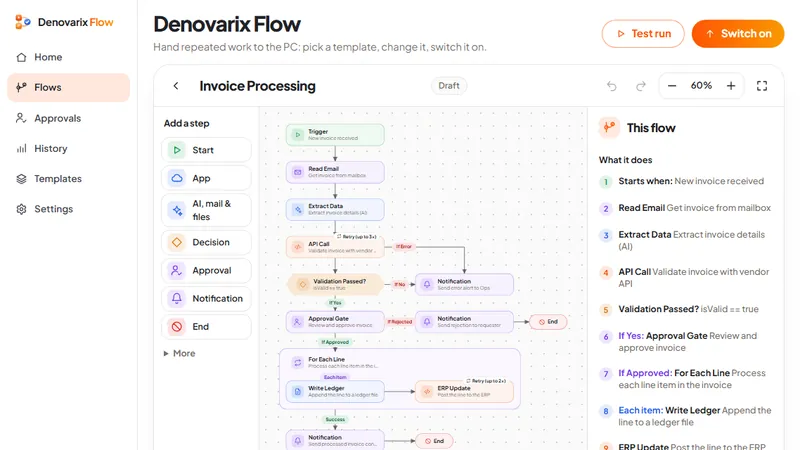
DNX Flow: automate invoice approval without coding
DNX Flow automates repeated office work such as invoice approval, starting from a ready template you read in plain words, test, then switch on. Seven screens.
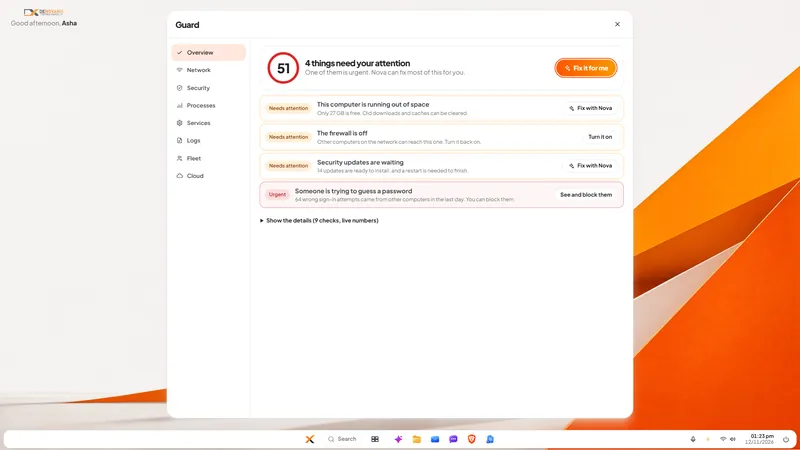
DNX Guard: PC security and health checks for admins
DNX Guard checks a company PC's firewall, disk encryption, updates, sign-in attempts and disk space, and says in plain words what to fix. Six real screens.
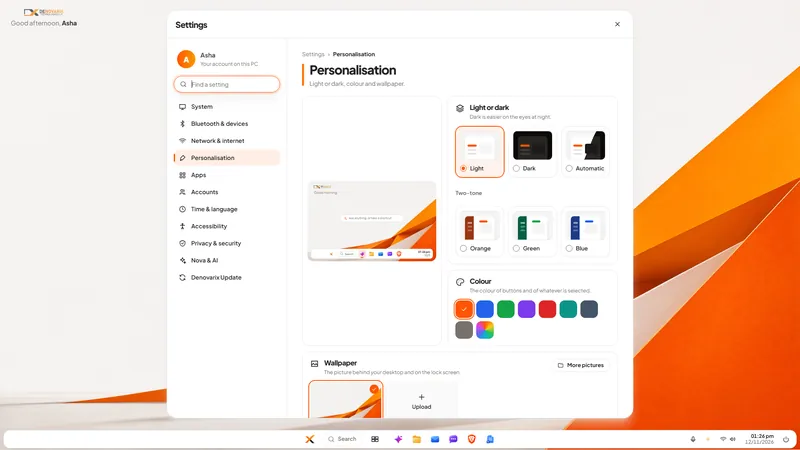
DNX Settings: light, dark and two-tone themes
DNX Settings puts every PC setting in one searchable window, with light, dark and two-tone orange, green and blue themes and a plain privacy page. 8 screens.