
DNX Projects: a simple project and task tracker
DNX Projects is a simple project and task tracker in DNX OS: projects, tasks, deadlines and progress on one screen, with nothing to configure. Seven screens.
Part of the guide: Replacing the vendor stack: office, HR, chat and cost
The short answer: DNX Projects is the project and task tracker that comes with DNX OS. It does four things: it keeps a list of projects, a list of tasks under each one, a deadline for anything that has one, and a progress bar that fills as tasks are ticked. There are no boards to design, no workflows to configure and no per-user fee. A team lead can set it up in the time it takes to read this page.
The slideshow above is seven real screens of the app with sample projects.
Who needs a project tracker this simple?
Most small teams do not fail at project management because their tool lacks features. They fail because the tool is so elaborate that only one person updates it, and after a month nobody does.
DNX Projects is for the team that today runs on a WhatsApp group, a notebook and somebody's memory: an agency with six jobs in hand, a trading firm preparing for an audit, an office planning a festival offer. It answers three questions and stops. What are we working on? What is due this week? How far along is each job?
If you need Gantt charts, time budgets and resource levelling, this is not that tool, and we say so further down.
How do you start a project?
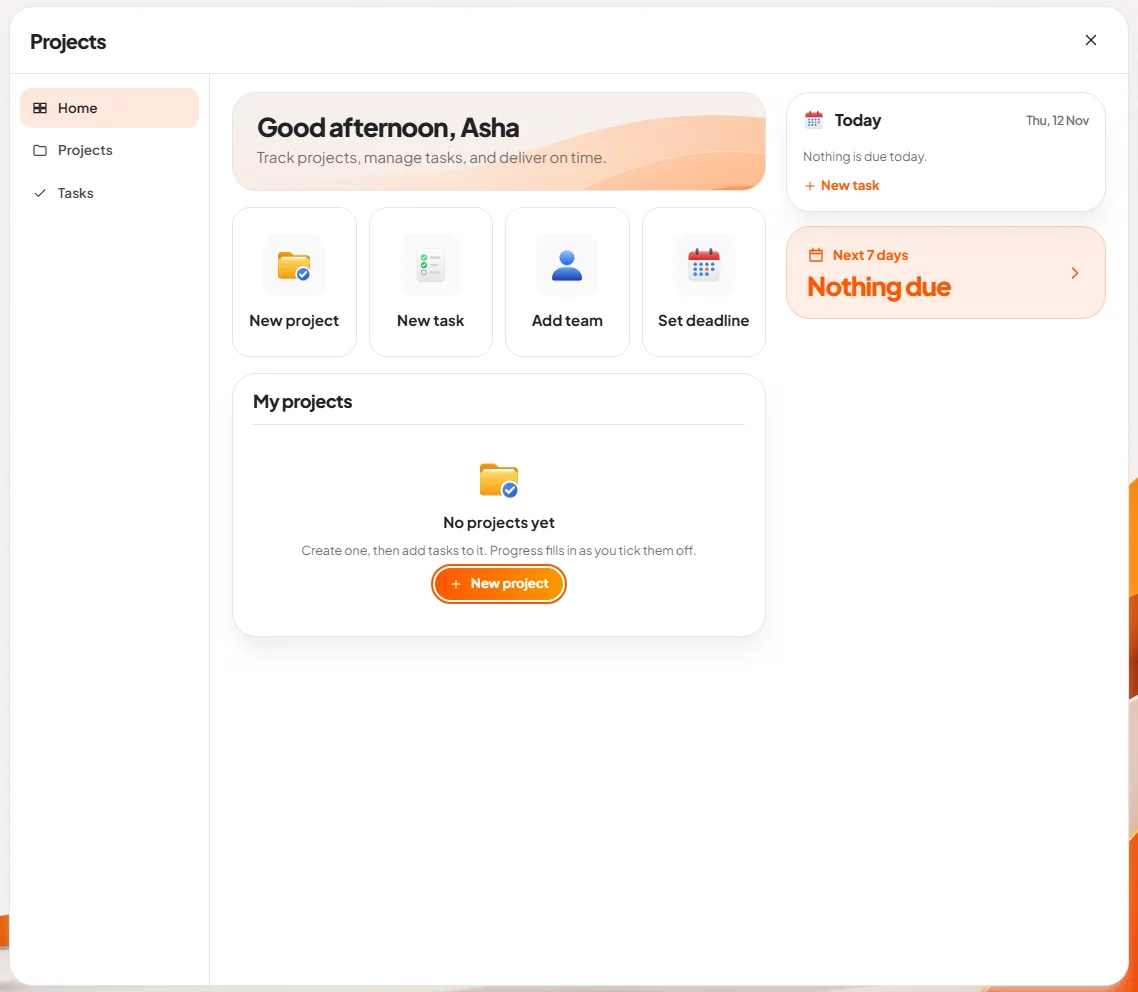
Slide 1: open Projects. An empty Projects app does not show an empty table. It shows a greeting and four large buttons: New project, New task, Add team and Set deadline. On the right is a "Today" card and a "Next 7 days" card, both saying nothing is due. Under them: "No projects yet. Create one, then add tasks to it. Progress fills in as you tick them off."
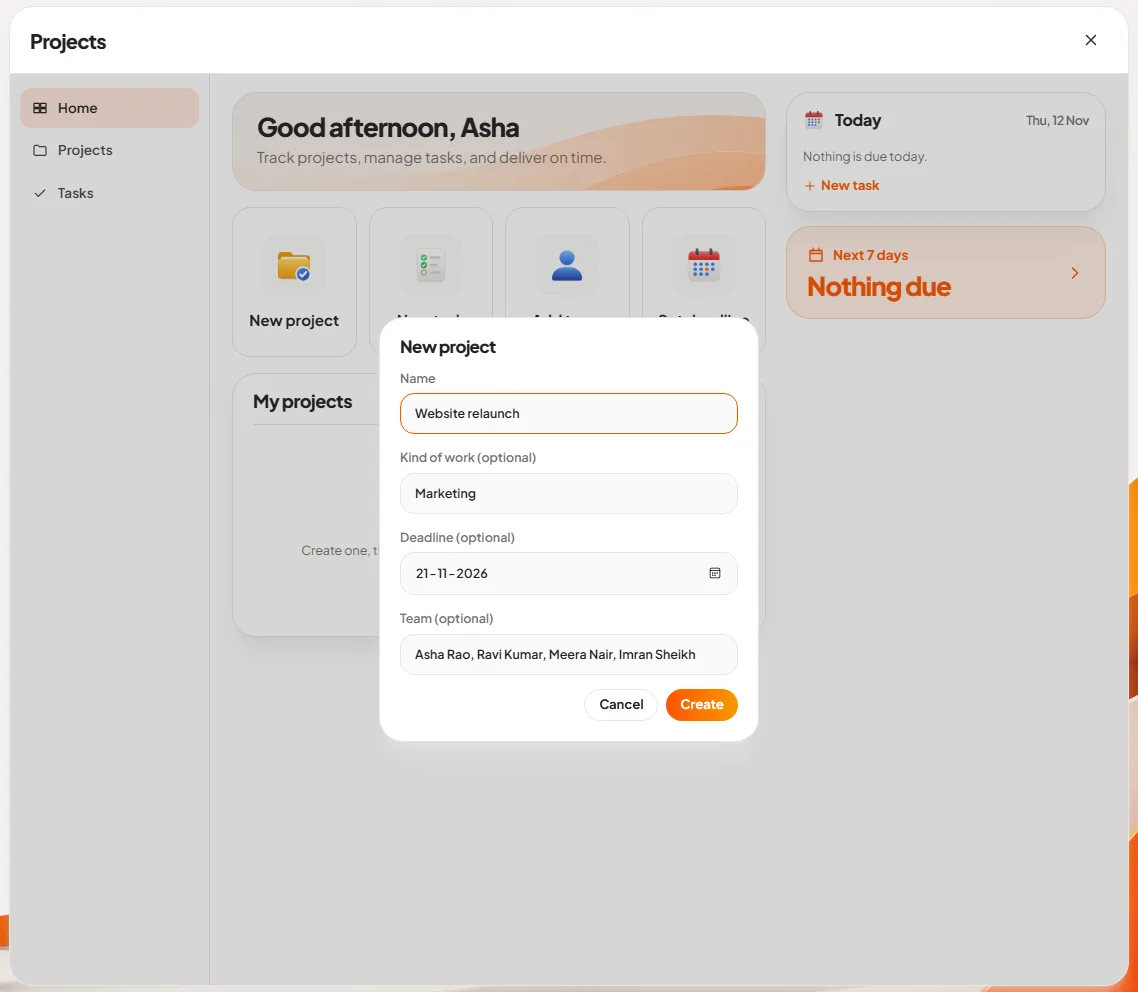
Slide 2: create a project. New project asks for four things, and only the first is required:
- Name, for example "Website relaunch".
- Kind of work, for example Marketing. It is a label you choose.
- Deadline, picked from a calendar.
- Team, typed as names separated by commas.
Press Create and the project exists. There is nothing else to set up.
How do tasks and progress work?
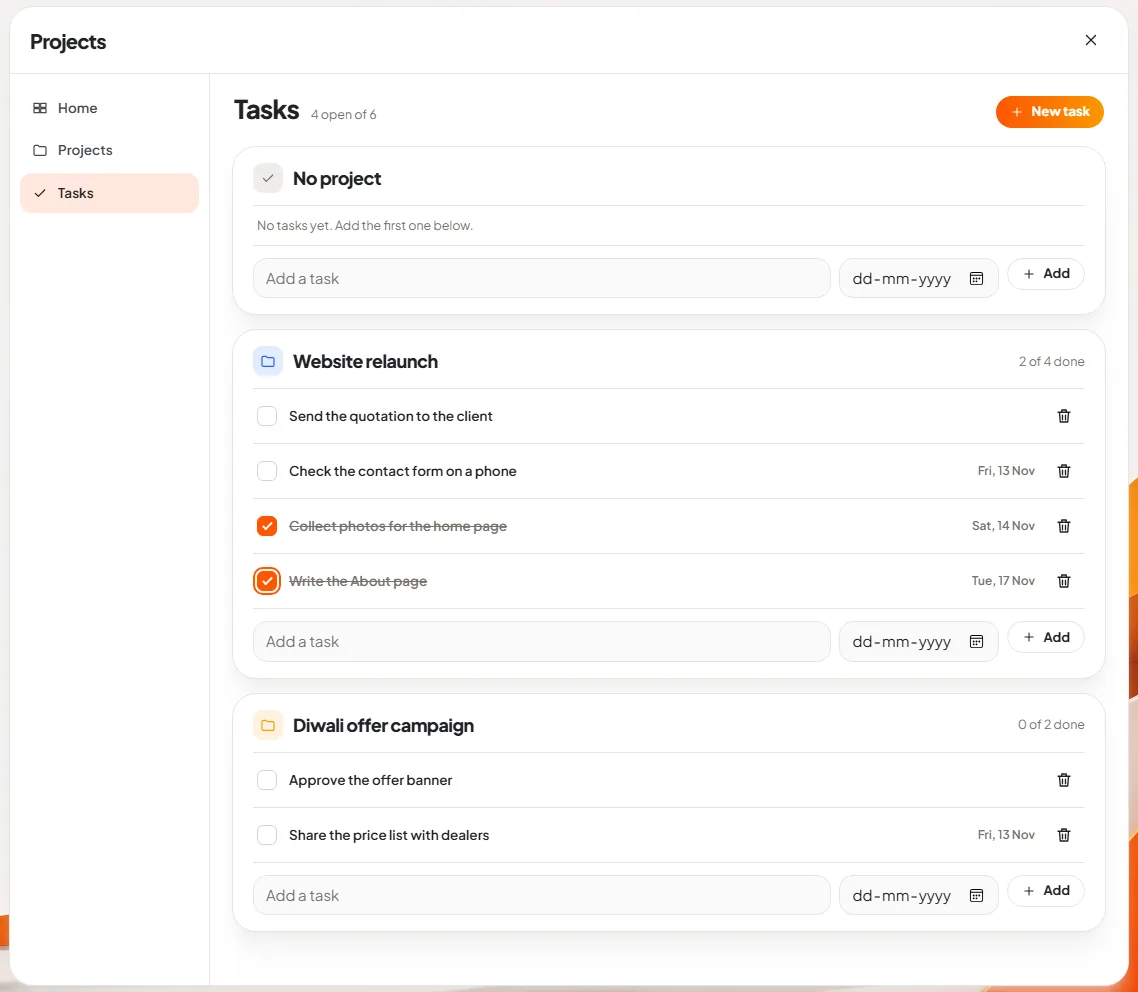
Slide 3: add tasks and tick them off. The Tasks page groups tasks under their project. Each project has an "Add a task" line with an optional date beside it: type the task, pick a date if it has one, press Add. A task without a project goes under "No project", which is handy for one-off jobs.
To finish a task, tick its box. The task is struck through and the count at the top right of the project changes, "2 of 4 done" in the picture. The small bin at the end of a line removes a task that is no longer needed.
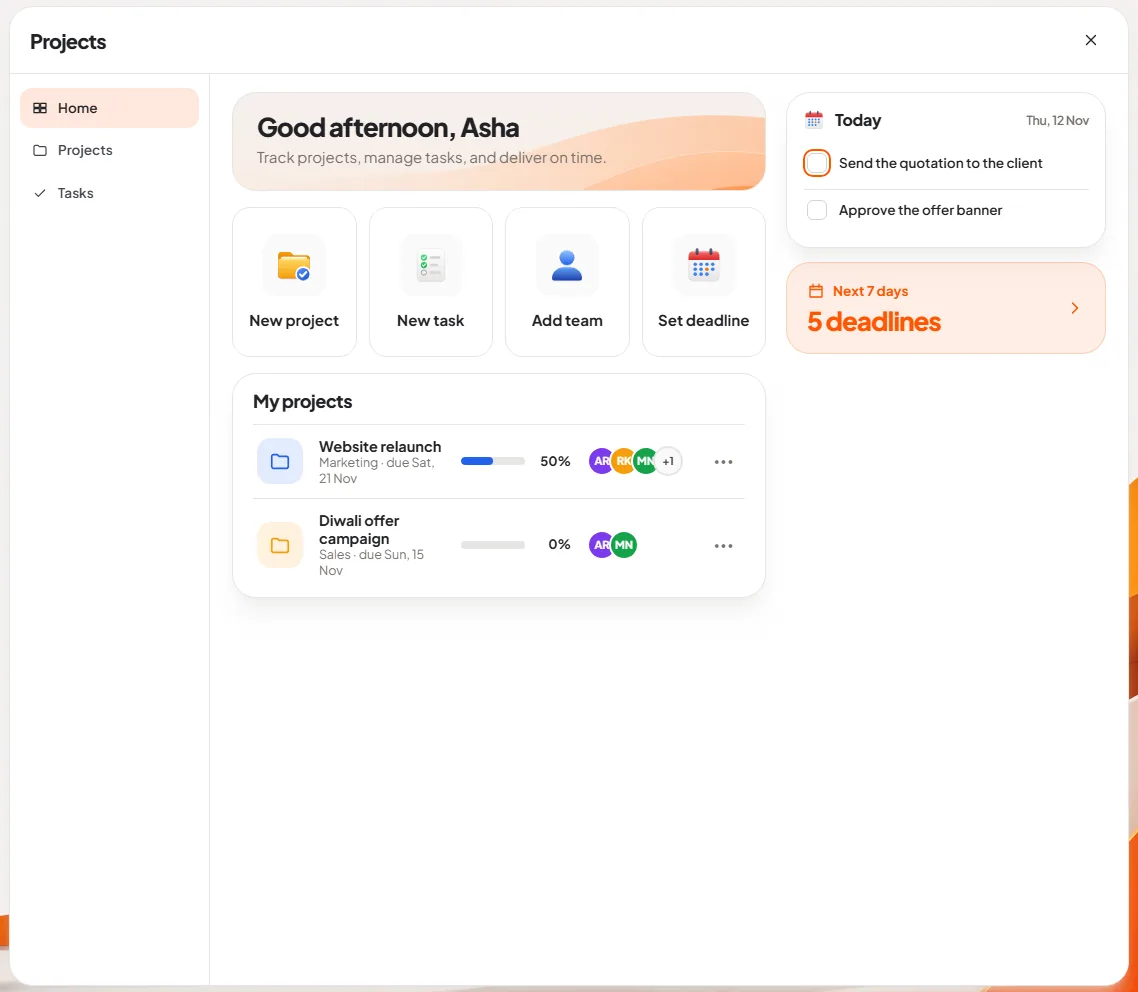
Slide 4: see today at a glance. Back on the home page, the project now shows a progress bar at 50 per cent, because two of its four tasks are done. Beside it are the initials of the team. The "Today" card lists what is due today across every project, each with its own tick box, so a person can clear the day's work from the first screen without opening anything.
This is the screen most people will leave open. It answers "what should I do now?" in one look.
How do you keep track of deadlines?
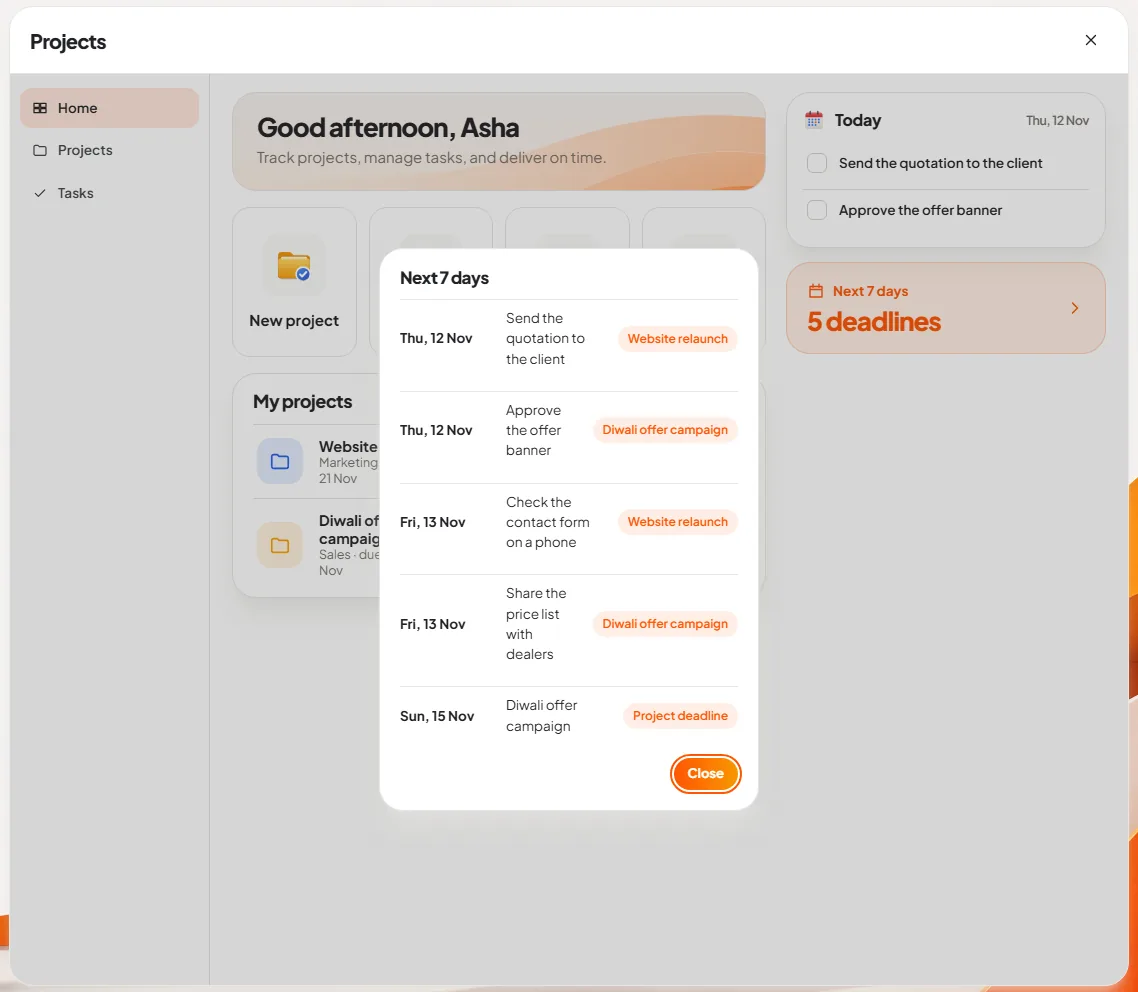
Slide 5: check the week's deadlines. The orange "Next 7 days" card counts what is due in the coming week. Click it and the list opens: every task and every project deadline, in date order, with the project it belongs to. A project's own deadline appears in the same list, marked "Project deadline", so the big date is not lost among the small ones.
For a Monday morning review, this list is the agenda.
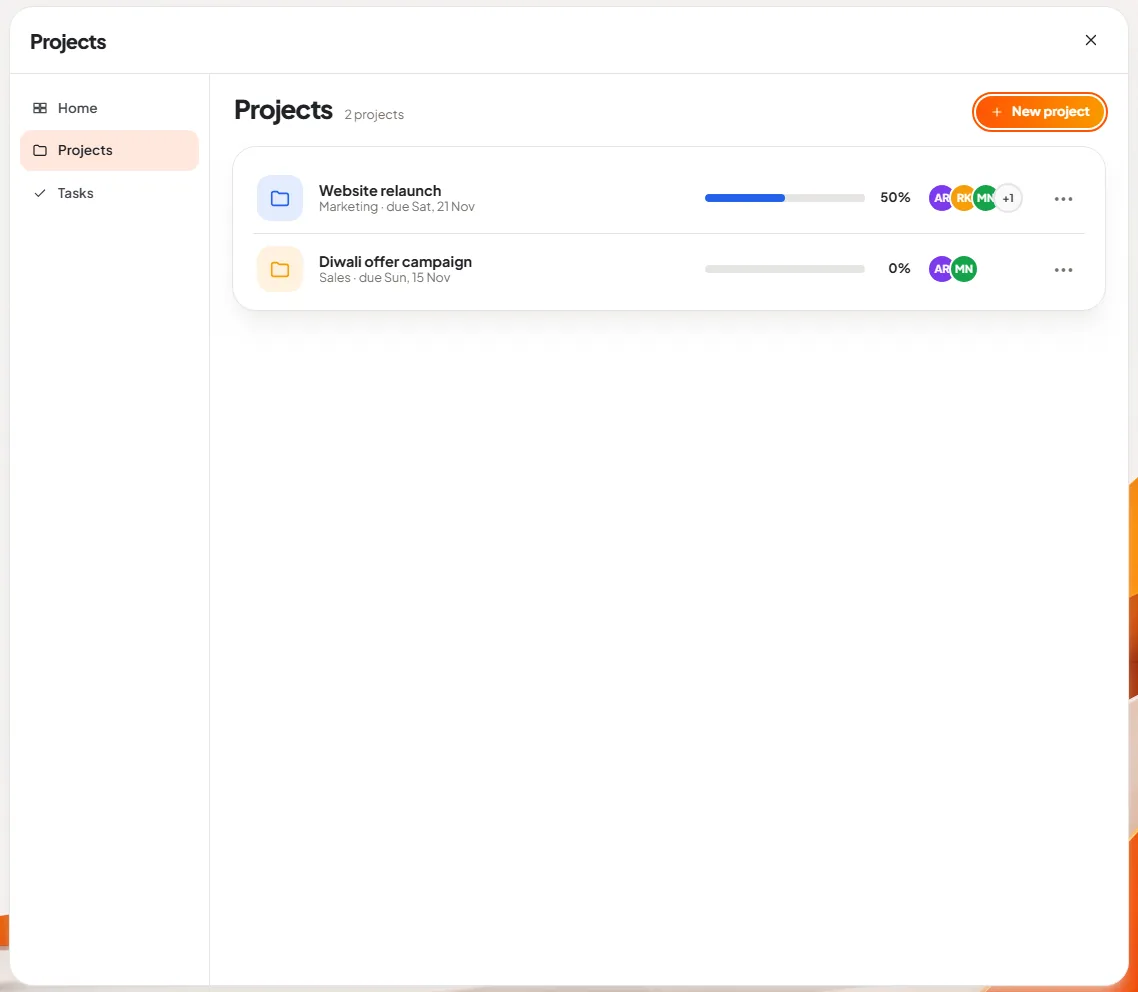
Slide 6: compare all projects. The Projects page puts every project on one line each: name, kind of work, due date, progress bar, percentage and team. A manager with eight jobs running can see in five seconds which one has not moved.
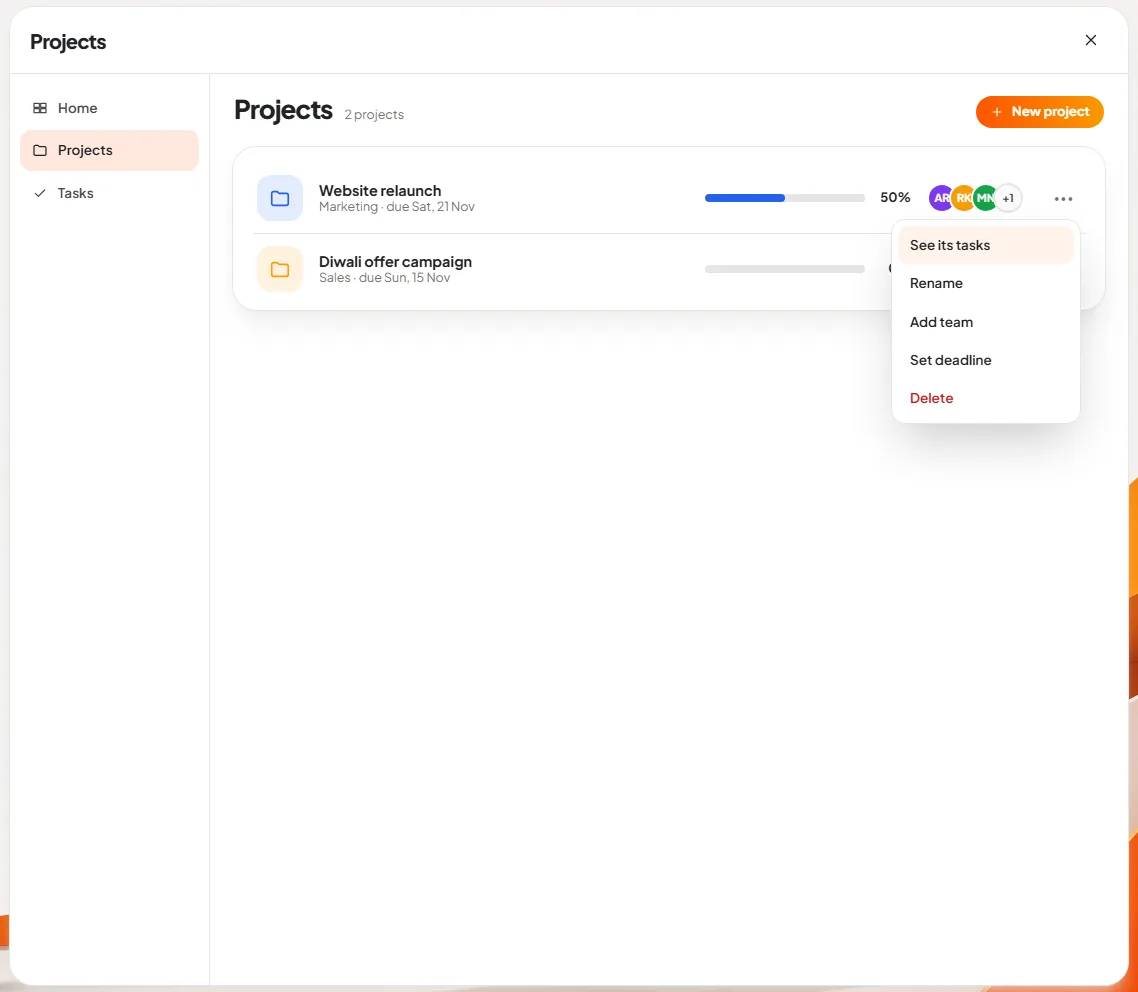
Slide 7: change a project. The three dots at the end of a project open a short menu: See its tasks, Rename, Add team, Set deadline and Delete. Plans change, and changing them should not need a manual.
Where are projects kept, and who can see them?
The projects and tasks in these pictures are kept on the PC itself, in the user's own account. Nothing is sent to a cloud service to make the app work.
That has a consequence worth stating plainly. In this build, DNX Projects is a personal and team-lead tool, not a shared workspace. The team on a project is a list of names, shown as initials, so you can see who is involved. It does not give those people a login to the same list, and a task is not assigned to one of them with a notification. One person, usually the team lead or the owner, keeps the list and runs the review from it.
Team Chat has a Projects button in its side rail, so the list is one click away during a conversation, and updates still travel the way they do today: you tell people in DNX Team Chat or in the meeting.
What does DNX Projects not do?
- No shared, multi-user editing yet, as explained above.
- No assignee per task and no reminders. A task has a title, an optional date and a tick.
- No Gantt chart, dependencies or sub-tasks.
- No time tracking in Projects. Hours are logged in the timesheet in DNX People, against a project name you type there.
- No attachments on a task. Files stay in DNX Files.
We would rather ship a small tool that a whole office actually uses than a large one that only its administrator understands. Which of the missing items matters most to you is exactly what the beta is for.
How does it compare with paying for a project tool?
A paid project tool makes sense when many people must update the same plan and you will use its reports. If what you need is a reliable list of jobs, tasks and dates, a monthly fee per user is a high price for a checklist. Our article on what a 25-person company pays for software shows how these small subscriptions add up.
How do you try it?
DNX Projects is included in DNX OS, a standalone operating system for businesses with private AI built in. The beta programme opens in December 2026 and the launch is in January 2027. Registered Indian businesses with 5 to 50 people can apply for the beta. Put your real jobs for one month into it and see whether Monday's review gets shorter.
Keep reading
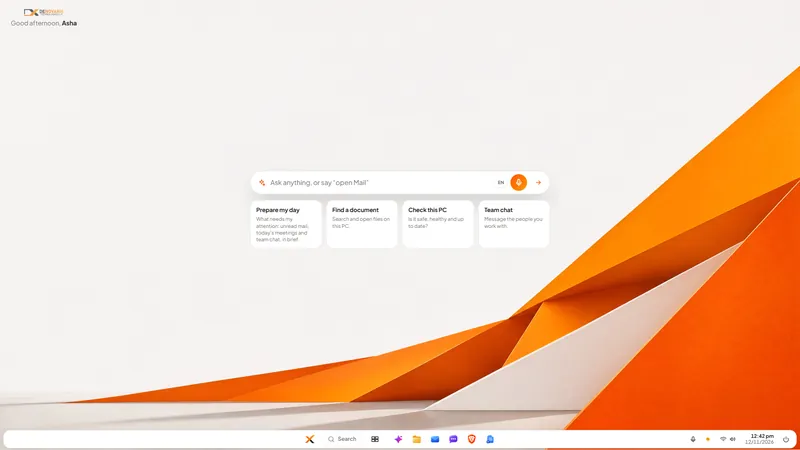
DNX OS desktop: Start, search and "open Mail"
The DNX OS desktop is built so office staff need no training: a Start button, one search, and a bar where you type or say "open Mail". Seven screens show it.
DNX Mail: a business email app with private AI
DNX Mail is the email app in DNX OS. It works with your existing work mailbox and adds AI that summarises, drafts and sorts on the PC itself. See seven screens.
DNX Team Chat: team chat that keeps data in India
DNX Team Chat is a team chat app that runs on a server your company hosts, in your office or an Indian data centre: groups, direct messages, files and calls.