
DNX Team Chat: team chat that keeps data in India
DNX Team Chat is a team chat app that runs on a server your company hosts, in your office or an Indian data centre: groups, direct messages, files and calls.
Part of the guide: India's technology ecosystem: DPDP, data, sovereign tech
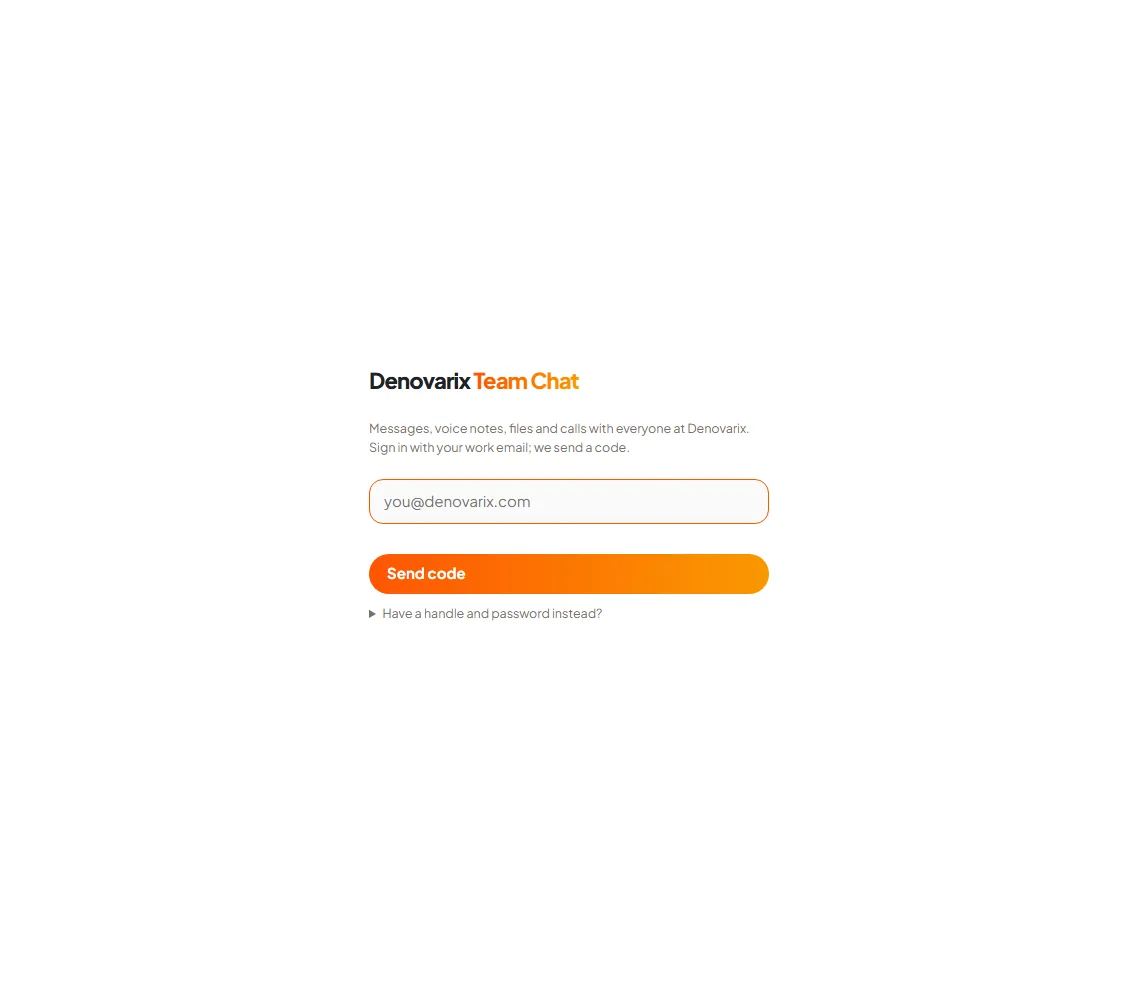
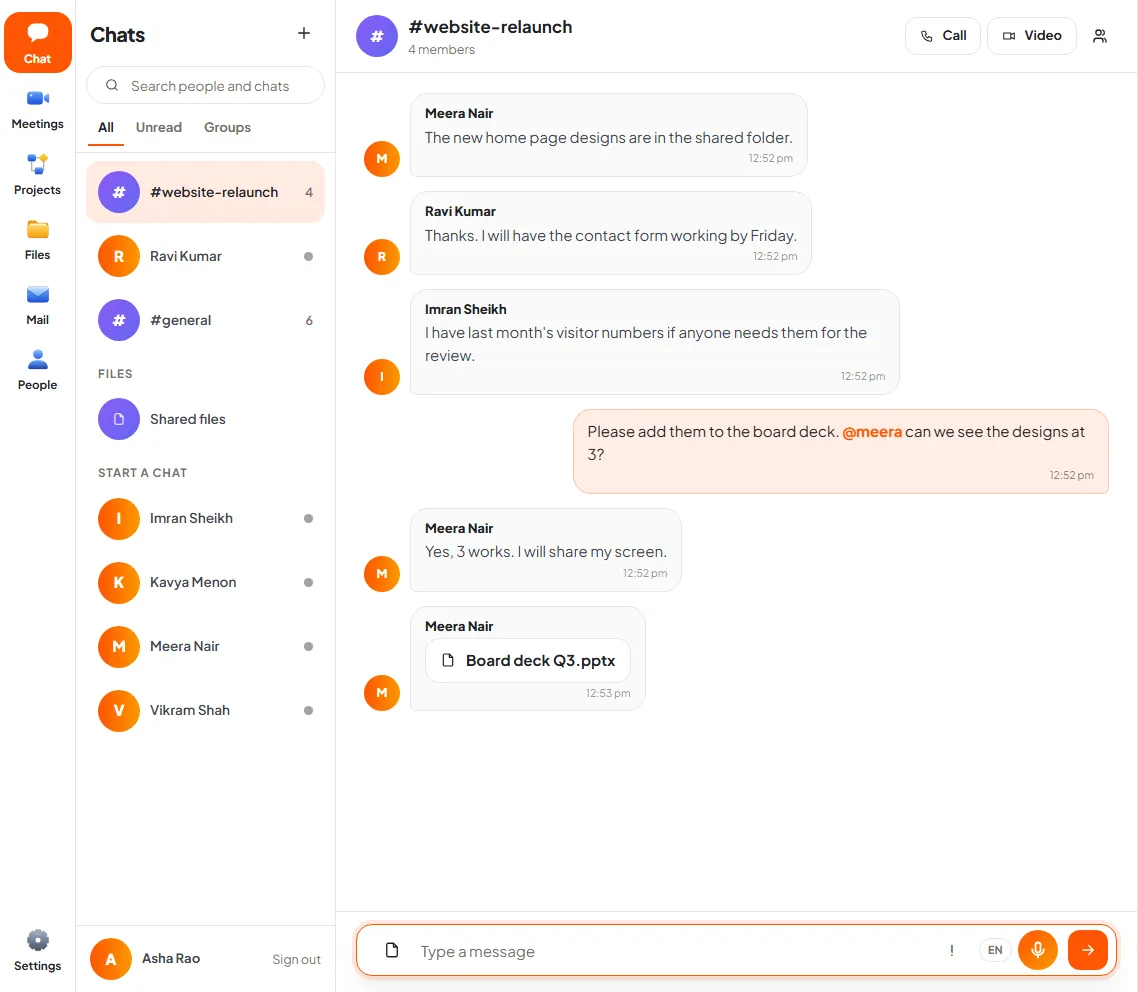
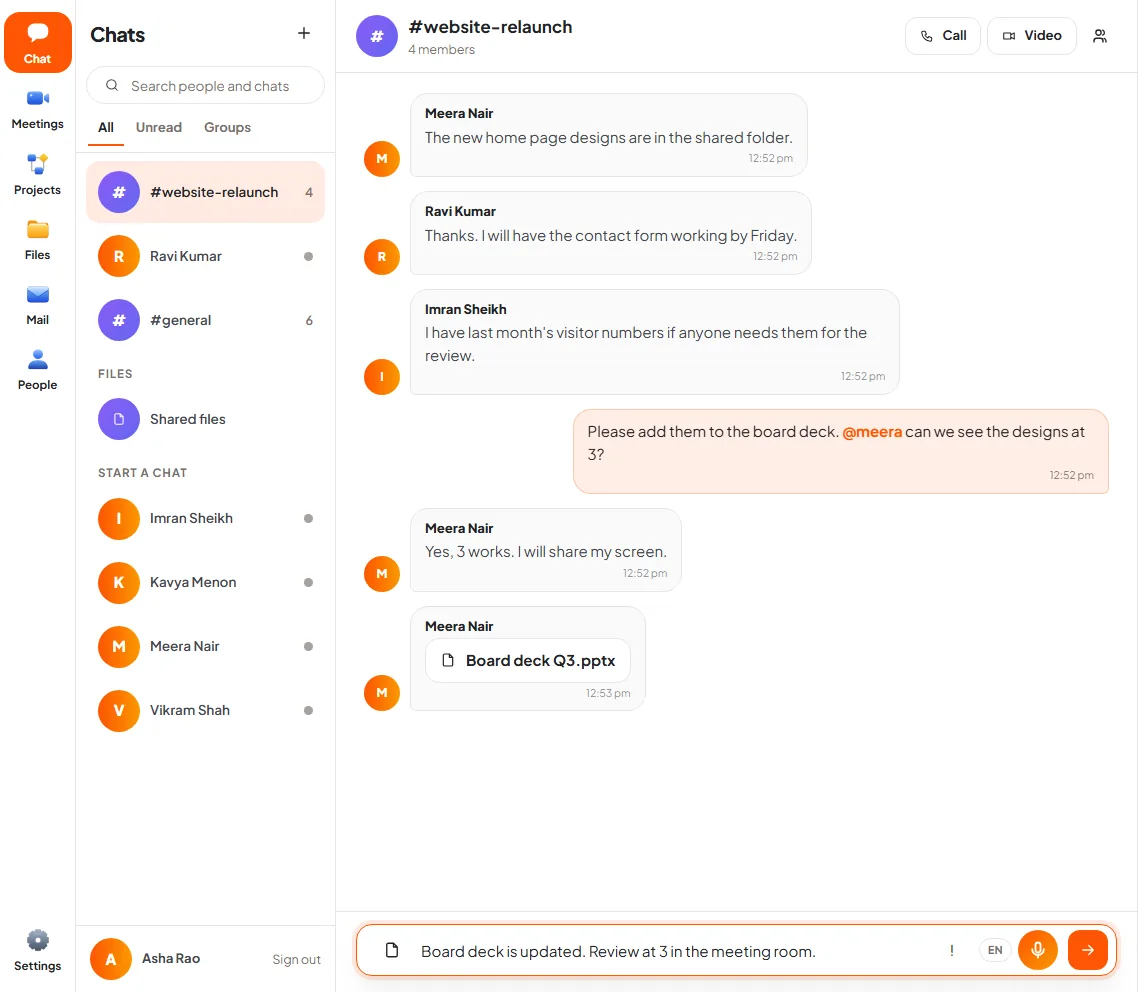
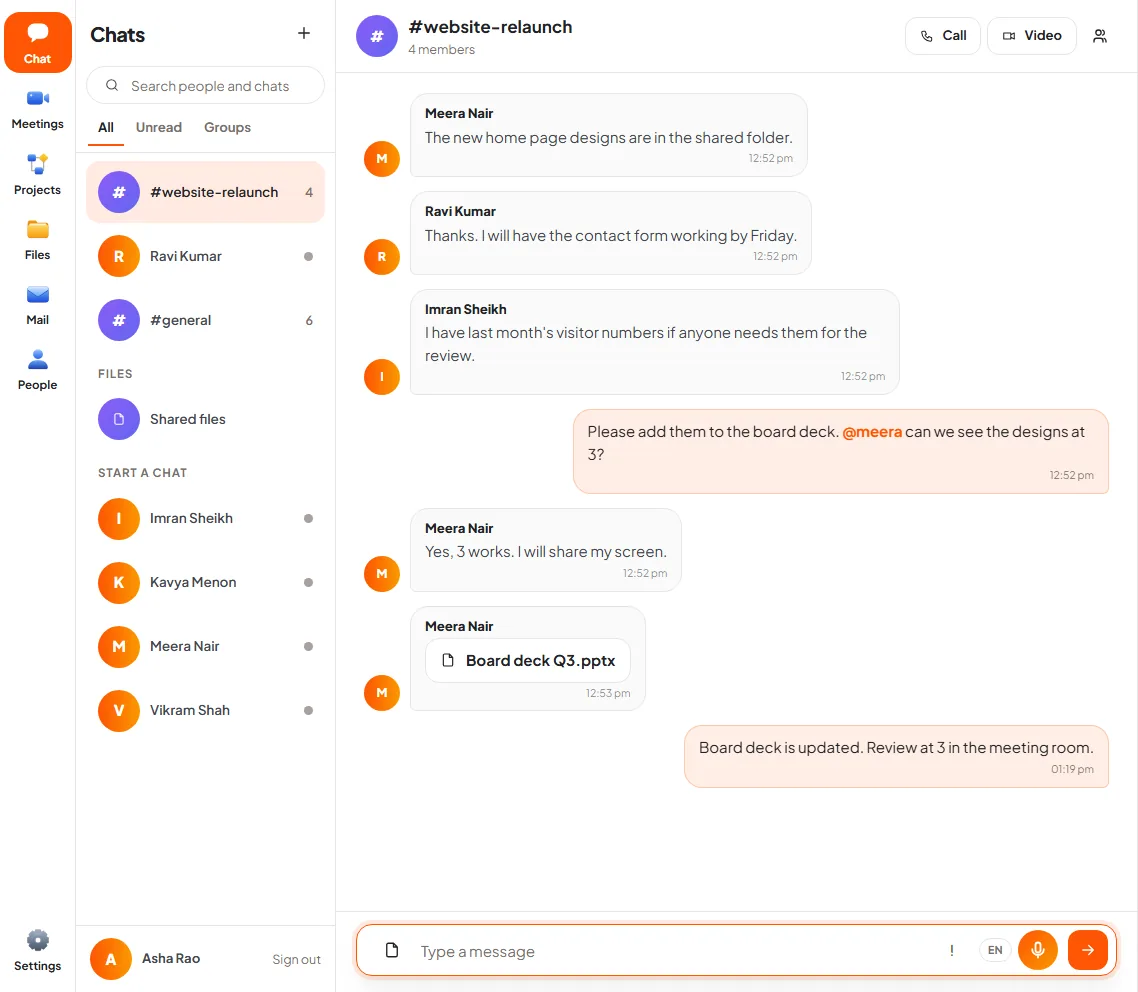
The short answer: DNX Team Chat is the chat app in DNX OS. It gives a company group conversations, direct messages, file sharing, voice notes and calls, and it runs on DNX Hub, a server the company hosts itself. Put that server in your office or in an Indian data centre and your team's conversations are kept in India, on a machine you control, not in a chat vendor's cloud abroad.
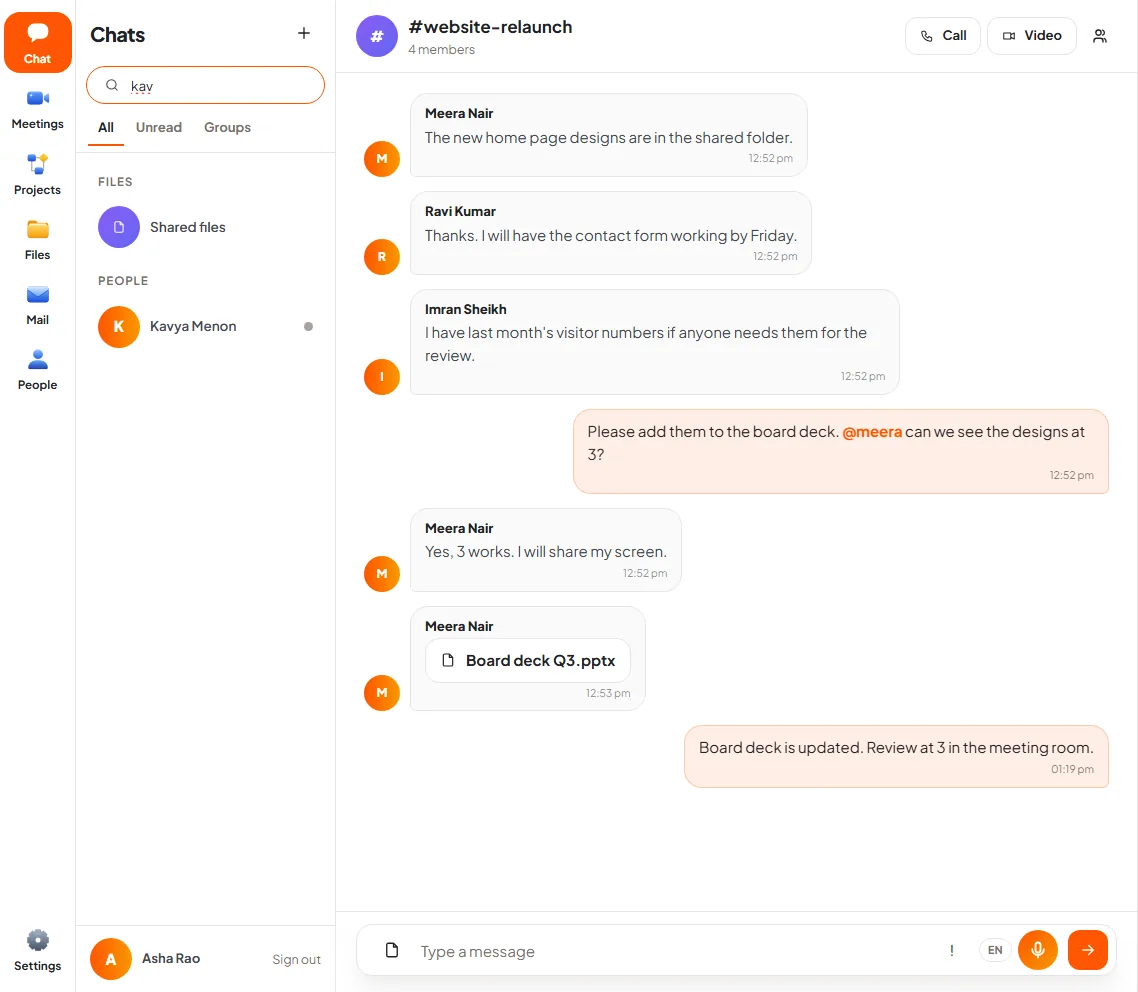
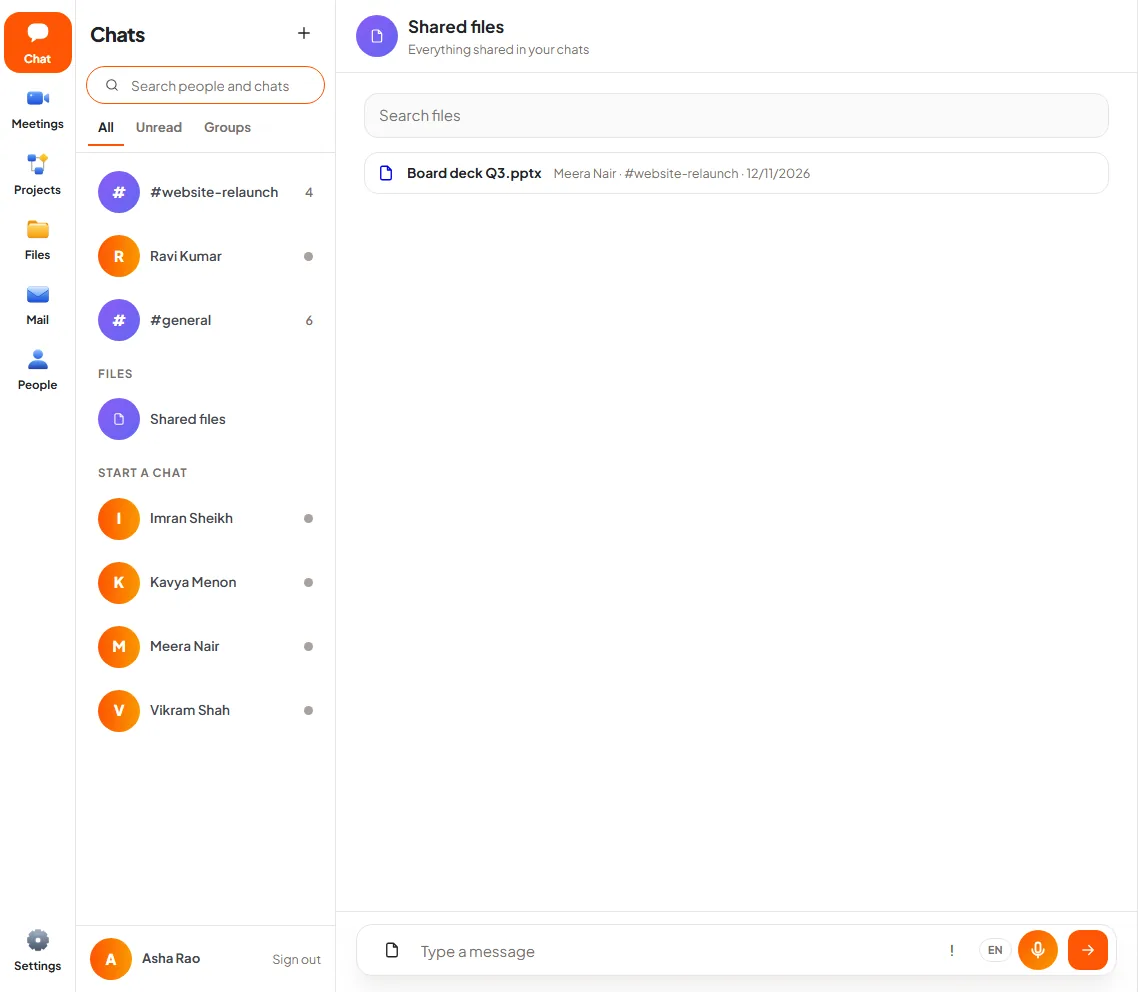
The slideshow shows six real screens from a local DNX Hub with invented colleagues. The messages were sent through the hub and the app; nothing is drawn.
Why does it matter where team chat is kept?
Team chat is the least guarded place in most companies. People paste customer numbers, payment screenshots, contract clauses and salary questions into it, because it is quick and feels private.
With most chat tools, all of that sits on servers the vendor chooses, often outside India. That is not unlawful in itself. But when a client's contract, a regulator or your own data policy asks where the data is and who can reach it, "we are not sure" is a poor answer. Our DPDP Act data location checklist explains the question in detail, and sovereign AI and private AI explains why control of location is becoming a buying criterion.
A chat tool that runs on your own server makes the answer one sentence long.
How do people sign in?
Slide 1: sign in with your work email. A new user types their work email address and presses Send code. A six-digit code arrives by email, they enter it, and the first time they also give their name. There is no new password to invent or forget. Older accounts can still use a handle and password, under the line at the bottom.
The same sign-in covers DNX People, the HR app, and meetings. One account per employee, not one per tool.
What does a conversation look like?
Slide 2: read a group conversation. The layout will be familiar. A narrow rail on the left jumps to Chat, Meetings, Projects, Files, Mail and People. Next to it is the list of chats: groups marked with a #, people with their initial, a count of unread messages, and three tabs for All, Unread and Groups. The conversation fills the rest.
In the picture, a group called #website-relaunch has four members. Other people's messages are on the left with their name; yours are on the right. A colleague mentioned with @ is highlighted, and a presentation someone shared appears as a file you can open.
Slide 3: type a message. The box at the bottom is where you write. Around it are four small controls:
- The page icon attaches a file.
- The exclamation mark marks the message as urgent, which notifies everyone in the chat.
- The microphone does two jobs: tap it to dictate into the box, or hold it to send a voice note.
- The arrow sends. So does Enter.
Slide 4: send it. The message appears at the end of the conversation at once, with the time. Colleagues who are online see it immediately, and see "is typing" while a reply is being written.
How do you find people and files?
Slide 5: find a person. Type a few letters in "Search people and chats". Matching chats and colleagues are listed. Click a person and a direct conversation with them opens, even if you have never written to them before. New colleagues are also listed under "Start a chat".
A direct message works like a group of two. A small dot beside a name shows whether the person is online. At the top of every conversation are two buttons, Call and Video.
Slide 6: see every shared file. "Shared files" in the list collects everything shared in your chats in one place, with who shared it, in which conversation and on what date, and a box to search by name. It answers the daily question, "where is the file Meera sent last week?"
Does it do voice and video calls?
Yes. Call and Video start a call with the person or the group. The meeting room has screen sharing, a raised hand, reactions, a choice of background, live captions and recording.
We have not pictured a call here. The machine the screenshots were taken on has no camera, and we do not publish pictures of screens we have not captured. The DNX OS page describes the meetings features, and DNX Meetings covers recording and minutes.
Where exactly is the chat data?
On DNX Hub. The hub is a server program your company installs on a machine of its choice: a computer in the office, or a server rented in an Indian data centre. Messages, shared files and voice notes are stored there. The DNX OS computers and the Android app connect to that hub.
Three consequences follow, and you should weigh all of them:
- Location is your decision. Host it in India and the data is in India.
- So is responsibility. A server you host is a server you must keep running, updated and backed up. If your office has no one to do that, host it with a provider who will.
- Staff outside the office need a route to the hub. That means hosting it where they can reach it securely.
What does DNX Team Chat not do?
- It is for your own team. There are no guest accounts for clients or shared channels with other companies in these screens.
- Messages are plain. You can write, mention people, attach files and send voice notes. There are no threads under a message.
- Search finds chats, people and file names. It is not a full-text search of old messages.
- There is no AI reading your chats in the background. A direct conversation has an "Ask Nova" action that asks the on-device assistant for a summary when you choose to use it. Nothing is summarised unless you ask.
If one of these is essential for you, say so when you apply for the beta. The list of what we build next comes from those answers.
How does it compare with the big chat tools?
The large products have more integrations and more polish in places, and you pay for them per user, per month, usually as part of a bundle. DNX Team Chat is part of DNX OS and DNX Hub, with one sign-in and one bill for the whole ecosystem. For a like-for-like look at the bundles, see Microsoft 365 vs Google Workspace vs Zoho One.
How do you try it?
The beta programme opens in December 2026 and DNX OS launches in January 2027. Registered Indian businesses with 5 to 50 people can apply for the beta. Move one project team's chat to it for four weeks and see whether anyone asks to go back.
Keep reading
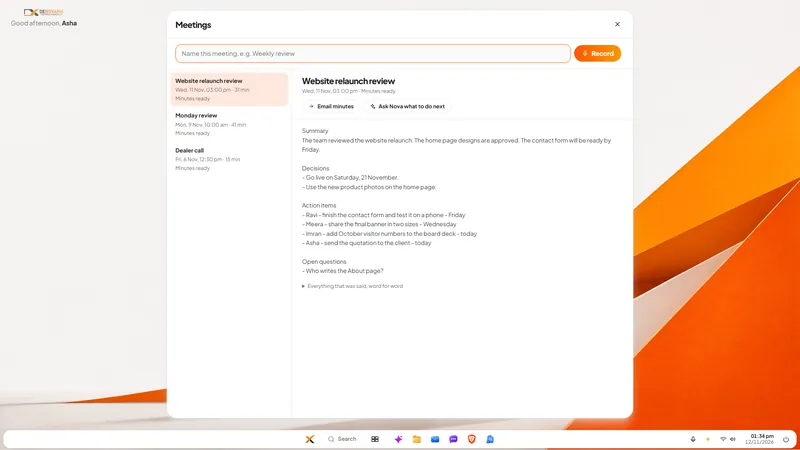
DNX Meetings: automatic minutes for any meeting
DNX Meetings records a call in any app, then writes the minutes on your own PC: summary, decisions, action items and a transcript. Six real screens show how.
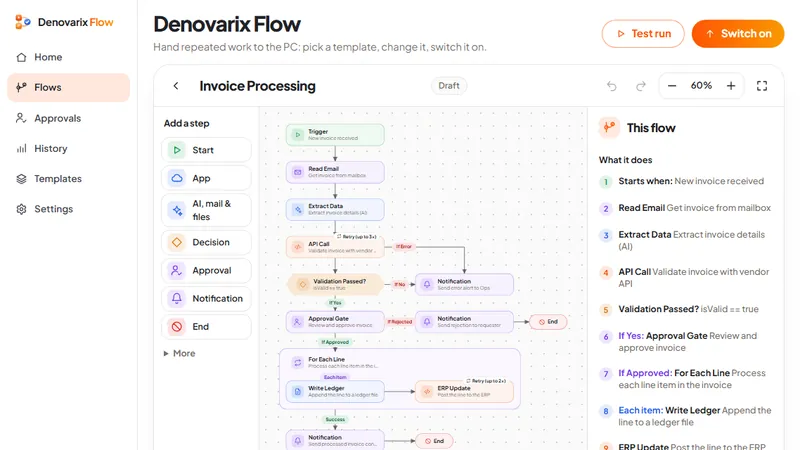
DNX Flow: automate invoice approval without coding
DNX Flow automates repeated office work such as invoice approval, starting from a ready template you read in plain words, test, then switch on. Seven screens.
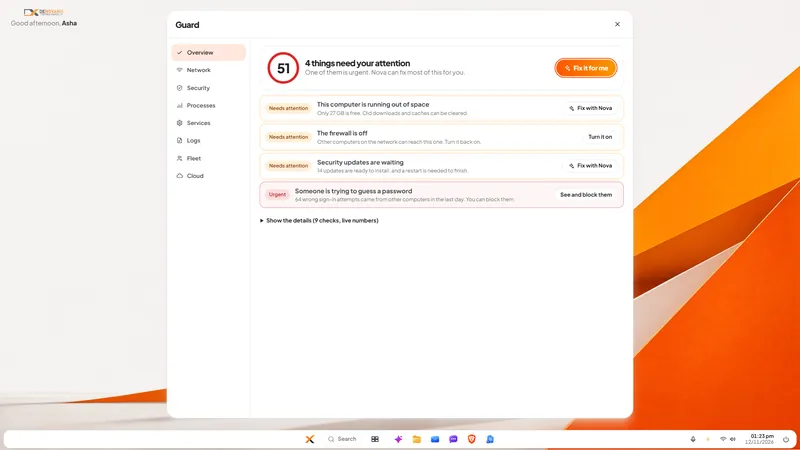
DNX Guard: PC security and health checks for admins
DNX Guard checks a company PC's firewall, disk encryption, updates, sign-in attempts and disk space, and says in plain words what to fix. Six real screens.